
Resize Images on Download
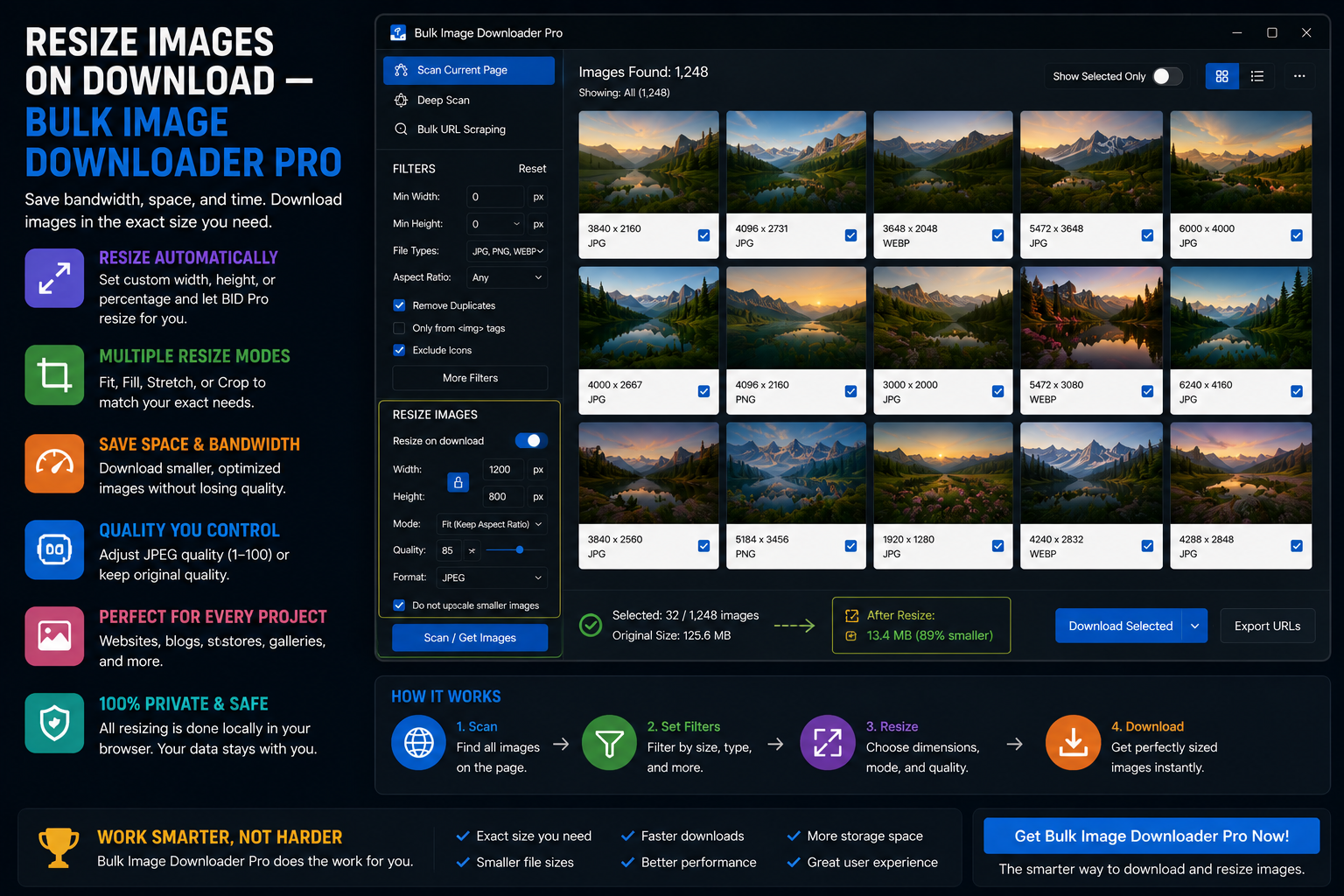
If you regularly save large image batches, resizing after the download can become the slowest part of the job. The better workflow is to resize images on download so the files arrive closer to the dimensions you need for a website, product catalog, gallery, social post, or archive.
Bulk Image Downloader From URL List handles resize and conversion from the options-page task workflow. The side panel helps find and select image URLs; the task settings control what happens as those images are downloaded and processed in your browser.
When resizing during download makes sense
Resize-on-download is useful when the source images are larger than your final use case. For example, supplier product photos might be 3000 pixels wide, but your store only needs 1200 pixel images. Reference images might be huge, but your mood board only needs quick-loading previews.
Resizing during the task means you avoid opening a separate editor for every file or running a second batch process later.
Resize to exact dimensions
Exact-size resizing is useful when a platform requires a fixed width and height. Use it for strict templates, marketplace image slots, thumbnails, or internal asset standards.
Be careful with aspect ratio. If the target dimensions do not match the source image, the output may look stretched or forced. For mixed image batches, fit-to-box resizing is usually safer.
Fit images inside a maximum size
Fit-to-box resizing keeps the original proportions while limiting the image to a maximum width and height. This is usually the best choice for web galleries, blog images, ecommerce photos, and email assets because it reduces file dimensions without distorting the image.
For example, you might cap every image at 1600 pixels wide or fit the batch inside a 1200 by 1200 pixel box while keeping each image’s natural shape.
Scale by percentage
Percentage scaling is useful when the source images vary but you want the same reduction across the batch. A 50 percent resize keeps each image proportional while cutting dimensions evenly.
This works well for preview sets, internal review folders, and cases where exact final dimensions do not matter.
Resize and convert in one task
Resize can be paired with conversion when you want smaller dimensions and a different output format. Bulk Image Downloader From URL List supports processed output as JPEG, WebP, or PNG. It does not convert images into AVIF or other non-canvas output formats.
Use JPEG for broad compatibility, WebP for modern web compression, and PNG when transparency or lossless output matters.
Quality and metadata settings
JPEG and WebP output can use quality settings. PNG is lossless, so the quality slider does not behave the same way. Because processing re-encodes the image, EXIF metadata can be removed as part of the workflow when that setting is enabled.
For important batches, test the settings with a small sample first. Check dimensions, file size, visible quality, transparency, and filenames before running the full list.
A clean resize workflow
- Collect or paste the image URLs.
- Filter out thumbnails, icons, duplicates, and broken URLs.
- Create the download task.
- Enable resize or conversion settings on the options page.
- Choose ZIP or folder output and set filename rules.
- Run a small sample, check the results, then run the full batch.
For related processing details, read the guide to supported image formats. For URL-list downloading, see how to bulk download images from a URL list.
That is the kind of batch job Bulk Image Downloader From URL List Extension is built for: turn a messy list of sources into a filtered, named download set.