


AI Credit Packs
What AI credits are used for AI credits pay for AI Studio jobs, not for downloads. Downloads from a URL list use…
Read more →The search for a real good bulk image downloader just came to an end! You finally found the one solution that does 99% of all image handling! This here is the King of all image downloaders! Try it, just once!

Created by a team that understands the pain around bulk downloading! Try this once, you won't look for another downloader! Quick support if you do get stuck (which is unlikely).
Paste a list of image URLs, hit download, and watch hundreds of files pour into a single zip — in one click.
Paste a list of image URLs, filter, and download in bulk. Also scan pages when you need to build the list first.
See how URL lists downloadFilter images by type, size, and more before you download from your URL list.
View smart filtersSchedule and queue download tasks. Available on the PRO plan.
View scheduling featuresYour bulk image download workflow in three steps: install the Chrome extension, paste a list of image URLs (or scan a page), then filter and download. No complexity—just results.
Add the extension to Chrome. One click from the Chrome Web Store.
Paste a list of image URLs, import from CSV, or scan the current page for lazy-loaded images. URL lists come first when you already know what to download.
Filter by size, type, or domain. Preview thumbnails. Hit download and get organized files.
A bulk image downloader from a URL list lets you paste many image URLs, filter what you need, and download them in one go. You can also scan a webpage when you do not already have a list. Instead of right-clicking and saving one by one, Bulk Image Downloader From URL List runs entirely in your browser: no uploads, no servers. Free to start; upgrade to PRO for advanced filters, scheduling, and more.
Short, practical walkthroughs for the jobs people run most often with the extension.
Designers, researchers, marketers, and e-commerce teams use Bulk Image Downloader From URL List to save hours on image workflows. Paste URL lists, scan pages, filter by type or size, and export—all from your browser.
From a pasted URL list to advanced filters and export — everything you need in one Chrome extension.
Every feature is designed around the extension workflow: paste or build a URL list → filter → download. Here is what you can do.
Capture all visible and hidden images on the current page in one click.
How to use: Open sidepanel → click Scan Current Page.
Instantly extracts all images from the DOM. Works on any webpage. Use for quick grabs from galleries, product pages, or image-heavy sites.
Detect images loaded dynamically via JavaScript, lazy loading, or infinite scroll.
How to use: Open sidepanel → click Deep Scan. Wait for lazy-loaded content.
Finds images that appear only after scrolling or interaction. Essential for infinite-scroll galleries, AJAX-loaded content, and social feeds.
Select a rectangular region of the page and extract only images from that zone.
How to use: Open sidepanel → click Area Scan → drag to select region.
Ideal for grid-based galleries or when you want to exclude headers, sidebars, or ads. Draw a box around the content you need.
Paste URLs or load from file. Scrape images from multiple pages in one go.
How to use: Paste URLs (one per line) in the URL list. Or load from file.
Process hundreds of URLs. Each URL can be a page or direct image link. Supports semicolon-separated lists in CSV import.
Scan multi-page galleries: follow next-page links automatically.
How to use: Enable pagination in sidepanel → set scan duration or page count.
Automatically follows pagination links. Configure scan duration (30s, 1m, 2m) or max pages. Captures images across entire galleries.
Rescan the page at intervals to capture late-loading or dynamically added images.
How to use: Enable Continuous Scanning in sidepanel. Set interval.
Useful for pages that load progressively. Rescans at configurable intervals to catch images that appear after initial load.
Filter by min/max width and height. Download only images that meet size requirements.
How to use: Open Filters panel → set min/max width and height.
Exclude thumbnails or low-res images. Set minimum dimensions for full-size only. Maximum dimensions for consistent output.
Choose JPG, PNG, WebP, GIF, SVG, PDF, or more. Download only selected formats.
How to use: Open Filters or task → select file types.
Supports 20+ formats. Select specific types or All Formats. Semicolon-separated in CSV for multiple types per task.
Filter by landscape, portrait, or square. Match aspect ratio with tolerance.
How to use: Open Filters → set aspect ratio (≈, <, >).
Filter square images, or exclude portrait/landscape. Use for consistent product catalogs or design systems.
Include or exclude images by domain. Whitelist or blacklist sources.
How to use: Open Filters → set domain include/exclude rules.
Download only from example.com, or exclude CDNs. Useful for mixed-content pages or when you want to limit sources.
Automatic URL deduplication within tasks. Strip duplicate URLs before download.
How to use: Duplicates are automatically removed. Use Strip Duplicates for manual cleanup.
Prevents downloading the same image twice. Works on URL matching. For visual duplicates, use the Perceptual Duplicate Finder.
Set precise future download times. Run tasks at a specific date and time.
How to use: Task panel → set Download Time. Save Options to trigger.
Uses your local timezone. Extension polls every 30 seconds. Combine with ZIP for overnight backups.
Process tasks sequentially. One task completes before the next begins.
How to use: Toggle Queued Download at top. Tasks run in order.
Reliable for large batches. Auto-retry on failure. Resumes from last successful point. Ideal for slow connections.
Up to 100 concurrent downloads. Speed up large batches.
How to use: Set Parallel Downloads at top (1–100).
Default: 5. Increase for faster downloads. Automatic rate limiting and exponential backoff. Respects server headers.
Bulk import tasks from CSV. Create thousands of tasks from a spreadsheet.
How to use: Download CSV template → fill in URLs, settings. Import.
Columns: URL, File Types, Folder Name, Download Time, ZIP, Build Filename, Keywords, Logic. Semicolons for multiple URLs per task.
Export tasks to CSV for backup, templates, or transfer between devices.
How to use: Click Export Tasks. Use as template for re-import.
Includes all task options. Reliable for bulk workflows. Export → edit in spreadsheet → re-import.
Save and restore full scraper state. Pick up where you left off.
How to use: Save session → later, load session to restore.
Stores filters, images, and settings. Resume work across browser sessions. Useful for large batches or interrupted scans.
Save scraper rules per domain for one-click reuse. Filters and scan settings remembered.
How to use: Configure filters → Save Rule for current domain.
Domain-specific rules. One-click load when returning to the same site. Combines with Sessions for full workflow.
Preview images before download. Grid view with filters and cleanup.
How to use: Open Preview tab → browse thumbnails. Filter before download.
Visual grid with dimensions, MIME type, size. Filter by task, format, size, aspect ratio. Remove unwanted images before download.
Compress downloads into organized archives. One ZIP per task with structure preserved.
How to use: Enable Zip toggle in task options.
Standard ZIP. Automatic retries. Download report inside ZIP. Combine with scheduled downloads for backups.
Perceptual duplicate detection. 15+ visual signals: pHash, dHash, histograms, LBP, Hu moments.
How to use: Open Duplicate Finder tab → choose scope, sensitivity, Keep Rule. Scan.
Compares by visual similarity, not URL. Catches same image from different CDNs. Sensitivity: Strict, Balanced, Aggressive.
Validate image URLs before downloading. Identify broken links and non-image content.
How to use: Open 404 Checker tab → paste URLs or load from task. Run check.
Checks HTTP status, content-type. Filters 404s and redirects to non-image pages. Export results to CSV.
Trace URL redirect chains. See final image destinations after CDN or shortener redirects.
How to use: Open Redirect Checker tab → paste URLs. Run to see chain.
Follows 301, 302. Reveals final URLs. Export resolved URLs for direct download.
Apply PNG watermarks with configurable opacity, position, and size.
How to use: Open Watermark tab → upload PNG. Set position, size, opacity.
Upload logo or text. Choose position (corners, center). Apply during download via Canvas. Works with resize and convert.
Construct custom filenames using URL segments, sequences, timestamps, and metadata.
How to use: Enable Filename Constructor → add placeholders: [sequence], [Segment1], [timestamp].
Placeholders: [sequence], [Segment1]–[SegmentN], [timestamp], [random]. Custom filenames from file: one name per line.
Download only if URLs meet Contains, Not Contains, or Regex conditions.
How to use: Enable DOWNLOAD IF URL → add Contains, Not Contains, or Regex rules.
Contains: URL must include text. Not Contains: exclude. Regex: match pattern. AND/OR logic for multiple rules.
Resize, convert, and optimize. Output JPEG, WebP, or PNG. Set max dimensions and quality.
How to use: Enable resize & re-encode → set format, quality %, max width/height.
Resize modes: Fit Inside, Cover, Fill. Convert PNG→WebP, JPG→PNG. Quality 1–100%. Canvas-based, Web Workers.
Join thousands of users who save hours every week with Bulk Image Downloader.
FREE? Add to Chrome →Real reviews from the Chrome Web Store official page. Quotes and reviewer names are shown as published there — not edited or fabricated.
More than 12,000 images in less than 20 minutes. Great extension. Thanks to Dan for this app.
Listed on the Chrome Web Store
I can't believe how convenient this tool is! It helped me download over 5,000 images from multiple URLs and saved me a lot of time. Highly recommended to anyone with similar needs.
Source: the extension listing
Compared to DownThemAll!, Image Assistant, etc., this is faster and more reliable.
Source: the Chrome Web Store page
Beast of beasts!
Quoted from the extension listing
Great plug-in and easy to use!
Published on the store listing
Helped me migrate my images from one hosting to another. It's efficient and not a single image missed.
Listed on the official store page
What AI credits are used for AI credits pay for AI Studio jobs, not for downloads. Downloads from a URL list use…
Read more →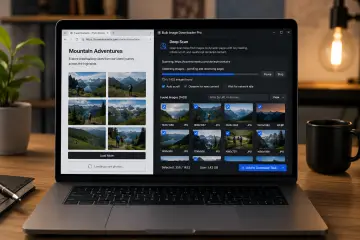
Deep scan lazy loaded images when a normal page scan misses photos that appear only after scrolling, JavaScript rendering, AJAX updates, or…
Read more →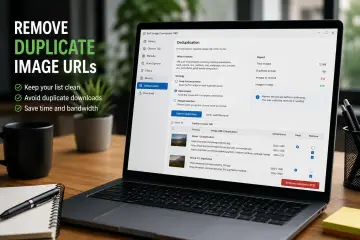
Remove duplicate image URLs from scraper results by grouping normalized links, choosing a keep strategy, reviewing the report, and undoing if needed.
Read more →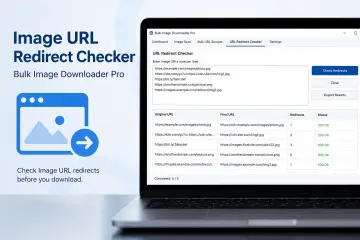
The image URL redirect checker follows redirect chains, reports final destinations and status codes, and helps clean image URL lists before bulk…
Read more →