
Preview Images Before Downloading — Bulk Image Downloader Pro
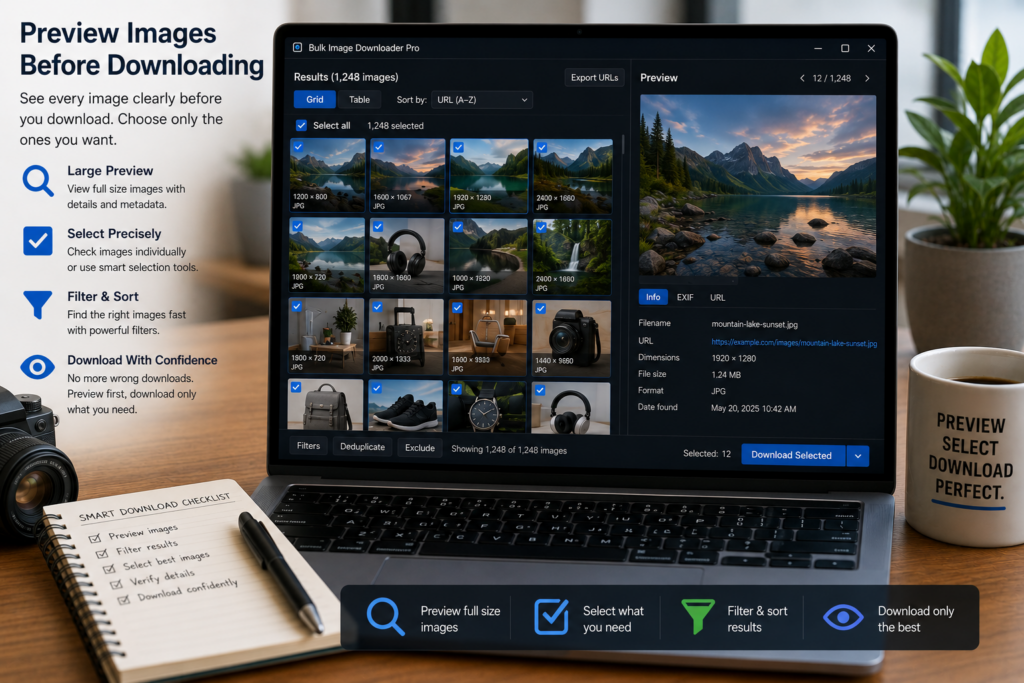
A long URL list can look fine until the files start saving. Then you discover thumbnails, icons, duplicates, wrong formats, or images that do not meet your size requirements. The Advanced Image Filter helps you preview images before downloading so the task list can be cleaned before files hit disk.
This preview workflow lives on the options page and works from the images already stored in your tasks.
Turn on preview only when you need thumbnails
The Show Preview switch controls thumbnail loading. Preview is intentionally off by default so large task boards do not load image thumbnails until you ask for them.
When you turn it on, the tab loads the image grid and lets you refresh after task changes.
Filter the task list visually
The Advanced Image Filter can narrow images by task, search text, size category, format, shape, aspect ratio, file size range, and custom width or height limits.
That makes it useful for practical cleanup: keep only large images, find one source domain, remove tiny assets, filter to WebP or PNG, or focus on one task inside a larger board.
Use metadata instead of guessing from URLs
Image cards show useful details such as dimensions, format, size category, estimated file size when available, task information, and duplicate badges for repeated URLs.
You can copy a URL or open it in a new tab from an individual card when a specific image needs manual checking.
Remove unwanted task entries carefully
The bulk controls can select the current page, select all filtered images, deselect all, remove selected entries, remove duplicate URLs while keeping the first occurrence, or keep only the images that match the current filters.
These actions update the underlying task entries, so use them as cleanup tools, not just visual filters. Draft Save after cleaning a task board you want to keep.
A practical preview-cleanup workflow
- Build or import tasks and Draft Save them.
- Open Advanced Image Filter and turn on Show Preview.
- Filter by task, dimensions, format, file size, or search text.
- Inspect duplicate badges and suspicious images.
- Remove selected entries or keep only the filtered set.
- Return to the task board and run the cleaned download.
For visual duplicate matching beyond repeated URLs, read perceptual duplicate image finder. For URL-list cleanup rules during download, see download images only when URL contains text.