
Auto Folders for Downloads — Bulk Image Downloader Pro
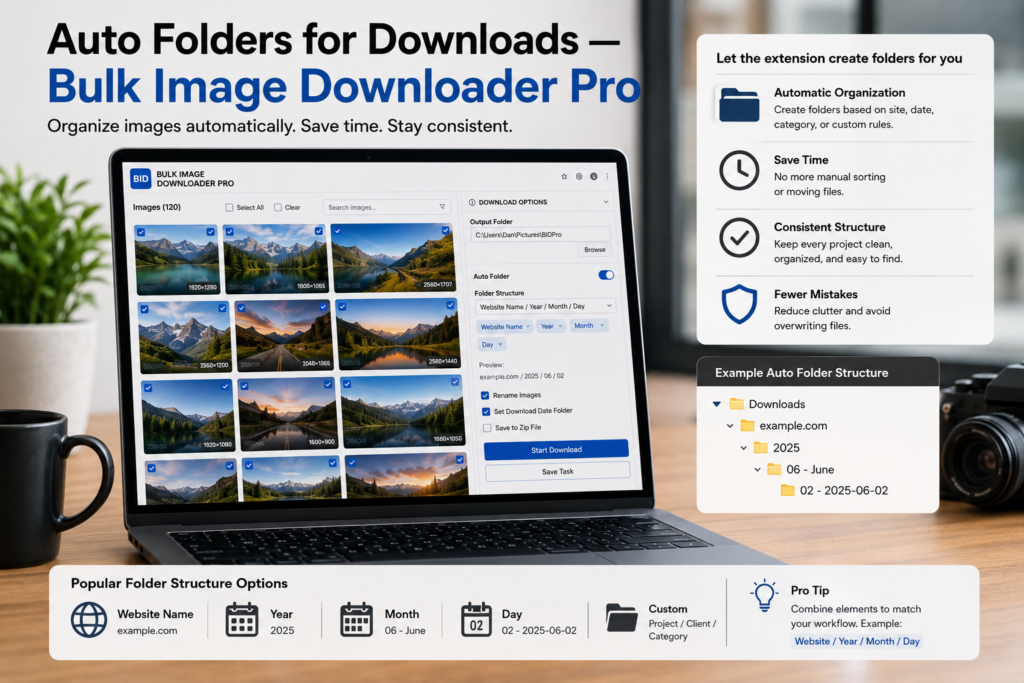
A thousand images in one flat folder is manageable once. The second time, you want structure before the files arrive. Auto folders for downloads build nested relative paths while the batch runs, using information already in each image URL.
In Bulk Image Downloader Pro, each task starts with a main folder name you choose. The two auto-folder toggles add subfolders from the source domain and from URL path segments.
What auto folders build
When enabled on a URL-based task, the extension assembles a relative path like this:
- Main folder: the task’s Main Folder field (for example catalog-march)
- Domain based folders: a subfolder derived from the image hostname
- Auto folders from URL: additional subfolders from URL path segments before the filename
The final saved path becomes main-folder/domain-segment/path-segment/filename.jpg under Chrome’s download location. You do not type those middle folders by hand; they come from each URL as files download.
The two toggles explained
Domain Based Folders groups files by where they were hosted. Images from cdn.example.com and images.example.com land in separate subfolders instead of mixing together.
Auto folders from URL uses path segments from the link itself. A URL like /products/shoes/red/item-42.jpg can create intermediate folders that mirror products, shoes, and red before the file name.
Turn on one toggle, both, or neither depending on how the site structures its links. A single-domain gallery may need only URL fragments; a multi-site research batch often benefits from domain folders too.
When auto folders pay off
- catalog or marketplace pulls where categories already appear in URLs
- archives that mix several hostnames in one task
- repeat jobs that should land in the same logical tree every week
- handoffs to teammates who should see source structure without a sorting step
Auto folders apply to URL-list tasks. They are disabled for uploaded-file tasks because there is no source URL path to parse.
Combine with ZIP and other task settings
Auto folders work alongside file-type filters, filename rules, and Zip output. When ZIP mode is on, the nested folder structure can be preserved inside the archive, so unzipping still opens into sorted subfolders.
Licensed PRO unlocks auto-folder toggles on the options page along with other advanced task controls. Basic (Free) tier users see the settings but need PRO for full task processing features.
Path hygiene tips
- keep the main folder name short and filesystem-safe
- expect very deep URL paths to create deep folder trees; tighten scraper filters first if paths are noisy
- pair auto folders with download only matching image URLs when you need to drop tracking or thumbnail paths before files save
For broader folder organization guidance, see posts on download destination folders and organizing images into folders elsewhere on the site.
Install Bulk Image Downloader Pro and enable auto folders the next time a bulk job should arrive pre-sorted instead of in one pile.
Continue reading: Download Only Matching Image URLs.
Get Bulk Image Downloader Pro on the Chrome Web Store, watch the tutorial video, or visit our YouTube channel for more download organization tips.