
Download Images for Newsletters — Bulk Image Downloader Pro
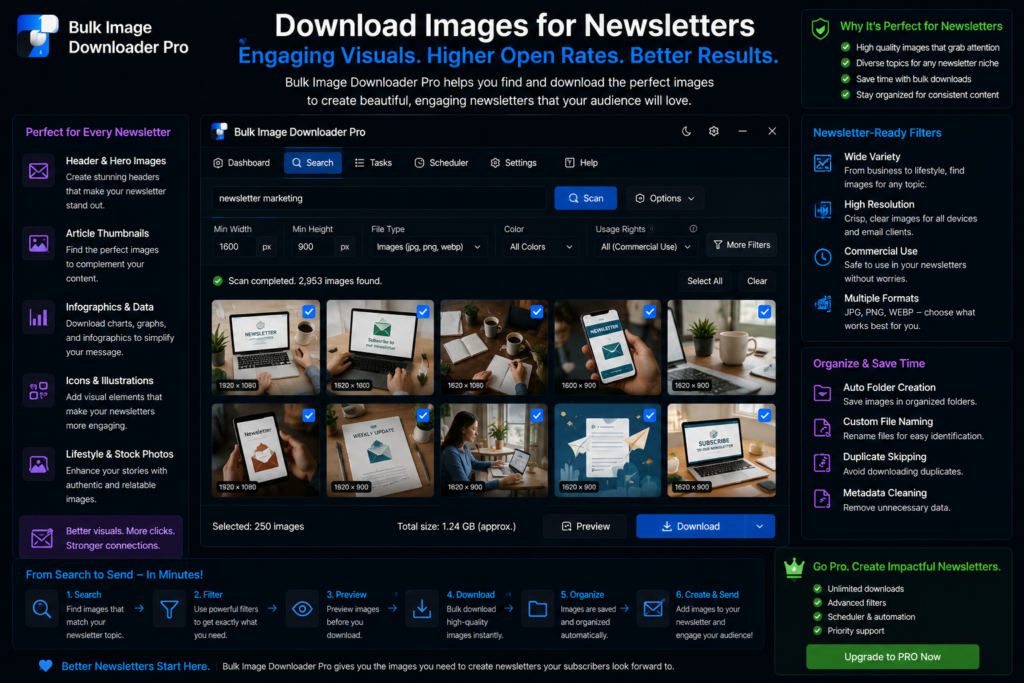
Newsletter editors watch one number closely: total HTML size. Gmail clips messages around 102 KB, which often means a single unoptimized hero image hides the rest of your issue behind a “View entire message” link. Learning to download images for newsletters efficiently means collecting only what you need, shrinking it before upload, and handing your ESP a predictable folder—not re-exporting from five different apps each Monday.
Bulk Image Downloader Pro scrapes source pages, filters thumbnails, and processes files locally in Chrome so campaign weight stays under control.
Step 1: gather candidates from this issue’s sources
Most issues pull from a short list: a blog recap, a product page, an event gallery, partner press assets. For each source tab, open the side-panel scraper and run Scan Current Page. When images lazy-load as you scroll, switch to Deep Scan so below-the-fold heroes appear in the grid.
If your draft already lists URLs, paste them into Bulk URL scrape (up to 500 URLs per run, configurable delay) and collect every page into one review pass instead of visiting each manually.
Step 2: filter before download, not in your ESP
Email templates rarely need tracking pixels, favicons, or 1×1 spacers. Before you select files, set scraper filters:
- minimum width to drop icons and spacer GIFs
- file type so you keep photographs, not stray SVG logos
- aspect ratio limits to keep banners and squares, skipping odd strips
Grid view lets you bulk-select only the shots that fit the issue. Fewer files at download time means less compression work later.
Step 3: resize for inbox width and file weight
Single-column newsletter heroes rarely need more than 600–1200 pixels on the long edge (600 px for standard density, up to 1200 px when your template targets retina screens). Enable resize while downloading with those caps and set JPEG quality around 70–80%—photographs usually look fine in email clients while file size drops sharply.
Remember: resize and convert are mutually exclusive per task. If you need both a dimension cap and a format change, run two tasks or resize first in one task and convert in another. Output formats are JPEG, WebP, and PNG (no AVIF conversion output). Turn on EXIF strip; GPS and camera metadata have no place in a marketing send.
Step 4: name and package for whoever loads the ESP
- Filename Constructor with tokens like
issue-[timestamp]-01and auto-increment keeps image order aligned with your draft - Auto Folders can drop files into a dated subfolder per issue
- enable per-task ZIP when you hand the set to a teammate as one attachment
Step 5: save the recipe for next week
Newsletters repeat. Save your scan filters, resize dimensions, quality, EXIF setting, and naming pattern as a reusable rule, then duplicate last week’s task and swap URLs. The whole image step shrinks to scrape, review, download, ZIP—with heroes sized so readers see your copy without clicking through a clip warning.
Tier note
Basic (Free) supports URL-list downloads. Resize, convert, and ZIP packaging require Try PRO or Licensed PRO. CSV export of scrape results is available on all tiers; bulk CSV import into tasks is Licensed PRO.
Install Bulk Image Downloader Pro when every issue should load fast on mobile without bloating the HTML past clipping thresholds.
Continue reading: Download Images for Wiki Archives.
Get Bulk Image Downloader Pro on the Chrome Web Store, watch the tutorial video, or visit our YouTube channel for more newsletter image workflow tips.