
Download Real Estate Listing Photos in Bulk — Bulk Image Downloader Pro
Real estate photos multiply quickly. One listing can have twenty, thirty, or forty images, and a small team handling several properties may need to collect hundreds of photos for brochures, website updates, listing backups, presentations, or internal marketing work.
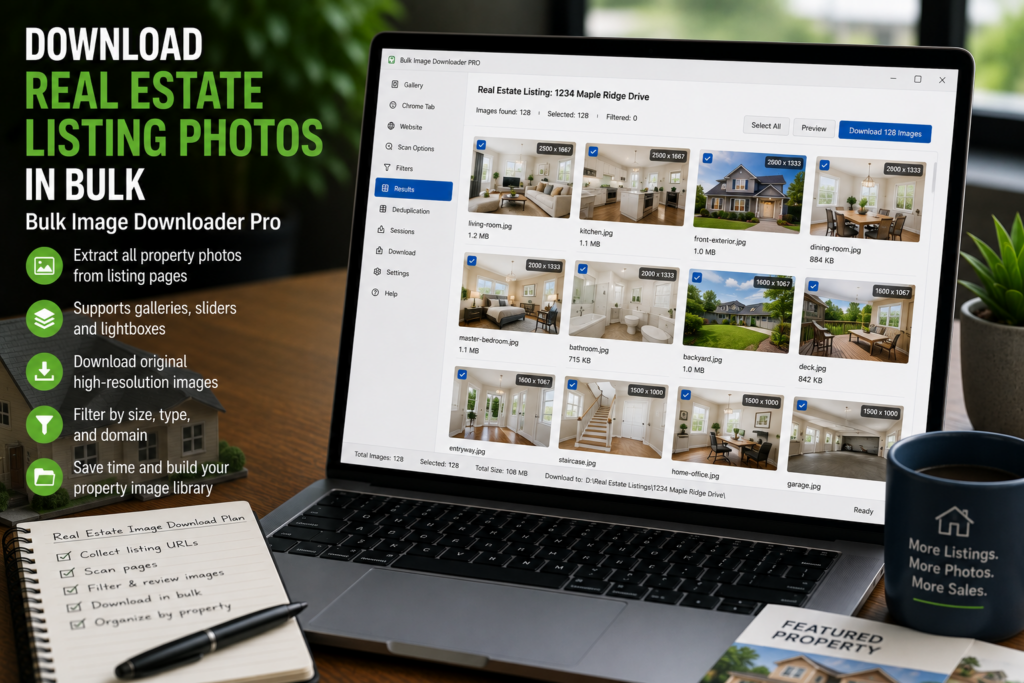
Bulk Image Downloader Pro helps with the mechanical part of that job when you are working with photos you are authorized to download and use. It scans browser-accessible listing pages, lets you filter the results, and sends the clean image list into download tasks that can be named and organized by property.
Use it for listings you have rights to manage
Before collecting listing photos, confirm you have permission from the photographer, agency, MLS, portal, seller, or internal team. The extension can save time, but it does not grant image rights or bypass platform rules.
For your own listings, client-approved images, staging references, or internal archives, the workflow is straightforward: scan the listing, remove the non-photo clutter, and save the final set in a property-specific folder.
Scan the full listing gallery
Listing galleries often lazy-load images as you scroll or open a carousel. Start with Deep Scan in the side panel so the extension has time to catch images that appear after the first page view. If only one gallery area matters, Area Scan can focus on that section instead of the whole page.
If you are processing multiple listings, collect the listing page URLs and use Bulk URL Scraping. Paste URLs one per line or load them from a file, then set a reasonable delay between pages. That keeps the collection more controlled than opening each listing and saving photos manually.
Filter out map tiles, logos, and page furniture
Listing pages contain more than property photos. You may see map tiles, agency logos, headshots, icons, floor-plan thumbnails, social buttons, and ad graphics. Use the side panel filters before creating a download task.
- Set minimum width and height to remove small interface images.
- Use file type filters to keep the formats you need.
- Use source domain filters when the property photos come from a predictable image host.
- Turn on thumbnails while reviewing so you can visually catch maps or badges that pass a size filter.
Filtering in the side panel saves cleanup later because the task starts with a better URL list.
Name photos by property
After the list is clean, send it to the options page with Download Images Here or Download Selected. On the options page, use a property address, MLS reference, neighborhood, or internal job code in the folder name or filename constructor.
A simple pattern is a property identifier plus a padded sequence number. That keeps photos sorted in order and avoids a folder full of generic names such as image-1.jpg or long CDN filenames.
Prepare images for sharing or archiving
Depending on the use, you can download loose files, package a property set into a ZIP, resize oversized photos, convert supported images to a consistent format, or strip EXIF metadata through re-encoding. Those settings live on the options page download task, not inside the side panel scan.
For repeat work, save the task setup or export tasks to CSV so another listing can use the same folder, naming, and processing pattern. The goal is consistency: every property photo set lands in a predictable place with names your team can understand later.
Continue reading: download food blog images in bulk.
Get Bulk Image Downloader Pro on the Chrome Web Store, watch the tutorial video, or visit our YouTube channel for more image download workflows.