
Bulk Image Downloader Pro Interface Guide — Dark Mode, Tour, and Controls
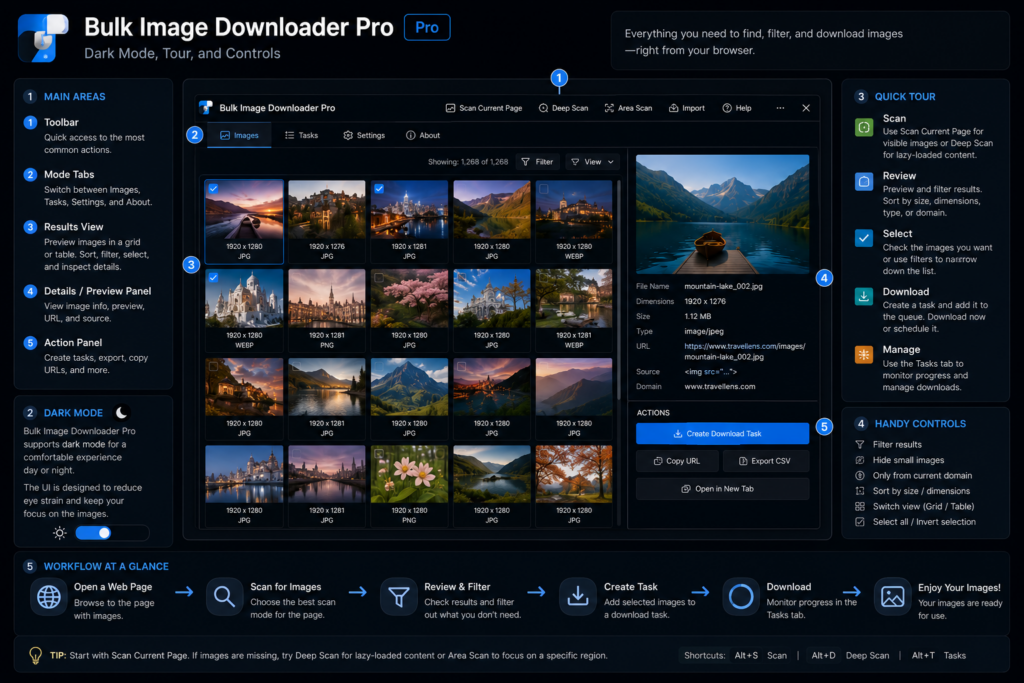
The fastest way to use Bulk Image Downloader Pro well is to understand the interface before you start building large download tasks. The extension has a side panel for finding images and an options page for downloading, processing, and managing tasks. Dark mode, onboarding, and the collapsible controls are there to make that workspace easier to navigate.
This guide explains the comfort layer of the Bulk Image Downloader Pro interface: where dark mode lives, what the onboarding tour covers, and how Hide Controls changes the options page without hiding the status details you still need.
Dark mode is shared across the extension
Dark mode is available in both the side panel and the options page. The setting is stored by the extension, so switching it on gives you a more consistent experience when you move from scanning a page to configuring a download task.
In the side panel, the Dark Mode switch sits in the header. In the options page, the switch appears in the main controls and also in the essential info area when the main controls are collapsed. Changing the toggle updates the page immediately and shows a small confirmation toast.
The onboarding tour explains the options page
The options page includes a versioned onboarding overlay for new users and for major interface changes. It walks through the core task workflow: where to enter image URLs, how to create tasks, where Save & Download starts a run, how the Advanced Image Filter helps preview and clean images, and where the Watermark tab handles PNG watermark setup.
The tour is not a marketing pop-up. It is a map for the page where most download decisions happen. You can move forward, go back, finish, or skip it. Once completed or skipped, the extension stores that you have seen the current onboarding version.
Hide Controls gives you more working space
The options page can become busy when you have tasks, processing settings, and tool tabs open. Hide Controls collapses the larger controls area so you can focus on the task list and tools. When controls are hidden, the button changes to Show Controls, and the interface remembers the choice.
Hiding controls does not mean flying blind. The essential info bar remains available and shows the details you are most likely to check quickly: parallel download count, queued download status, license state, expiration, login/logout controls, Lock Drag, Draft Save, Export Tasks, and the Dark Mode switch.
Use the essential bar during longer sessions
The essential bar is most useful when you already know the settings you want and need more room to work. For example, while reviewing a large task list, you can keep the main controls collapsed but still see whether queued mode is on and how many parallel downloads are configured.
It also keeps common actions close. Lock Drag prevents accidental task reordering, Draft Save preserves task changes, and Export Tasks gives you a CSV backup of task configuration without opening a separate menu.
Know which surface owns the job
The side panel is where you scan, filter, deduplicate, save sessions, and send discovered image URLs into a task. The options page is where you configure the actual download: folders, filename construction, ZIP output, parallel or queued execution, resize, convert, EXIF stripping, watermarking, URL checks, preview filtering, and duplicate review.
If you remember that split, the interface becomes much easier. Use the side panel to collect the right images. Use the options page to decide how those images should be saved.
Continue reading: side panel vs options page in Bulk Image Downloader Pro.
Get Bulk Image Downloader Pro on the Chrome Web Store, watch the tutorial video, or visit our YouTube channel for more image download workflows.