
Download Images in Bulk and Keep Quality — Bulk Image Downloader Pro
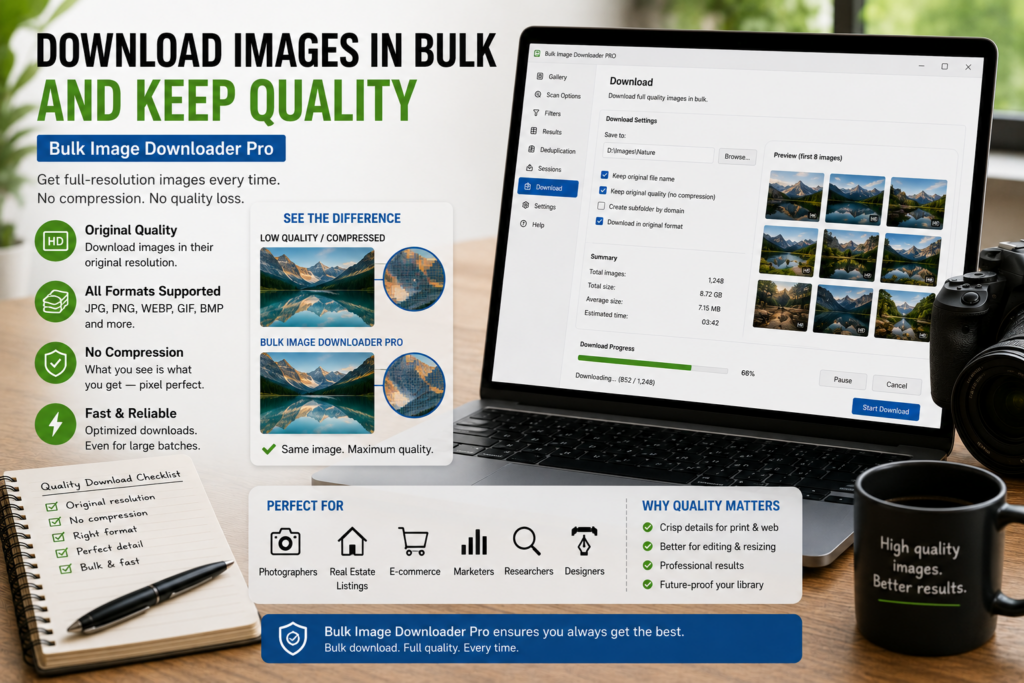
Image quality is often lost before anyone notices. The batch finishes, the files are there, and only later do you realize you downloaded thumbnails, screenshots, compressed previews, or converted copies when you meant to keep the originals.
To download images in bulk and keep quality, the workflow should focus on source files, dimensions, and deliberate processing. Bulk Image Downloader Pro gives you those checks before the final save.
Start with source images, not screenshots
A screenshot captures what is visible on your screen. A downloader collects image URLs that the page exposes to the browser. When you need the actual image asset, source images are the better starting point.
Use Scan Current Page or Deep Scan in the side panel to collect images from the rendered page. Deep Scan helps with lazy-loaded pages where full galleries do not appear until scrolling.
Filter out thumbnails and small assets
The most common quality mistake is saving small versions. Set minimum width and height filters before creating the task. Use thumbnails in the result grid to check whether the remaining images are actual content, not icons, logos, sprites, or preview cards.
For large jobs, also use source domain filters and file type filters. A cleaner input list means fewer low-quality files in the final folder.
Avoid unnecessary re-encoding
If you want the original quality, do not enable processing just because it is available. Conversion and resizing are useful when the output needs to change, but they are still deliberate transformations. When the goal is an archive or master folder, save source files without resizing or converting.
Resize and Convert are separate task modes in Bulk Image Downloader Pro. Choose Resize when dimensions need to change. Choose Convert when the output format needs to change. Do not treat them as automatic quality improvements.
Use preview and duplicate tools carefully
The Advanced Image Filter can help you inspect task entries before download, including dimensions and visual previews. The Perceptual Duplicate Finder can help review near-duplicates, but it should not be used to delete borderline images without checking them first.
Quality-focused workflows should preserve a clean master set. If you create resized or converted copies, save them separately so you can always return to the originals.
A quality-first bulk workflow
Run Deep Scan, filter by minimum dimensions, remove obvious clutter, dedupe exact URL repeats, send the list to a task, and download without processing when you need originals. Only enable Convert, Resize, EXIF stripping, or watermarking when the job specifically calls for it.
That approach gives you the benefit of bulk downloading without quietly trading away the detail that made the images worth collecting.
Continue reading: best image scraper for ecommerce.
Get Bulk Image Downloader Pro on the Chrome Web Store, watch the tutorial video, or visit our YouTube channel for more image download workflows.