
Choose Which Duplicate Images To Keep — Bulk Image Downloader Pro
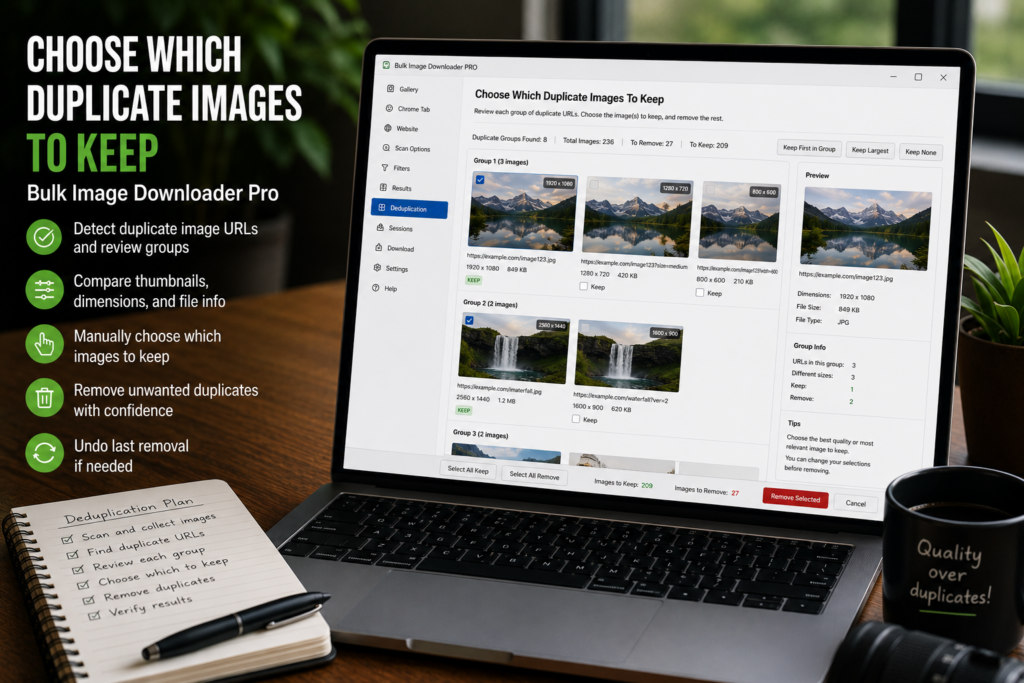
Finding duplicates is only half of the cleanup job. Once a tool shows that several images look alike, you still have to decide which copy should stay in the task list and which copies should be removed.
Bulk Image Downloader Pro handles that decision inside the Perceptual Duplicate Finder with keep rules and group actions. The goal is not to delete blindly. The goal is to choose which duplicate images to keep, review the decision, and then clean the task list with a record of what changed.
Start with the duplicate groups
Run the visual duplicate scan first. The finder groups images that look similar and shows them together, so you can compare the actual thumbnails instead of trying to judge from URLs alone. This matters when one image has a clean source URL, another has a long CDN URL, and a third is a smaller copy of the same picture.
After the scan, each group needs one keeper. The rest are candidates for removal or separate review.
Use keep rules for the obvious cases
A keep rule tells the extension which image in each duplicate group should be marked as the survivor. The available rules cover the most common cleanup decisions:
- Largest resolution, useful when quality matters more than file size.
- First detected, useful when the original task order is meaningful.
- Smallest, useful when you want a lighter set.
- Shortest URL, useful when cleaner or more canonical-looking links are preferred.
- Manual, useful when the automatic choice is not enough.
For catalog work, largest resolution is often the safest starting point. For scraped research lists where the source order matters, first detected may make more sense. For mixed CDN lists, shortest URL can sometimes pick the cleaner link, but it still needs review.
Switch to manual review for borderline matches
Automatic keep rules are fast, but duplicate detection is not a legal verdict. Some groups need a human decision. In manual mode, you can choose the keeper per group, or use the group controls to promote a specific image as the one to keep.
This is especially useful when images are similar but not identical: two product angles, two crops from the same shoot, or two graphics with small text differences. In those cases, removing everything except the largest file may be the wrong choice.
Remove non-kept images from the task list
Once the keeper decisions look right, the action buttons let you work on the selected group or across the current report. You can select all, select only keepers, select only non-kept images, download selected images for review, copy or open selected URLs, export the duplicate list, or remove selected URLs from saved tasks.
The most important cleanup action is Remove Non-Kept. It removes the duplicate URLs that are not marked as keepers while preserving the selected survivor for each group. The extension asks for confirmation before removing URLs from tasks, which is the right behavior for a destructive cleanup step.
Export before a large cleanup
For small lists, visual review may be enough. For large lists, export the duplicate URL report before removing anything. That gives you a reference if you need to audit what was flagged, compare results outside the extension, or rebuild a task later.
A careful cleanup workflow looks like this: run URL deduplication, scan for visual duplicates, use a keep rule as a first pass, manually review questionable groups, export the duplicate report, then remove the non-kept URLs. That sequence keeps the speed benefit of automation without pretending every duplicate decision should be automatic.
Continue reading: find duplicate images before downloading.
Get Bulk Image Downloader Pro on the Chrome Web Store, watch the tutorial video, or visit our YouTube channel for more duplicate image cleanup workflows.