
Save Watermark Settings for Bulk Images — Bulk Image Downloader Pro
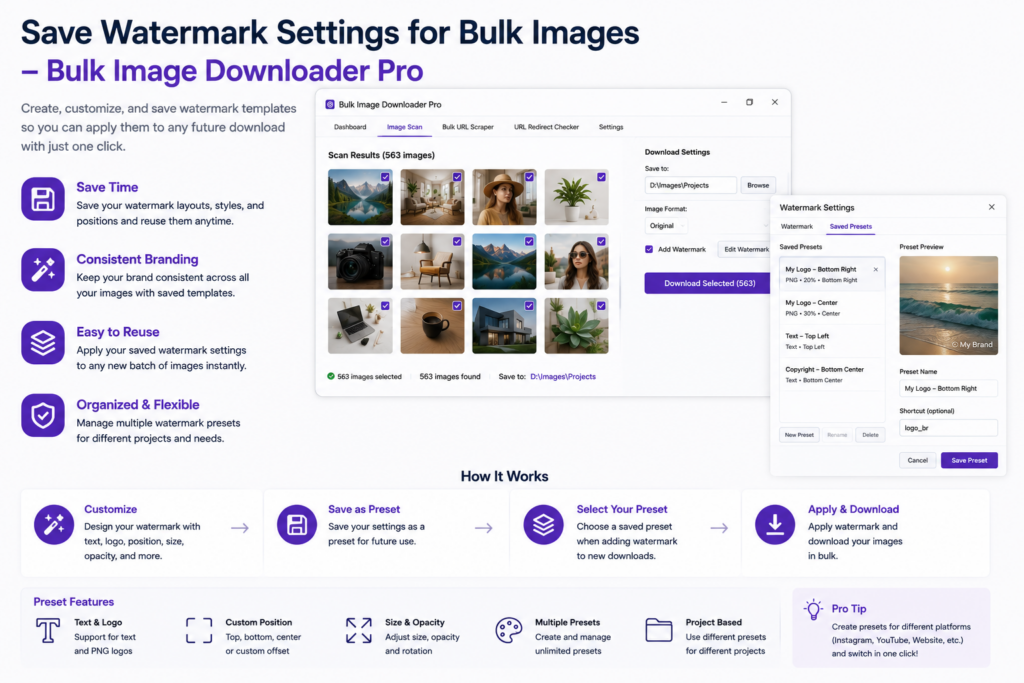
Dragging the same logo into place and tuning opacity for every batch is busywork. If you watermark product shots, portfolio exports, or client deliverables, you want to save watermark settings for bulk images once and reuse them on the next task.
In Bulk Image Downloader Pro, watermark setup lives on the options page Watermark tab. The configuration is stored in browser localStorage as watermarkAppState and is read again whenever you enable watermarking on a download task.
PNG image watermark only
The tool applies an uploaded PNG image over each photo during download. There is no built-in text watermark generator. Prepare a PNG logo or mark with transparency, upload it in the Watermark tab, and preview it on a sample background before you run a real batch.
What gets saved
Your watermark configuration includes:
- Watermark image: the PNG file you upload
- Opacity: 0–100% transparency control
- Gravity/position: corner or center placement on the image
- Maximum size: scale relative to the background image
- Margin: inset from the chosen edge
Changes in the Watermark tab update watermarkAppState immediately, so the next enabled task uses the current recipe without re-uploading the file.
Enable watermarking on a task
- configure the PNG and preview on the Watermark tab
- open a download task on the options page
- enable the task Watermark toggle
- save or run the task
The extension validates watermark setup: if watermarking is enabled but no PNG is configured in watermarkAppState, the task cannot pass validation. That prevents silent no-op batches where you thought a logo was applied.
How stamping runs
During download, watermarking happens client-side in Web Workers alongside optional resize, convert, or EXIF-related Canvas steps. Images are not uploaded to a server for stamping.
Watermarking is a Licensed PRO options-page feature. Side-panel scraping remains available on all tiers; applying a saved PNG watermark on download tasks requires PRO.
Persistence across tasks and CSV backup
Each task stores whether watermarking is enabled and can carry the watermark settings object used at download time. When you Export Tasks to CSV, the file includes Watermark Enabled and Watermark Settings columns so named batches can be restored on re-import with the same stamp configuration.
That is separate from the global Watermark tab defaults in watermarkAppState, but together they keep repeat jobs consistent across sessions and machines.
When a saved watermark helps most
- ecommerce teams shipping proof images with the same brand mark
- photographers sharing previews before final delivery
- agencies running recurring catalog downloads with identical overlay rules
- any workflow where inconsistent opacity or placement would look unprofessional
For a broader watermarking walkthrough, see adding watermarks to bulk downloaded images.
Install Bulk Image Downloader Pro, configure your PNG once, and let saved settings handle the repeat work.
Continue reading: Find Visually Duplicate Images.
Get Bulk Image Downloader Pro on the Chrome Web Store, watch the tutorial video, or visit our YouTube channel for more watermark tips.