
Find Duplicate Images Before Downloading — Bulk Image Downloader Pro
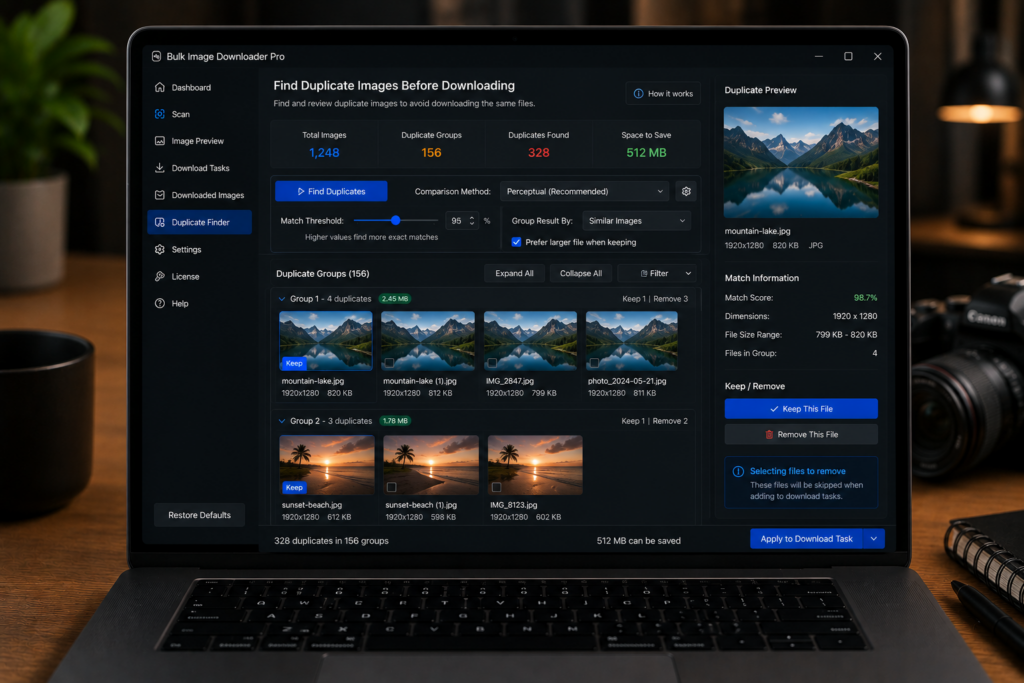
Duplicate image cleanup is not always as simple as removing repeated URLs. A product image might appear once on a page, again through a CDN URL, and again as a resized copy. To a normal URL dedupe tool, those are three different links. To the person reviewing the download folder, they are the same picture taking up space.
The Perceptual Duplicate Finder in Bulk Image Downloader Pro is built for that problem. It helps you find duplicate images before downloading by comparing the visual appearance of images already saved in your tasks, not just the text of the URL.
When visual duplicate detection helps
Use this tool when a list has already passed basic URL cleanup but still looks repetitive. Common cases include ecommerce galleries where the same product photo appears in multiple sizes, image archives with CDN and source URLs mixed together, or research collections where the same reference image was scraped from more than one page.
Exact URL deduplication is still worth running first because it removes obvious repeats quickly. The Duplicate Finder is the second pass: it looks for images that are visually similar even when the links do not match.
How the scan works
Open the Perceptual Duplicate Finder tab, choose whether to scan one task or all tasks, pick a sensitivity preset, and start the scan. The extension loads image metadata, computes visual signals, and groups images that appear similar enough to review together.
The scoring uses more than one signal. The implementation includes perceptual hashes such as dHash, aHash, and pHash, plus color histograms, spatial color information, texture, shape, dimensions, and format signals. That mixed approach matters because one technique alone can be fooled by small changes such as compression, resizing, or a slight crop.
Choose the right sensitivity
The sensitivity setting controls how wide the net is:
- Strict is safer when false positives would be expensive, such as cleaning a product catalog.
- Balanced is the best starting point for most lists.
- Aggressive catches looser similarities, but it needs more human review.
Start with Balanced on one task if the list is large or unfamiliar. If the results miss obvious duplicates, try Aggressive. If it groups images that are only vaguely related, move toward Strict.
Review confidence groups before removing anything
The scan returns duplicate sets rather than silently deleting files. Each group shows similar images together, with confidence information and controls to sort or collapse groups. This review step is important because perceptual matching is a judgment tool, not a perfect truth machine. It can miss some duplicates, and it can occasionally group images that are only similar.
For that reason, the safest workflow is simple: scan, review the groups, export or copy the duplicate URL report if you want a record, then decide what should be kept or removed. If you need a more detailed cleanup pass, continue to the keep-rule workflow and choose which duplicate image should survive in each group.
Limits to understand
The Duplicate Finder depends on images being loadable by the browser. Broken URLs, blocked images, and pages that prevent image access can reduce what the scan can evaluate. Basic mode does not unlock this tab, Try PRO is capped to a small scan, and Licensed PRO can scan larger batches, with a performance cap applied to very large lists.
Used with those limits in mind, it is a strong cleanup step before a big download. You remove the obvious URL repeats first, use visual matching to find hidden duplicates, and only then run the final task with a cleaner list.
Continue reading: choose which duplicate images to keep.
Get Bulk Image Downloader Pro on the Chrome Web Store, watch the tutorial video, or visit our YouTube channel for more image download workflows.