
Side Panel vs Options Page in Bulk Image Downloader Pro
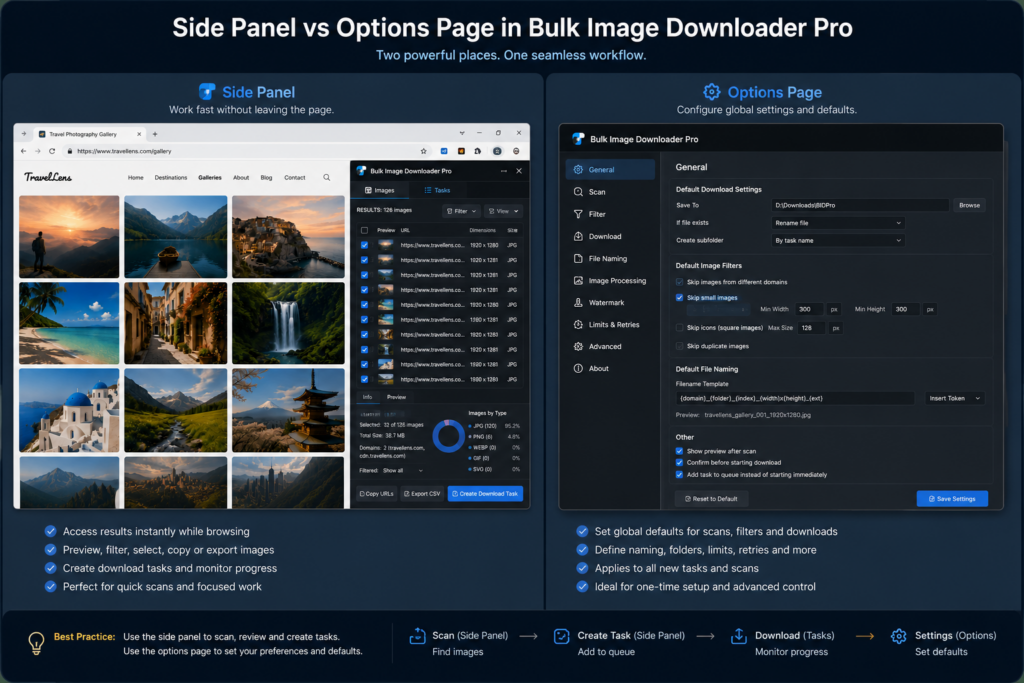
Bulk Image Downloader Pro makes more sense once you understand its two work surfaces. The side panel is where you find and prepare image URLs. The options page is where you turn those URLs into download tasks, filenames, folders, ZIP files, and processed images.
That split is intentional. A narrow browser side panel is good for working beside the website you are scraping. A full options page is better for larger task controls and download settings.
The side panel is the image discovery workspace
Open the side panel when you are looking at the page that contains the images. It includes Scan Current Page, Deep Scan for AJAX or lazy-loaded images, Area Scan for a selected page region, Continuous Scanning, pagination controls, and Bulk URL Scraping for scanning a list of pages.
After a scan, the side panel lets you review results before sending anything to the downloader. You can copy URLs, export the result list, sort images, show thumbnails, keep only the current domain, apply filters by dimensions, file type, aspect ratio, and source domain, run URL deduplication, and save scraping sessions.
The options page is the download engine
Use the options page when the question changes from which images did I find? to how should these images be saved? This is where download tasks live. A task can hold URL lists, folders, ZIP settings, filename rules, file type filters, Download IF rules, and execution controls.
The options page is also where image processing belongs. Resize, convert, EXIF stripping, and PNG watermarking are task-side processing features. They are not side-panel scan controls. If you want to transform files while saving them, configure that on the options page before running the task.
How results move from one surface to the other
When the side panel has the URLs you want, Download Images Here or Download Selected creates or updates a task and opens the options page. From there, you can draft-save the task, preview and filter the entries, adjust naming and folder settings, then start the download.
For Basic and Try PRO users, the side panel can still collect image URLs, but download-side limits are enforced on the options page. That is an important distinction: finding URLs and completing full download tasks are not the same stage of the workflow.
Use this simple rule
If you are still deciding what images belong in the list, stay in the side panel. If you are deciding how those images should be saved, renamed, filtered at download time, processed, queued, exported, or checked, move to the options page.
That simple rule prevents most confusion. The side panel answers what to collect. The options page answers how to save it.
Why the split is better than cramming everything into one panel
Browser side panels are convenient, but they are not a good place for every advanced control. Bulk task editing, CSV import/export, watermark previews, duplicate review, resize and conversion settings, queue controls, and scheduled task settings need more room than a narrow panel can comfortably provide.
Keeping discovery and downloading separate gives each job the right workspace. You can stay close to the webpage while extracting images, then switch to a larger control surface when it is time to download carefully.
Continue reading: download images from a website without coding.
Get Bulk Image Downloader Pro on the Chrome Web Store, watch the tutorial video, or visit our YouTube channel for more image download workflows.