
WebP vs JPG vs PNG Images — Which Format Should You Download?
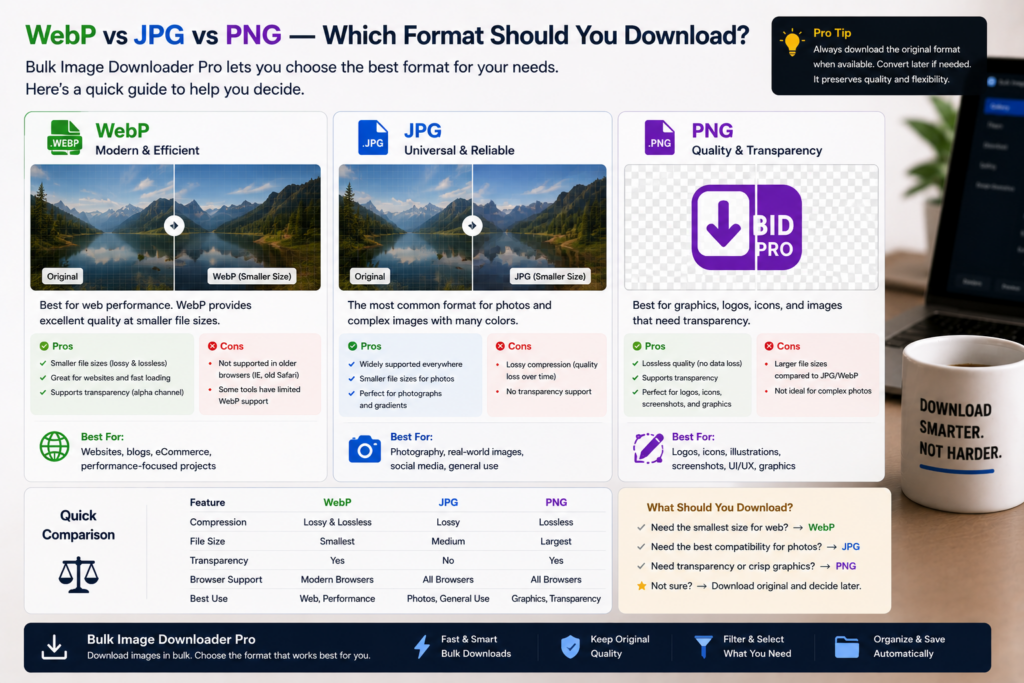
Most image downloads arrive as one of three formats: JPG, PNG, or WebP. The pixels may look similar on screen, but the file type changes compatibility, transparency support, and how much space the batch consumes.
This WebP vs JPG vs PNG images guide focuses on the decision you make before saving or converting a batch.
What each format is good at
- JPG (JPEG) uses lossy compression tuned for photographs. It keeps file sizes manageable and works almost everywhere, but it does not support transparency and loses detail each time you re-save at lower quality.
- PNG is lossless and supports transparency. It is a strong choice for logos, icons, UI screenshots, and graphics with sharp edges. Detailed photos usually become larger than JPG at similar visual quality.
- WebP supports both lossy and lossless modes plus transparency. Many sites serve WebP because it often produces smaller files than JPG or PNG at similar quality.
Which format should you keep?
The right choice depends on what happens after download:
- General photo archiving or editing: JPG is still the safest default for broad tool support.
- Logos, icons, or anything needing transparency: PNG is usually the better fit.
- Modern web workflows that accept WebP: keeping WebP can save space, but confirm every downstream tool opens it.
Compatibility is the usual WebP catch. A folder full of WebP files can stall older editors, CMS imports, or team tools that expect JPG or PNG.
When conversion makes more sense than manual cleanup
If a site serves WebP but your project needs JPG or PNG, converting files one at a time gets old quickly. Bulk Image Downloader Pro can convert format on download to JPEG, PNG, or WebP as part of a task on the options page.
Processing runs client-side in the browser, so files are not uploaded to an outside conversion service. That is useful when you are working with client or internal assets and want the batch handled locally.
Resize and Convert are separate modes on a task, so choose whether the job is mainly a format change or a dimension change before you run it. If both are needed, plan separate passes or separate tasks rather than expecting one combined conversion-and-resize step.
A simple decision rule
Keep the source format when it already matches your workflow. Reach for JPG for photo compatibility, PNG for transparency or crisp graphics, and WebP when file size matters and your tools support it. When the format you receive does not match the format you need, batch conversion on download closes the gap without opening a separate converter for every file.
Continue reading: filter images by aspect ratio.
Get Bulk Image Downloader Pro on the Chrome Web Store, watch the tutorial video, or visit our YouTube channel for more image download workflows.