
Area Scan Images
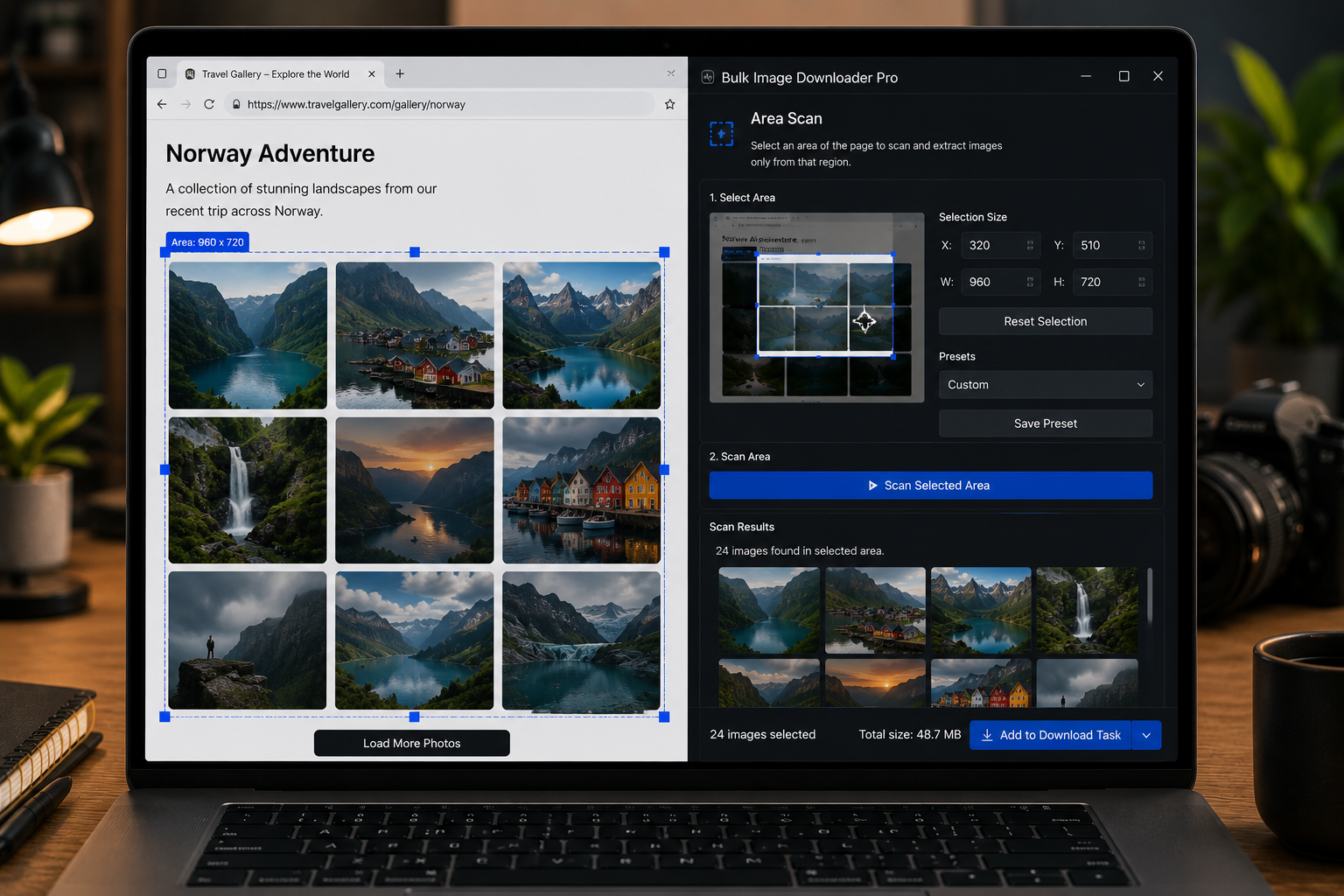
Some pages are too noisy for a full-page scan. A product gallery may sit between ads, logos, navigation icons, related posts, author photos, and tracking pixels. If you already know which part of the page matters, Area Scan images from that region instead of collecting everything.
Area Scan in Bulk Image Downloader From URL List is a side-panel scan mode that lets you select a rectangle on the page and focus extraction on that area.
When Area Scan is useful
Use Area Scan when the page has one useful image region surrounded by clutter. It works well for product grids, gallery sections, comparison tables with images, marketplace listings, portfolios, and image blocks inside long articles.
If the whole page is relevant, Scan Current Page may be faster. If images load gradually as you scroll, Deep Scan may be better. Area Scan is for precision.
How Area Scan works
Open the side panel and choose Area Scan. The extension lets you draw a box around the part of the page you want to inspect. Images inside that selected area are collected, while images outside the region are ignored.
The goal is not to replace filtering entirely. It is to start with a cleaner result set so preview cleanup is faster.
Choose the region carefully
Draw the box around the real image container, not the entire page section if it includes unrelated icons or banners. If a gallery has captions, controls, or thumbnails that you do not need, tighten the region around the image grid itself.
If the layout shifts after scrolling or loading, let the page settle before you draw the area.
Use it with preview filters
After Area Scan, review the results. You can still filter by size, dimensions, file type, domain, URL text, shape, or selection before creating the download task.
This is useful when the selected region contains both thumbnails and larger images, or when nearby UI graphics still appear in the result.
What Area Scan cannot do
Area Scan does not bypass permissions, logins, blocked images, or content that the browser cannot access. It also depends on the region you select. If you miss part of the gallery, scan that area again or use Stack Mode when you want multiple regions in one collection.
A practical Area Scan workflow
- Open the page and scroll to the section you need.
- Choose Area Scan from the side panel.
- Draw a rectangle around the gallery, grid, or image block.
- Review the captured results.
- Filter out thumbnails, icons, or wrong formats.
- Send the cleaned selection to a download task.
For full-page scanning, read scan webpage for images. For lazy-loaded content, see deep scan lazy loaded images.
When the list is ready, run it through Bulk Image Downloader From URL List Extension so naming rules, folders, and filters stay consistent across the batch.
Bulk Image Downloader From URL List keeps this workflow inside Chrome so you can filter, rename, and download from one place.