
Bulk Image Downloader vs Image Downloader — Honest Comparison
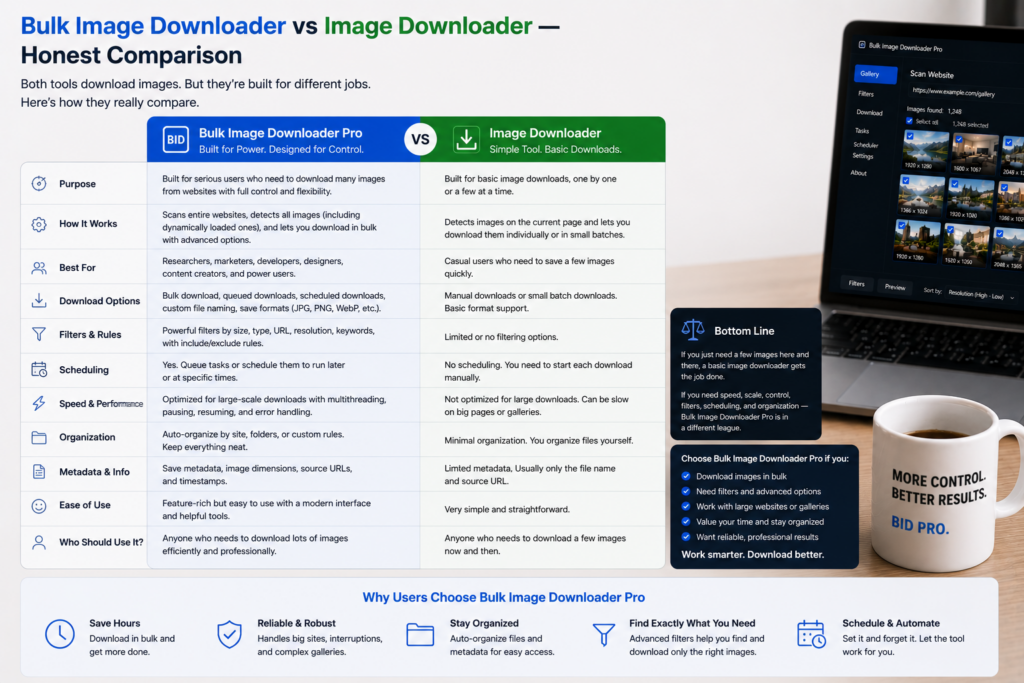
What generic Image Downloader extensions do well
Classic Image Downloader-style tools are intentionally minimal:- open the extension on one page
- see images already in the DOM
- filter by URL text or dimensions
- download the checked thumbnails
Where page-level grabbers run out of road
- Lazy loading and infinite scroll hide images until you scroll; a static snapshot misses many URLs
- Multi-page sources require repeating the same steps on every tab
- Post-download chores (rename, resize, convert, dedupe) stay manual
- Repeatable jobs are not saved as structured tasks you can export and restore
What Bulk Image Downloader From URL List adds
- Side-panel scraping with Scan, Deep Scan, and Area Scan for lazy-loaded content
- URL-list workflows on the options page for many pages or direct image links
- Download If URL rules (contains, not-contains, regex with AND/OR logic)
- Saved tasks, draft save, and CSV export/import for repeatable jobs
- On-download processing: resize, convert (JPEG/WebP/PNG), optional EXIF strip, PNG watermark (Licensed PRO controls)
- Perceptual duplicate finder, 404 checker, and redirect checker for cleanup
- Filename Constructor, auto folders, and optional ZIP packaging
Side-by-side snapshot
| Capability | Generic Image Downloader | Bulk Image Downloader From URL List |
|---|---|---|
| Visible images on one page | Yes | Yes |
| Deep / lazy-load capture | Limited | Deep Scan |
| Bulk URL lists | No | Yes |
| Saved tasks + CSV backup | No | Yes |
| Rename / resize / convert on download | No | Yes (PRO processing) |
| Visual duplicate detection | No | Yes |
| Link validation (404 / redirects) | No | Yes |
Which one to pick
Choose a generic Image Downloader when the job is small, single-page, and one-time. Choose Bulk Image Downloader From URL List when you repeat the workflow, pull from long URL lists, need images that load on scroll, or care about naming, folders, deduplication, and on-download processing. Many people keep a simple grabber for quick saves and use a workflow tool when the batch grows. Install it when your jobs outgrow one tab at a time.Our roundup of best bulk image downloader extensions covers more choices.
The plan table that changes the comparison
A generic grabber has one mode. This extension has three, and they differ by limit rather than by feature. Basic (Free) downloads from a list but keeps you to one download in Browser and Pipeline. Try PRO opens every tool while still allowing only one link per download. Licensed PRO removes the one-link cap and allows more than one download.
That is the part of a comparison worth checking against your job. A single long column of links works on the free tier; many separate downloads running side by side is a Licensed PRO pattern. Switching layouts will not change either limit.
Continue reading: Fatkun Alternative.The comparison does not stop at tools. Bulk downloading versus manual saving is worth reading if you are still unsure the switch is worth it.