
Image Downloader vs gallery-dl
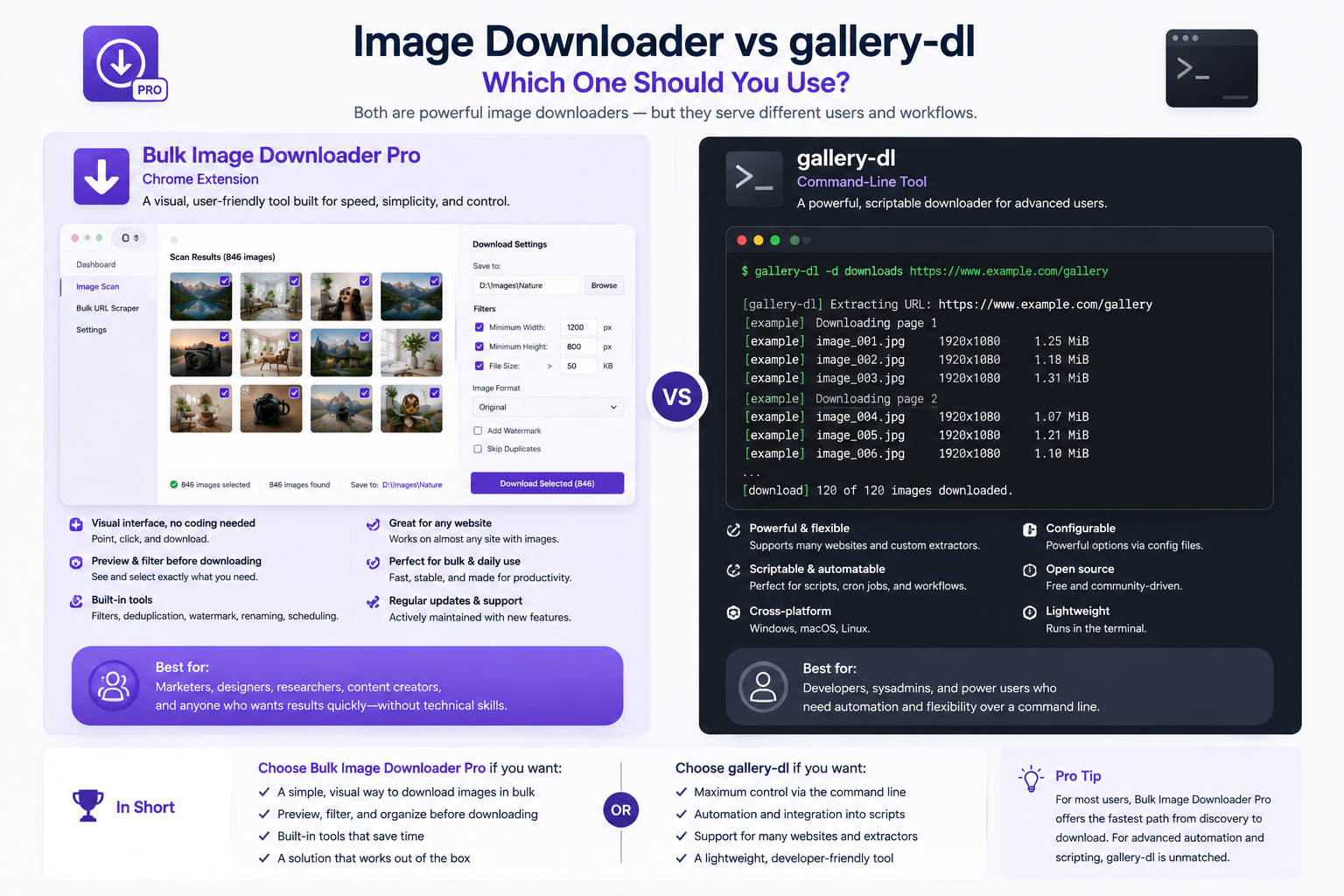
What gallery-dl does well
- downloads image galleries from hundreds of supported websites via built-in extractors
- runs from the terminal with JSON configuration you can version-control
- slots into cron jobs, Python pipelines, and headless servers
- stores metadata alongside media when an extractor supports it
- handles authentication cookies for sites that require login (you manage credentials)
What a browser image extension adds
- Deep Scan, Area Scan, and Continuous Scanning on arbitrary pages, not only pre-built extractors
- grid and table previews with dimension, type, aspect-ratio, and domain filters
- perceptual duplicate finder plus 404 and redirect checkers
- on-download resize or convert (JPEG/WebP/PNG), EXIF strip, PNG watermark (PRO)
- Saved Rules with custom CSS selectors, scraper sessions, and task CSV export
Comparison table
| Need | gallery-dl | Browser image extension |
|---|---|---|
| Terminal automation / cron | Yes | Limited (saved tasks) |
| Supported-site extractors | Yes | No (general page scan) |
| Visual preview and filtering | No | Yes |
| Arbitrary website without extractor | Depends on site | Yes |
| On-download resize / convert | No | Yes (PRO) |
| Visual duplicate detection | No | Yes |
Choose by interface and source
Pick gallery-dl for scripted downloads from supported sites where config files and terminal control are assets. Pick Bulk Image Downloader From URL List when you need a visual workflow across general web pages with filters, naming, and optional processing in one pass. Many people use both: gallery-dl for automated archival on known platforms, a browser tool for ad hoc gallery work elsewhere. Install the extension for no-code web image workflows.For a broader comparison, see our roundup of best bulk image downloader extensions.
Continue reading: Build Your Own Image Scraper.Where gallery-dl still wins
gallery-dl is the better choice when the sources are sites it already supports and the job should run unattended. Extractor updates are maintained for you, configuration can be version-controlled, and it runs comfortably on a server or in a scheduled job. A browser extension should not be your first choice for a headless archive.
Where the browser tool adds value
The browser route earns its place when you want to see the images before committing: previewing a grid, filtering by dimensions, and removing visual duplicates are judgement steps that do not translate well into a config file. It also works on pages no extractor covers, because it operates on whatever the browser rendered.
Choose by interface first
The interface decision usually settles the tool question. A terminal workflow suits scheduled, unattended runs on supported sites. A visual browser workflow suits jobs where you want to inspect, filter, and compare before saving. Pick the one that matches how you actually work, then compare features within that.