
Resize Images While Downloading — Bulk Image Downloader Pro
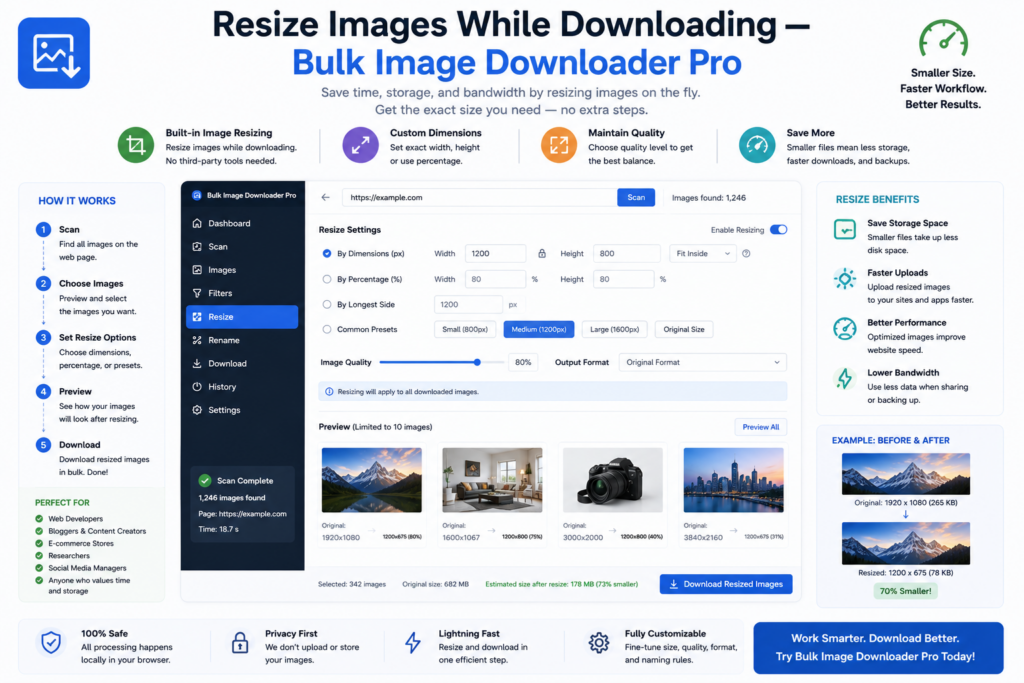
Downloading full-resolution files only to resize them afterward wastes time and disk space. If your deliverable needs smaller dimensions, it is simpler to resize images while downloading so files land at the size you actually need.
On the options page in Bulk Image Downloader Pro, each task has a Resize toggle with output format, quality, max dimensions, fit mode, and concurrency controls. Processing runs locally in the browser through Canvas inside Web Workers, not on a remote server.
Resize is separate from Convert
Resize and Convert are different task modes. The extension enforces mutual exclusivity: you enable one processing path per task, not both at once. Pick Resize when dimensions must change. Pick Convert when format change is the main goal without a resize pass.
Licensed PRO unlocks these options-page processing controls. Basic (Free) tier users can still scrape in the side panel; advanced task processing requires PRO.
Choose dimensions and fit mode
Set Max Width and/or Max Height in pixels. Leave a field empty to let that axis scale automatically within the limits you set.
Then choose a Resize Mode:
- Fit Inside: preserves aspect ratio and fits within your max box (most common for galleries and web assets)
- Cover: fills the target box and crops overflow while keeping aspect ratio
- Fill: stretches to exact width and height, which can change aspect ratio
There is no separate percentage-scale field in the UI. You control size through max dimensions and fit behavior.
Output format and quality
Resize output supports JPEG, WebP, and PNG through browser Canvas encoding. A quality slider from 1–100 lets you balance file size against visual fidelity on lossy formats.
AVIF output is not supported because Canvas encoding in this workflow does not produce AVIF files. Plan format targets accordingly.
Why Web Workers matter
Resizing hundreds of images on the main thread would freeze the options page. The extension offloads Canvas redraw and encoding to background Web Workers so the UI stays responsive while batches process.
Max Concurrency on the task (1–15) controls how many images resize in parallel within that worker pipeline.
Practical workflow tips
- test one task with ten URLs before running a thousand-image batch
- use Fit Inside for product photos that must not look stretched
- pair resize with download only matching image URLs when thumbnails and full-size links share a list
- use auto folders for downloads so resized files still land in sorted paths
For quality slider behavior in more detail, see image quality setting explained. For convert-only jobs without resizing, read the convert-on-download guidance elsewhere on the site.
Install Bulk Image Downloader Pro, enable Resize on the task, and let files arrive at the dimensions your project expects.
Continue reading: Image Quality Setting Explained.
Get Bulk Image Downloader Pro on the Chrome Web Store, watch the tutorial video, or visit our YouTube channel for more resize tips.