
Adjust Image Quality When Downloading
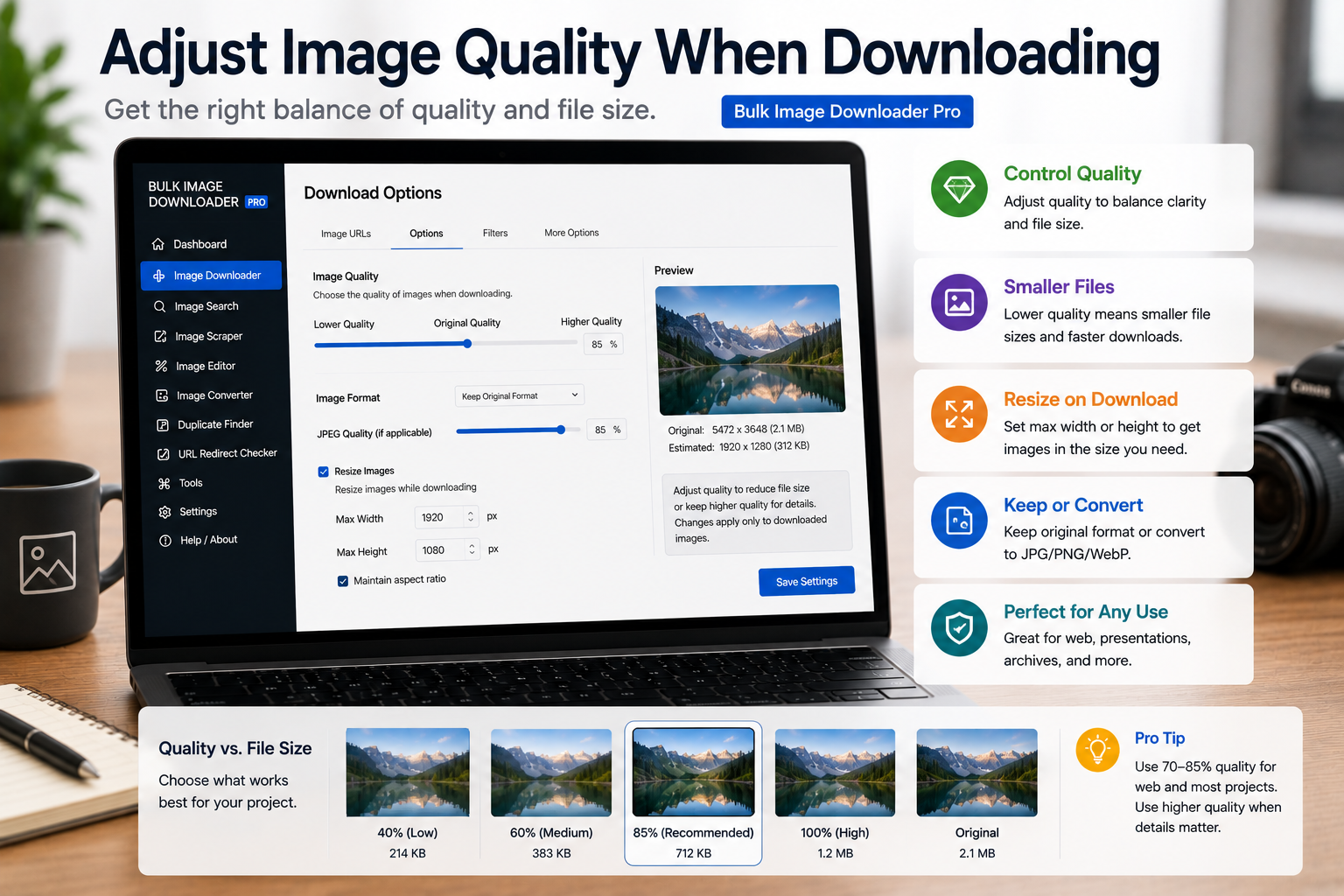
A quality slider from 1 to 100 looks obvious until you realize 50 is not half as good and 100 is not always worth the disk space. If you run Resize or Convert on a task, you can adjust image quality when downloading so JPEG and WebP files land at a size that matches the job.
On the options page in the Chrome extension, the quality control appears inside the active processing mode for that task. It does not change files on a plain download with both Resize and Convert turned off.
What the quality number controls
During Canvas re-encoding in a Web Worker, the quality value (1–100) tells the browser how aggressively to compress lossy output:
- Higher values keep more detail and produce larger files
- Lower values discard more data and produce smaller files
Think of it as a compression dial, not a literal percentage of visual perfection. The relationship is not perfectly linear, which is why testing beats guessing.
Where you set it
Resize mode: enable the task Resize toggle, pick an output format (JPEG, WebP, or PNG), then use the quality slider shown with those options. The default in the UI is often around the low 80s for resize jobs.
Convert mode: enable Convert instead of Resize, choose JPEG or WebP, and adjust the separate convert quality slider (default tends toward 100 in the UI).
Resize and Convert are mutually exclusive on one task. Pick the mode that matches whether you chiefly need new dimensions or a new format.
Format interactions worth knowing
- JPEG and WebP: quality directly affects compression and visible artifacts
- PNG: output is lossless in this pipeline, so the quality slider does not change PNG encoding the same way
- AVIF: not available as Canvas output from this workflow; see AVIF image conversion limitations
Licensed PRO unlocks Resize, Convert, and related options-page processing controls.
Practical starting points
- Web and email attachments: often 75–90 on JPEG or WebP looks clean at normal viewing sizes
- Archival or print-bound work: stay higher, often 90–100, when artifacts would matter
- Thumbnails and previews: you can go lower because small display sizes hide compression
- Large batches: even a modest quality reduction per file compounds across thousands of images
Combine quality with max width/height when you use resize images while downloading. Shrinking dimensions plus sensible compression usually beats either lever alone.
Test before you commit
- pick five to ten representative URLs from the task
- run a small download at two quality levels
- compare at the size you will actually use the files
- lock in the lowest setting that still looks acceptable
For format-only jobs without resizing, read convert image format on download and apply the same test mindset there.
Install the Chrome extension and treat the quality slider as a deliberate choice, not a leave-it-default detail.
The relationship quality has with resize
Quality is part of the same step as size and format, which is why the three are planned together. Resizing changes dimensions; converting changes the file format to JPEG, PNG, or WEBP; quality shapes the encoding of the result. You can run a conversion without a resize when only the format needs to change, which keeps size decisions out of a quality-tuning pass.
Testing on a small sample first is the habit that makes this cheap. A batch applies one setting across every file, so a quality value that suits photographs can look wrong on line art. Confirm on a handful before committing the whole list.
Continue reading: AVIF Image Conversion Limitations.