
Download Images From a Website Without Coding — Bulk Image Downloader Pro
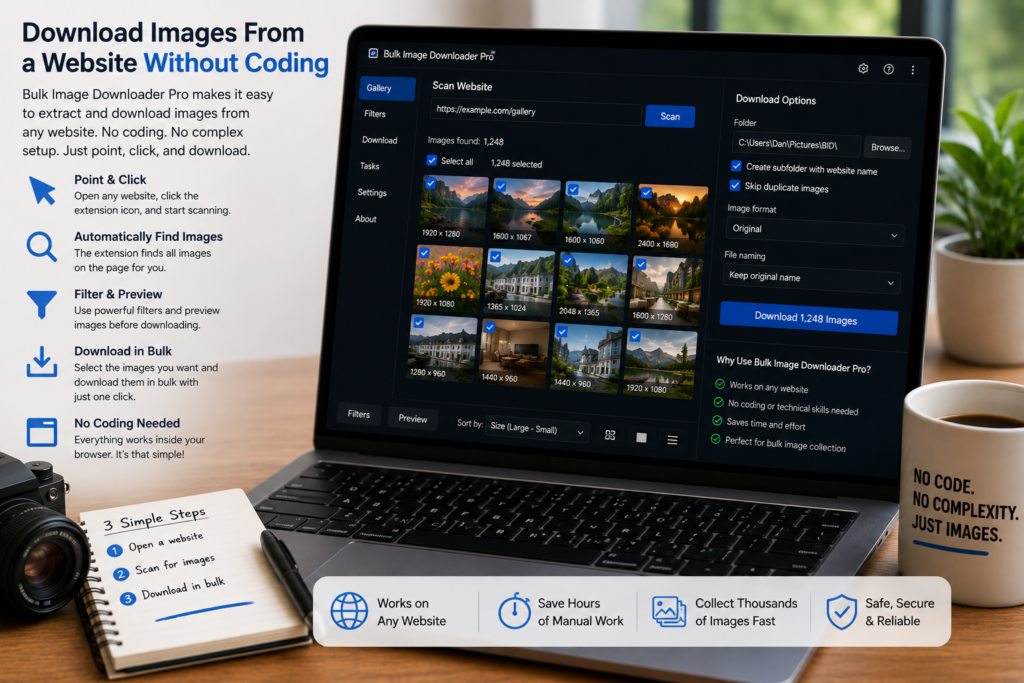
You do not need Python, BeautifulSoup, browser dev tools, or a command line just to collect images from a website. For many marketers, researchers, ecommerce assistants, and content teams, the real job is simpler: open a page, find the useful images, remove the junk, and save the set in an organized way.
Bulk Image Downloader Pro handles that workflow inside Chrome. You use the side panel to scan and prepare image URLs, then send the result to the options page when you are ready to download.
Start with the page you can see
Open the website in Chrome and launch the extension side panel. For a normal gallery or article page, Scan Current Page is the quickest first step. It reads the images available on the current page and adds them to the results grid.
If the site loads images as you scroll, use Deep Scan. It is designed for AJAX and lazy-loaded pages, where not every image appears in the first page snapshot. If the page is cluttered and you only need one section, use Area Scan to target a rectangular region instead of scraping the whole page.
Clean the results before downloading
A no-code image download should still be selective. Raw scans can include logos, icons, tracking pixels, duplicate URLs, and thumbnails. The side panel gives you several ways to narrow the list before it becomes a task.
You can filter by dimensions, file type, aspect ratio, and source domain. You can also sort the result grid, keep only images from the current domain, show thumbnails for visual review, and use deduplication to remove exact URL repeats. These steps reduce cleanup later because you are not downloading everything blindly.
Send the image list to a task
When the result grid looks right, use Download Images Here for the displayed set or Download Selected for a smaller hand-picked group. The side panel passes those URLs into the options page, where the actual download task is created or updated.
That handoff is important. The side panel is the finding workspace. The options page is where you save the task, choose folders, decide whether to ZIP the output, apply filename rules, and configure processing such as resize, convert, EXIF stripping, or watermarking when you need those options.
When no-code is better than a script
A script can be powerful if you are a developer and the site structure is predictable. But scripts break when selectors change, lazy loading behaves differently, or you need to make visual choices. A no-code workflow is often faster when the job requires human review: choosing the best product photos, ignoring layout graphics, keeping only large images, or checking thumbnails before download.
The extension gives you the repeatability of a tool without asking you to maintain code. You scan, filter, review, and create a task from the browser interface.
Know the limits before you rely on it
No browser extension can promise access to every image on every website. Some images are blocked by permissions, login walls, hotlink protection, scripts, or site terms. The extension helps with browser-accessible images, lazy-loaded content, page regions, and URL lists, but it should be used responsibly and only where you have the right to download and use the files.
For normal browser-accessible pages, though, the workflow is straightforward: scan the page, clean the results, create the task, then download from the options page with the settings you need.
Continue reading: bulk download images for web scraping projects.
Get Bulk Image Downloader Pro on the Chrome Web Store, watch the tutorial video, or visit our YouTube channel for more image download workflows.