
Download Images With wget vs Browser Extension — Which Should You Use?
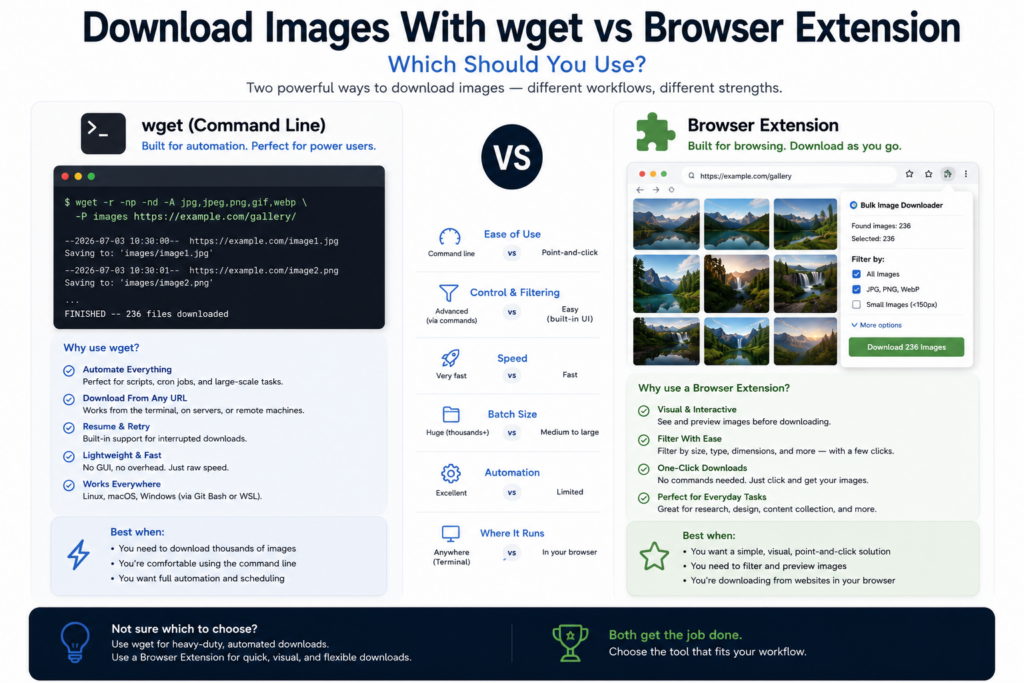
wget and curl are excellent tools when you already know the exact image URLs you want. They are fast, scriptable, and natural on servers or command-line workflows. A browser extension is different: it helps when the images are easier to find visually in a rendered page than in raw HTML.
The download images with wget vs browser extension decision comes down to the stage of the job. Are you fetching known URLs, or are you still discovering, filtering, and organizing the images?
Where wget is the right tool
Use wget or curl when you have a clean list of direct image URLs, need a command-line job, or want to plug downloads into a script, cron job, or server workflow. They are strong for repeatable technical pipelines and simple direct fetching.
They also make sense when there is no need for visual review. If the input list is already correct, a browser interface would only slow you down.
Where wget struggles
wget reads web resources directly; it does not behave like a human browsing a rendered Chrome page. JavaScript-rendered galleries, lazy-loaded images, logged-in pages, and images added during scrolling can be difficult unless you add more tooling around it.
Filtering can also become a second job. If you download everything first, you may need another script or manual cleanup step to remove icons, thumbnails, duplicate files, wrong domains, or poorly named assets.
Where a browser extension helps
Bulk Image Downloader Pro works from the browser view of the page. The side panel can scan the current page, run Deep Scan for lazy-loaded content, use Area Scan for a region, or scrape a list of page URLs. You can preview results, filter by dimensions, file type, aspect ratio, source domain, and text, then remove exact URL duplicates before creating a task.
That is useful when the input list is not clean yet. The extension helps you decide what should become the input list.
Output control before files hit disk
On the options page, Bulk Image Downloader Pro can name files with the filename constructor, use custom filename files, save into folders or ZIPs, apply Download IF URL rules, and optionally resize, convert, strip EXIF, or watermark supported images. Those choices happen before or during the download workflow, not as a cleanup step afterward.
For visual, browser-based jobs, that often saves more time than the raw download command would.
Use both when it makes sense
The two approaches can work together. Use the extension to discover and filter browser-visible images, export or copy the clean URLs, then use wget or curl if the final job belongs in a script or server process. That gives you browser visibility up front and command-line automation later.
A fair conclusion
Use wget when you already have direct URLs and need automation. Use a browser extension when you need to find, inspect, filter, name, and organize images from rendered web pages.
The better tool depends on whether you are still curating the image set or simply downloading a list you already trust.
Continue reading: free vs paid image downloader tools.
Get Bulk Image Downloader Pro on the Chrome Web Store, watch the tutorial video, or visit our YouTube channel for more image download workflows.