
Filter Images by File Type — Bulk Image Downloader Pro
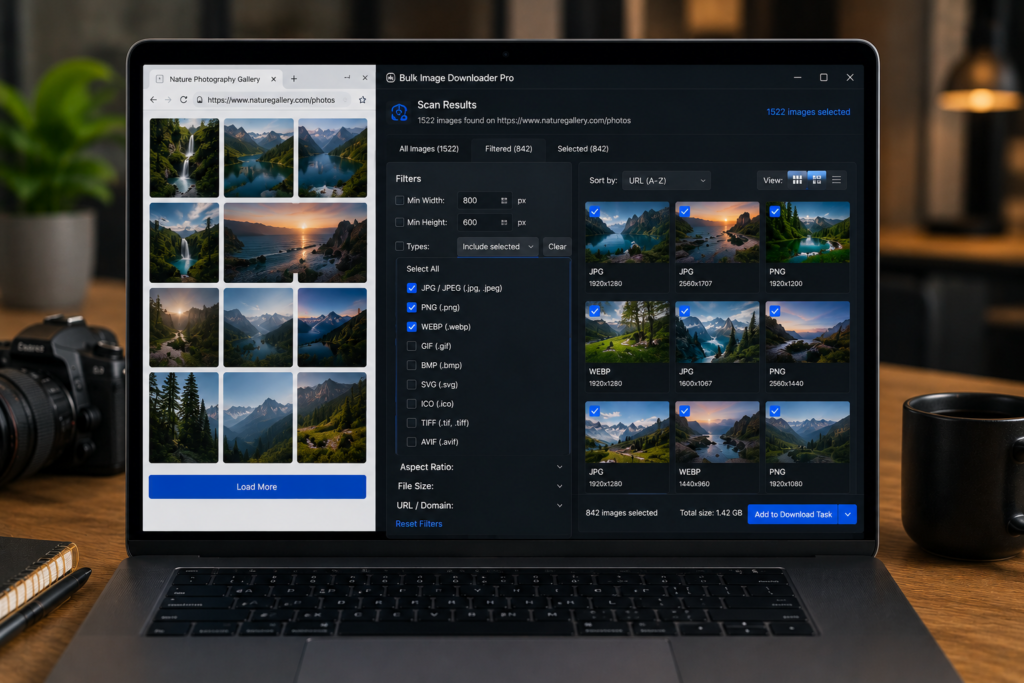
Not every image format belongs in every download. A page may contain JPG product photos, WebP gallery images, PNG logos, SVG icons, GIF animations, and BMP files in one scan. If you only need certain formats, filter images by file type before creating the task.
Bulk Image Downloader Pro includes file type filters in the side-panel Filters tab, alongside keyword and source-domain controls for further cleanup.
Choose the formats you want to keep
The file type filter includes checkboxes for JPG, PNG, GIF, SVG, WebP, and BMP. Turn off the formats you do not want, then apply the filter to the current result set.
For example, if a page is full of SVG interface icons but you only want photos, keep JPG, PNG, or WebP and remove SVG from the filtered results.
Use All and None for faster setup
When you need a narrow format set, start with None and turn on only the formats you want. When you need to reset quickly, use All to restore the default format set.
This is faster than clicking every checkbox one by one on a large cleanup job.
Add keyword filters when file type is not enough
Format alone does not always separate useful images from clutter. The text search can match keywords in the image URL, alt text, or title. That helps when useful images share a product code, folder name, subject word, or naming pattern.
Use the URL, Alt, and Title toggles to decide where the keyword should be checked.
Use domain filters to remove third-party assets
Source-domain filters help when scraped results mix the site’s own images with ads, tracking pixels, embedded content, or CDN assets from other hosts. You can include only specific domains or exclude domains you know are irrelevant.
Wildcard patterns are supported for domain matching, which helps with related image subdomains.
A practical file-type workflow
- Scan the page or scrape multiple page URLs.
- Open Filters and choose the file types to keep.
- Add a keyword search if useful images share text.
- Use include or exclude domain rules when sources are mixed.
- Apply filters and inspect the remaining set.
- Export, select, dedupe, or create a task from the cleaned results.
For size-based cleanup, read filter images by dimensions. For duplicates, see remove duplicate image URLs.