
Filter Images by Dimensions
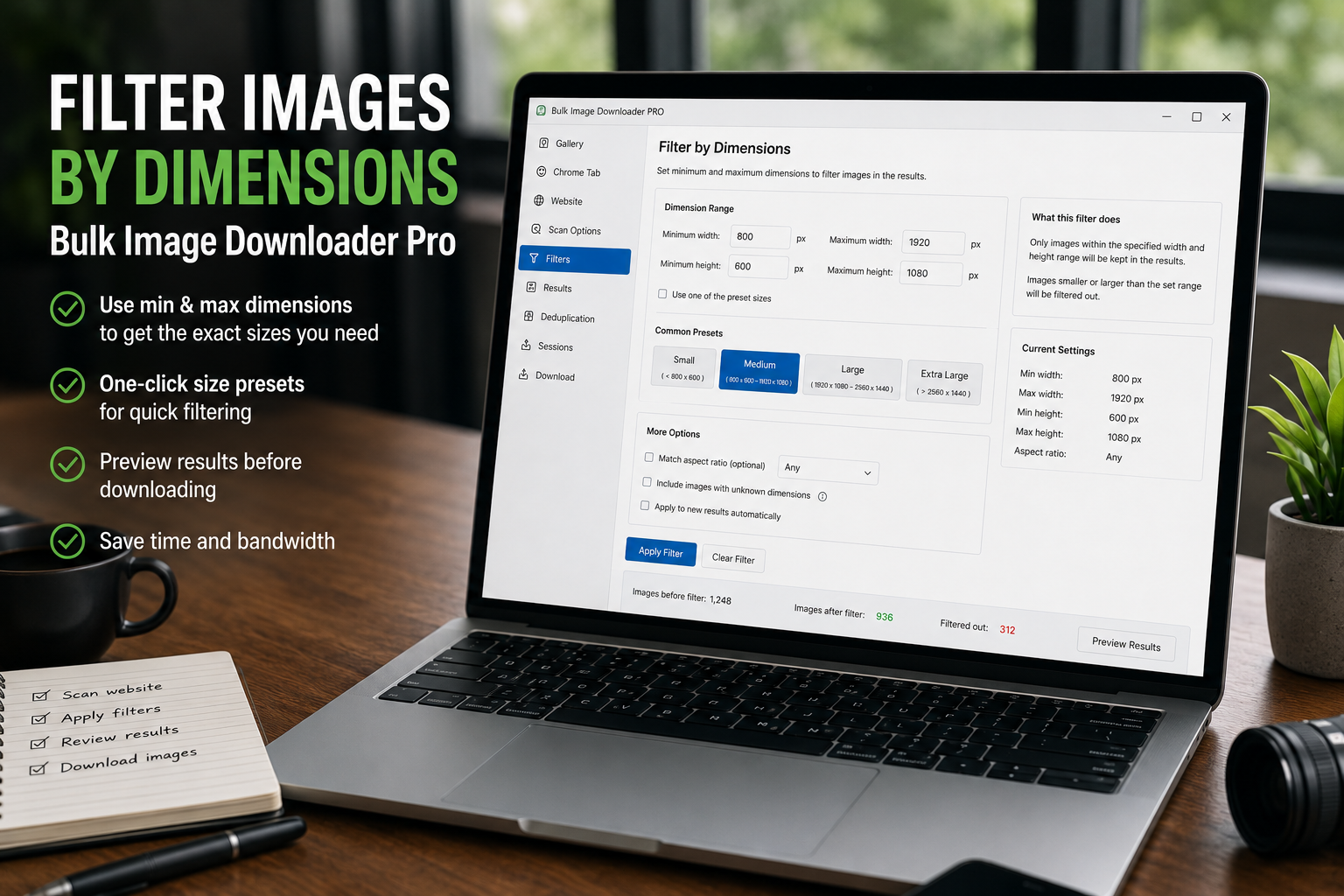
A scan can find the right photos and a lot of noise at the same time. Icons, thumbnails, spacer images, badges, banners, and oversized originals can all land in the same result list. When the problem is size or shape, the fastest cleanup is to filter images by dimensions before you download.
Bulk Image Downloader From URL List handles this in the side-panel Filters tab, where dimension and aspect-ratio filters narrow the images already found by the scanner.
Use dimensions to remove obvious clutter
Minimum width and height are useful when the scan returns tiny assets. A sensible minimum can remove favicons, buttons, logos, and small thumbnails before they reach your download task.
Maximum width and height are useful for the opposite problem: source images that are much larger than the job needs. This can help when you are building a lightweight folder for review, drafts, or quick sharing.
Start with presets when exact numbers are not important
The filter panel includes size presets such as Thumb, Small, Med, Large, and XL. Presets are useful when you want a quick first pass instead of typing exact pixel limits.
Use them as a starting point, then adjust the min and max fields if the result set is still too broad or too narrow.
Filter by shape, not only size
Aspect ratio filters help when orientation matters. Square, landscape, and portrait filters can quickly separate product thumbnails, wide banners, vertical photos, and near-square images.
For more specific jobs, the custom aspect-ratio range gives you tighter control. That is useful when you need consistent image shapes for a catalog, gallery, moodboard, or layout.
Remember that filters work on the current collection
These filters do not rescan the webpage. They narrow the images already collected in the side panel. If an image was never found by the scan, dimension filtering will not discover it.
If the filtered list looks incomplete, scan again, use Deep Scan for lazy-loaded pages, or adjust the page interaction before filtering.
A practical dimension-filter workflow
- Scan the page or scrape a URL list.
- Open Filters and set minimum width and height.
- Add maximum limits if very large files are not wanted.
- Use aspect ratio filters if orientation matters.
- Apply filters and review the remaining images.
- Clear and adjust if the filter removed too much.
For format cleanup, read filter images by file type. For result review, see review scraped image results.
Use the preview and filter tools in Bulk Image Downloader From URL List before you commit disk space to a full batch.
That is the kind of batch job Bulk Image Downloader From URL List Extension is built for: turn a messy list of sources into a filtered, named download set.