
Bulk Rename Images on Download — Keep Files Organized From the Start
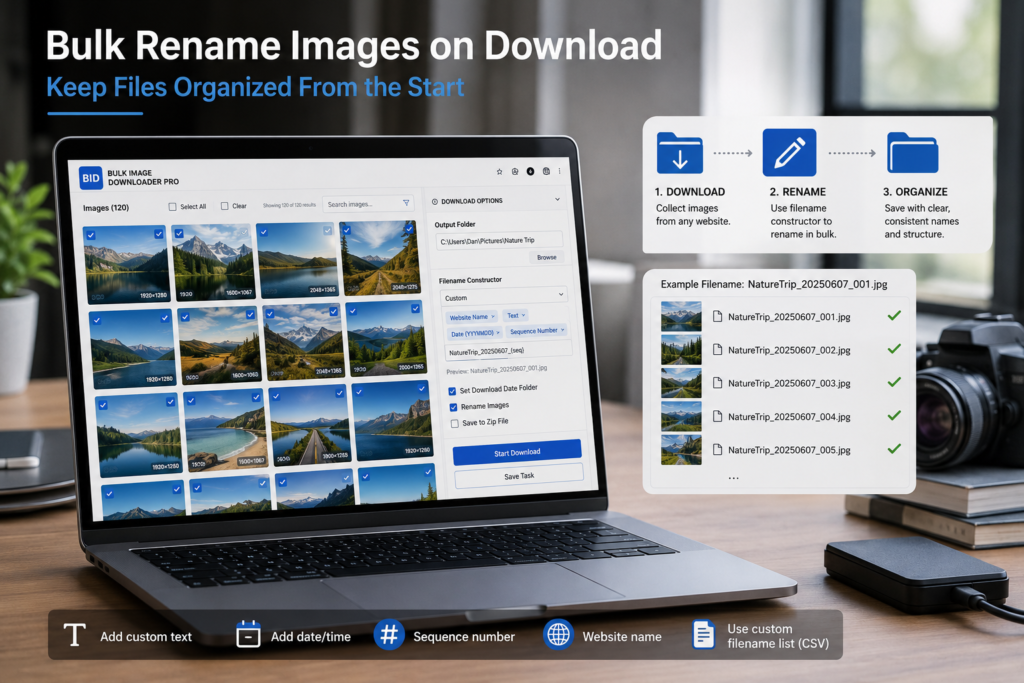
Image downloads often fail at the naming stage. The files arrive as random hashes, cropped URL fragments, duplicate names, or camera-style names that mean nothing once they are mixed in a folder.
If you need an organized archive, catalog, research set, or client handoff, it is better to bulk rename images on download instead of cleaning up hundreds of filenames afterward.
Decide the filename pattern before saving
Bulk Image Downloader Pro includes a Filename Constructor on the task workflow. After collecting and filtering images, you can build a filename pattern before the download starts.
Useful pieces include the original filename, sequence numbers, timestamps, website/domain details, URL fragments, random strings, custom text, and the file extension. Put them together in the order you want the final names to appear.
Use sequence numbers when order matters
Sequence numbers are helpful for galleries, product sets, tutorials, and any group where file order matters. Set the starting number and padding width so names sort cleanly, such as product-001.jpg, product-002.jpg, and product-003.jpg.
If the order of the URL list matters, enable Respect Order so the filename sequence follows the list order rather than whichever file finishes first.
Use custom names from CSV or TXT
Sometimes the best filename does not come from the source URL at all. Product SKUs, image captions, item IDs, and spreadsheet labels often make better names.
For those jobs, custom filenames can be loaded from a CSV or TXT file with one name per line. The extension applies those names to the batch in order. This is useful when a URL list already has a matching list of labels prepared outside the browser.
Clean up messy source filenames
Filename cleanup rules help remove unwanted text, replace repeated patterns, and tidy names before they land on disk. That is useful when URLs contain tracking fragments, generated suffixes, or inconsistent naming.
Cleanup is not a substitute for planning the naming pattern, but it saves a lot of small manual edits when the source site is messy.
A practical renaming workflow
Scan the page or load a URL list, filter the images, open the task settings, enable the Filename Constructor, add the pieces you need, and preview the naming logic before downloading. Use sequence numbers for order, custom CSV/TXT names for catalog work, and cleanup rules for source-name noise.
The result is a folder that is already usable when the download finishes.
Continue reading: download images behind login or interaction.
Get Bulk Image Downloader Pro on the Chrome Web Store, watch the tutorial video, or visit our YouTube channel for more image download workflows.