
Download Images Behind Login or Interaction — What a Browser Extension Can Do
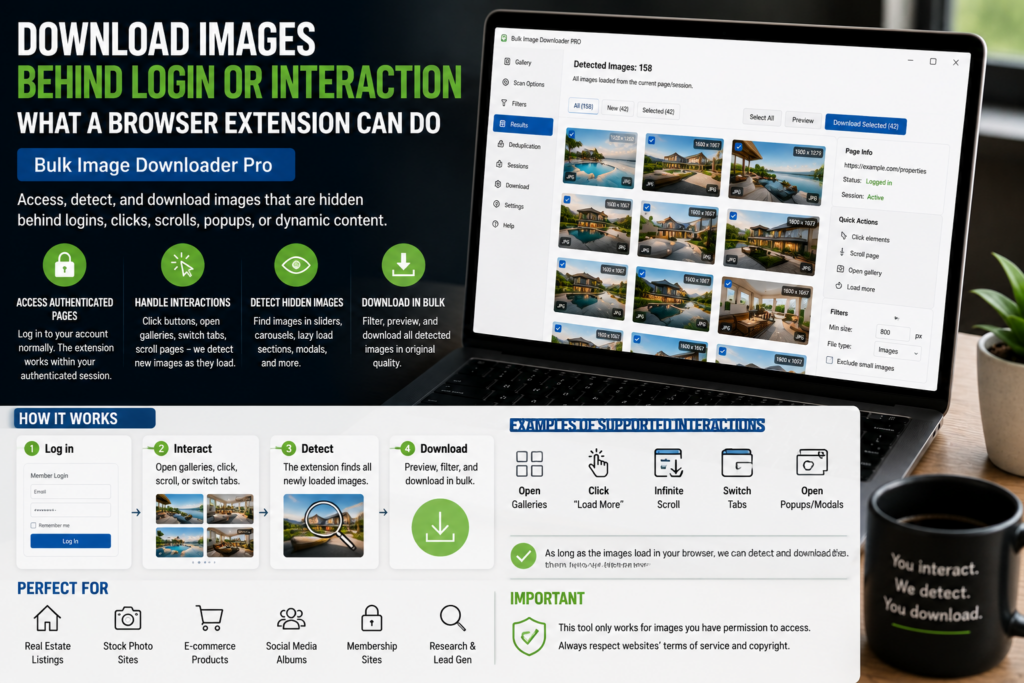
Some images do not appear on a public page. They show only after you sign in, open a dashboard, expand a tab, scroll a feed, or click into a gallery. A normal external URL checker may not see those images because it is not inside your browser session.
A browser extension can help you download images behind login or interaction when the images are available to you in Chrome. It is not a bypass tool. It works with pages you can legitimately access and that your browser can load.
Start with the page in the right state
Sign in normally, open the page, and do the interactions that reveal the images. If a gallery image only appears after a tab is opened, open the tab first. If full-size images appear after clicking thumbnails, load those views before scanning where practical.
The scan is only as good as the page state. Hidden images that never load into the browser cannot be magically collected.
Use Deep Scan for lazy-loaded content
Deep Scan helps with pages that load images as you scroll or wait. It is useful for member galleries, account pages, dashboards, and app-like views where images appear gradually.
Area Scan can also help when the useful images sit inside one region of a busy interface. That keeps navigation icons, avatars, and unrelated UI assets out of the result list.
Filter carefully before downloading
Logged-in pages often contain many non-content images: buttons, profile icons, badges, UI sprites, logos, and thumbnails. Use dimension, file type, domain, and text filters before creating the task.
For sensitive or private work, keep output organized with clear folders and filenames so you do not accidentally mix client, member, or account-specific files with unrelated downloads.
Respect permissions and terms
Access does not automatically mean permission to reuse or redistribute. Only download images you own, manage, are licensed to use, or are allowed to save under the site’s terms. Do not use bulk downloading to evade paywalls, copy private member content, or ignore copyright restrictions.
This matters for SEO and business workflows too. A clean process should reduce manual work without creating a rights problem.
A responsible workflow
Confirm you are allowed to save the images, sign in, reveal the content, run Scan Current Page, Deep Scan, or Area Scan, filter the results, then send the selected images into a download task. From there you can set folders, filenames, ZIP output, or processing options if the job requires them.
Used this way, the extension is simply helping collect images your browser is already allowed to show you.
Getting the page into the right state first
A behind-login page is a state problem more than a scanning problem. Scan current page finds pictures already on the page; Deep scan waits for pictures that appear after you scroll. Neither signs in for you, so the session has to be authenticated and the content rendered before a scan is meaningful.
You can also drop picture files directly onto the Images step, and paste one link per line. The same link is not kept twice in one download. Where a page reveals images only after interaction, bringing it to that state first and then scanning produces a list you can filter, rather than a partial capture that looks like a blocker.
Continue reading: scheduled image downloads.
Saving a single file is not the challenge; cleaning and repeating the job without rework is.
Every step — filtering, renaming, and the download itself — runs from the same Chrome tab.