
Download Images From Multiple URLs Without Opening Every Page
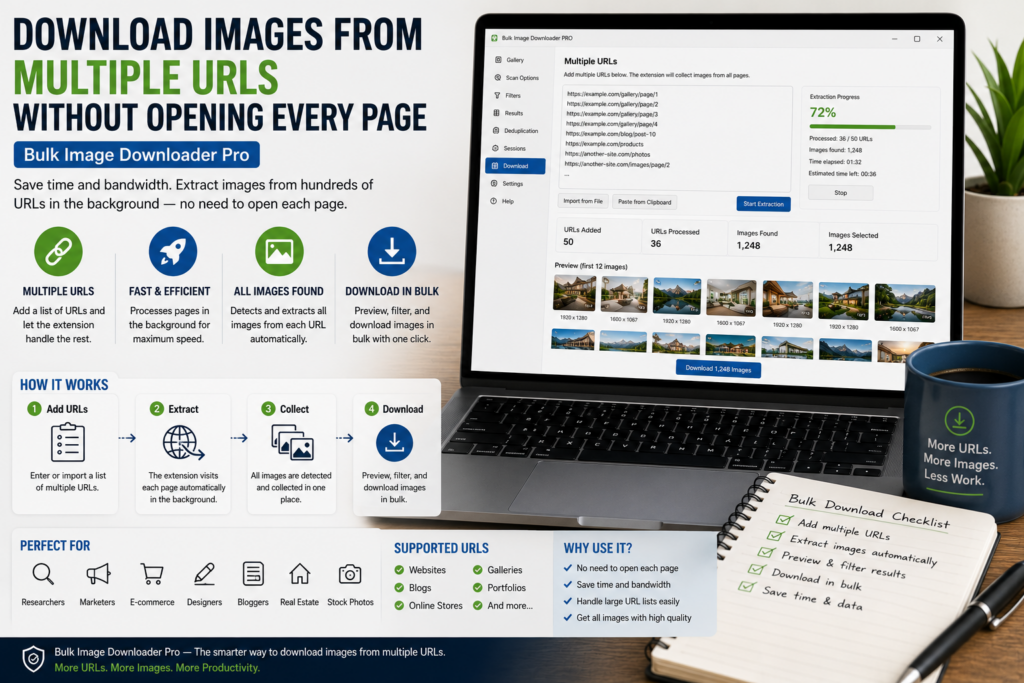
Opening a long list of pages one by one is slow, especially when each page has a gallery, product images, or lazy-loaded assets. A URL-list workflow is built for that situation.
With Bulk Image Downloader Pro, you can download images from multiple URLs by giving the side panel a list of pages, reviewing the combined results, and sending the images you want into a task.
Start with a clean page list
Paste URLs one per line or load them from a file. If the list came from a spreadsheet, clean it first: remove blank rows, duplicates, tracking-only URLs, and pages that no longer exist.
For very large lists, test a small sample before running everything. That helps you catch login requirements, blocked pages, or pages that do not contain the images you expected.
Use delay and limits for control
Multi-page scraping should not be a blind blast. Use a request delay to space out page loads and a max-URL cap when testing. This keeps the run more predictable and reduces the chance of overwhelming the source site.
If a site is slow, protected, or rate-sensitive, smaller batches are usually easier to troubleshoot than one huge run.
Scan and filter the combined results
After the scrape, review the result set before downloading. Use dimensions to remove thumbnails, file type filters to keep the formats you want, domain filters to avoid third-party clutter, and URL text searches to focus on known folders or naming patterns.
Deep Scan, pagination, and Stack Mode can help in the right page structures, but they are not a promise that every hidden asset on every site will be captured. The browser still has to be able to load the images.
Save only the useful images
Once the result list is clean, create the download task. Set folder names, ZIP output, filename rules, or processing options if the workflow needs them.
For repeat jobs, save sessions or rules where appropriate, and export task settings when you need a reusable configuration.
A practical multi-URL workflow
Clean the URL list, run a small test, set a delay, scrape the pages, filter the combined results, remove duplicates, and download the final set. That gives you the benefit of multi-page collection without babysitting dozens of tabs.
Continue reading: export image URLs without downloading.
Get Bulk Image Downloader Pro on the Chrome Web Store, watch the tutorial video, or visit our YouTube channel for more image download workflows.