
Image Downloader Extension Permissions — Bulk Image Downloader Pro
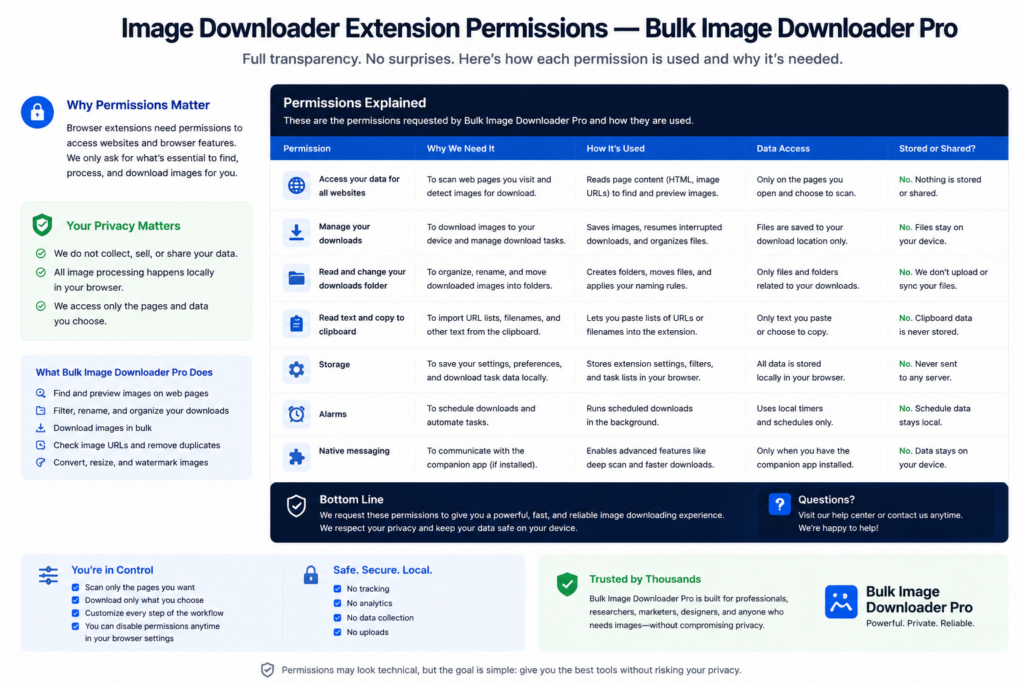
Before you install any grabber, read the Chrome Web Store permission summary. Image downloader extension permissions tell you what the tool can reach on the web and what it can do inside your browser. That matters when images are client work, unpublished research, or anything you would not want copied to a remote server.
This page explains common permission types, what to look for on any listing, and what Bulk Image Downloader Pro requests in its manifest, stated plainly.
Permissions you will see on image downloaders
Most image-related extensions need some combination of:
- Host access ( or specific sites) so the extension can read page content and image URLs
- scripting to inject scan logic for lazy-loaded images, Deep Scan scrolling, or Area Scan regions
- tabs to read the active page or open URLs during bulk scraping
- downloads to save files through Chrome’s download API
- storage to keep tasks, settings, and scrape sessions on your device
Chrome often summarizes host access as “Read and change all your data on all websites.” That wording sounds alarming, but many scrapers need broad host access because images load from CDNs on different domains than the page you opened.
What to evaluate beyond the scary label
- Does each permission map to a feature you use? Downloads and storage are expected. Scripting is expected for scroll-based capture.
- Does the tool upload your images for processing? Cloud resize or convert steps mean files leave your machine.
- Where is data stored? Local browser storage you can export beats opaque remote copies.
- When does the extension act? User-started scans are easier to reason about than always-on background collectors.
- Can you export tasks? CSV backups let you keep a copy outside extension storage.
What Bulk Image Downloader Pro requests
From the extension manifest (v3.2):
- permissions: downloads, storage, alarms, cookies, sidePanel, scripting, tabs
- host_permissions:
That is broad host access. It is required for features like Bulk URL scrape (opening many pages), cross-domain image URLs, and chrome.scripting.executeScript during Deep Scan and Area Scan. This extension does not use optional host permissions; the listing reflects the full scope up front.
Data handling on your side:
- resize, convert (JPEG/WebP/PNG), EXIF strip, and PNG watermark run client-side in Web Workers
- tasks and settings live in chrome.storage.local
- Upload Mode files stay in IndexedDB on your device
- task CSV export gives you a backup you control
The cookies permission supports license session validation against the vendor site; it is not a claim that your image task lists are uploaded for normal downloads.
Practical habits before you trust a grabber
- read the full permission list on the Chrome Web Store page, not only the star rating
- prefer tools that document why they need scripting and host access
- use local processing for sensitive images when possible
- export tasks after large jobs so you are not locked into one browser profile
- review permissions again after major extension updates
Honest takeaway
No image scraper with deep page access is permission-free. Broad host access is common in this category. The decision is whether you trust the vendor’s data handling and whether each permission matches work you actually do. Read the listing, match permissions to features, and choose tools that keep finished image processing on your machine when privacy matters.
Review Bulk Image Downloader Pro on the Chrome Web Store before installing.
Continue reading: Image Scraping vs Octoparse.
Get Bulk Image Downloader Pro on the Chrome Web Store, watch the tutorial video, or visit our YouTube channel for more extension permission guidance.