
Multi Page Image Scraping — Bulk Image Downloader Pro
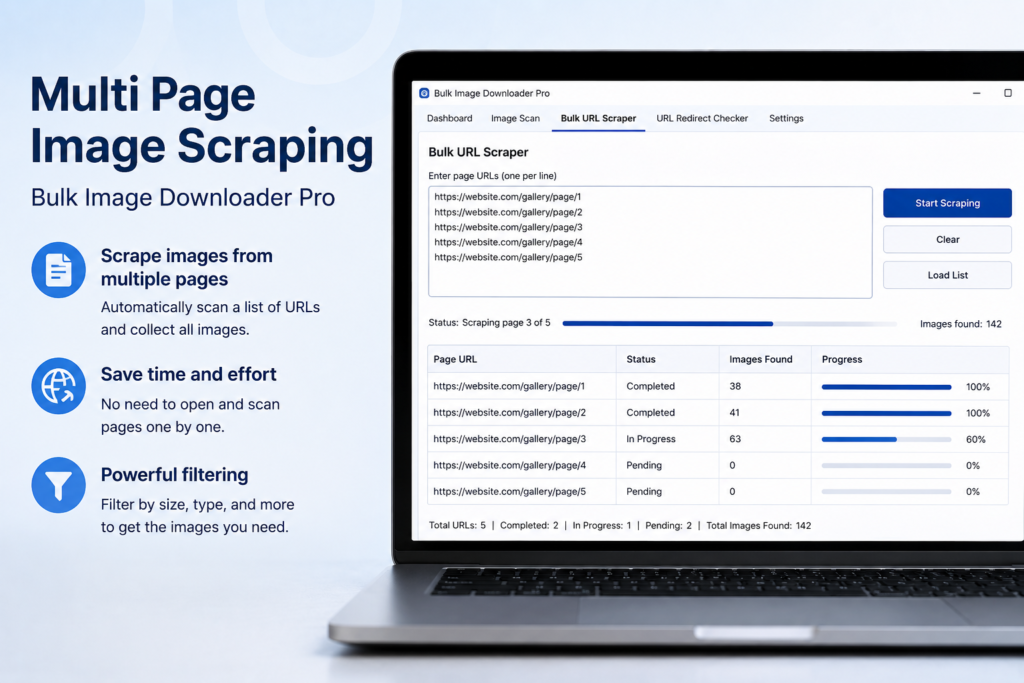
Many useful image sets are split across several pages. Product catalogs, galleries, search results, archives, and portfolios often hide the full collection behind page 2, page 3, and a Next button. Multi page image scraping is for collecting those page-by-page images without rebuilding the same scan manually each time.
Bulk Image Downloader Pro supports pagination from the side panel, so a scan can move through a page sequence and collect results into one working set.
When pagination is the right tool
Use pagination when one starting page clearly continues into related pages: a numbered gallery, a catalog with Next links, a search results sequence, or an archive with page parameters.
If you already have unrelated page URLs in a separate list, use bulk URL scraping instead. Pagination is best when the site itself defines the next page in a sequence.
Auto-detect vs manual range
Auto-detect looks for common pagination signals such as next links, pagination navigation, page-number links, and page-related URL patterns. It is convenient when the site uses recognizable controls.
Manual range is better when you know the exact page span or the site uses a predictable URL structure. You can set a start page, an end page, and a max-page limit so the scan does not run farther than intended.
Set limits before you start
Multi-page scans can grow quickly. A catalog with repeated thumbnails, icons, banners, and related products can produce more URLs than you expect. Set a sensible max page count and stop the scan if the sequence drifts into unrelated pages.
The goal is not to collect the largest possible list. The goal is to collect the right pages and clean them before download.
Keep results together with Stack Mode
When scanning across pages, Stack Mode matters. With Stack Mode on, each page adds to the current collection. With Stack Mode off, a new scan can replace earlier results.
For a multi-page gallery, keep Stack Mode on so page 1, page 2, and page 3 build into one reviewable set.
Clean repeated images after the run
Pagination often finds duplicates: repeated logos, navigation graphics, thumbnails, and the same image in different sizes. After the scan, use filters, selection, sorting, and deduplication before creating the task.
For larger catalogs, review a sample first so you know whether the sequence is producing useful images or mostly layout clutter.
A practical multi-page workflow
- Open the first page of the gallery or catalog.
- Enable Pagination in the side panel.
- Choose auto-detect or set a manual page range.
- Turn on Stack Mode when results should accumulate.
- Run the scan and watch the page count/status.
- Filter and dedupe the combined image set before downloading.
For single-page scans, read scan webpage for images. For URL-list workflows, see scrape images from a URL list.