
Scrape Images From a URL List
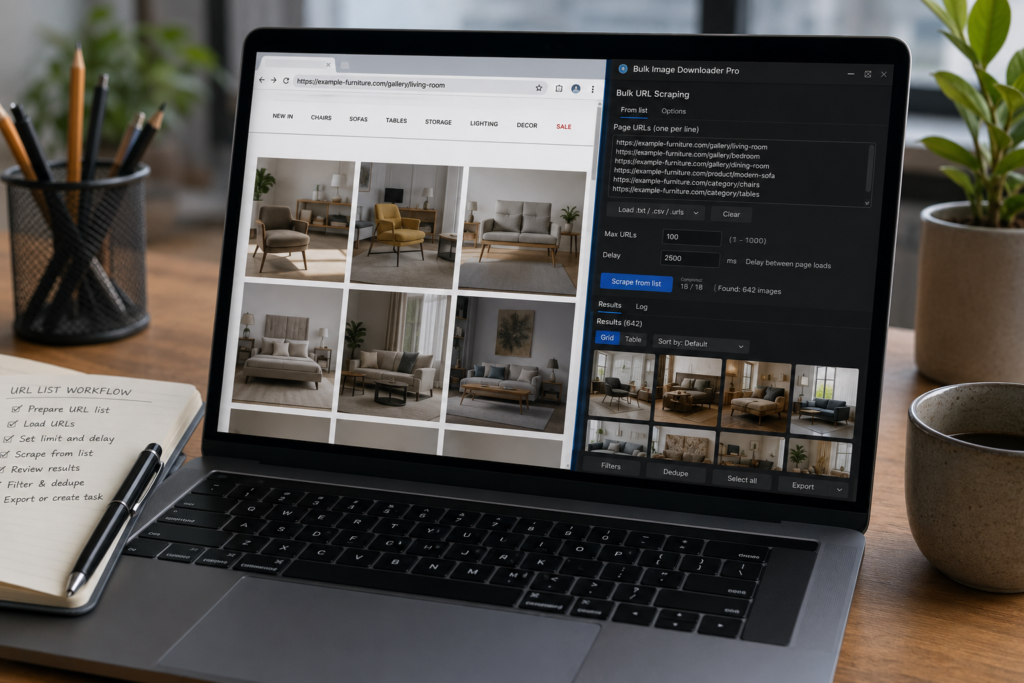
Scraping images from a URL list starts with a file or paste of direct image links, then a bulk save step. Bulk Image Downloader From URL List is built for that list-first flow.
Opening one page, scanning it, copying the results, and moving to the next page is fine for a small job. It becomes tedious when you have a list of gallery pages, product pages, category pages, or article URLs. That is when you need to scrape images from URL list instead of working one tab at a time. Bulk Image Downloader From URL List includes side-panel Bulk URL Scraping for this exact workflow. You provide page URLs, the extension visits them in sequence, runs the scraper, and brings the discovered images back into the same results area used by normal page scans.Use page URLs, not direct image URLs
This side-panel workflow is for pages that contain images. Paste product pages, gallery pages, search result pages, or other webpage URLs. The scraper opens each page and looks for images there. If you already have direct image file URLs, use a downloader task on the options page instead. That is a different workflow: the task downloads the image links you already have, while Bulk URL Scraping discovers images from pages.Load the list
You can paste URLs into the bulk URL box, one per line. You can also load a simple line-based file such as.txt, .csv, or .urls. The file loader reads lines, trims blanks, and places the URLs into the box.
Use full http:// or https:// URLs. Other entries are skipped by the scraper.
Set a sensible page limit and delay
The Max URLs setting controls how many pages the run will visit, with a safety cap so a large list does not run forever. The Delay setting adds time between page loads. The default is useful for ordinary sites, while fragile or rate-sensitive sites may need a longer pause. This matters because the scraper is opening real pages in the browser. A calmer run is usually more reliable than trying to rush through hundreds of pages.Review the combined results
After the run, all discovered images land in the side-panel results. That does not mean every image belongs in your final download. Multi-page scraping can collect logos, icons, repeated thumbnails, ads, tracking pixels, and images from related sections. Use filters, Current domain only, sorting, selection, and deduplication before exporting URLs or creating a download task.A practical URL-list workflow
- Prepare a clean list of page URLs.
- Paste the URLs or load a simple line-based file.
- Set Max URLs and a reasonable delay.
- Run Scrape from list.
- Review the combined results in grid or table view.
- Filter, dedupe, select, then export or send the images to a task.
For the step-by-step URL list workflow, see how to bulk download images from a URL list.
When the list is ready, run it through Bulk Image Downloader From URL List Extension so naming rules, folders, and filters stay consistent across the batch.