
Image Downloader vs Screenshot Tools — Source File or Screen Capture?
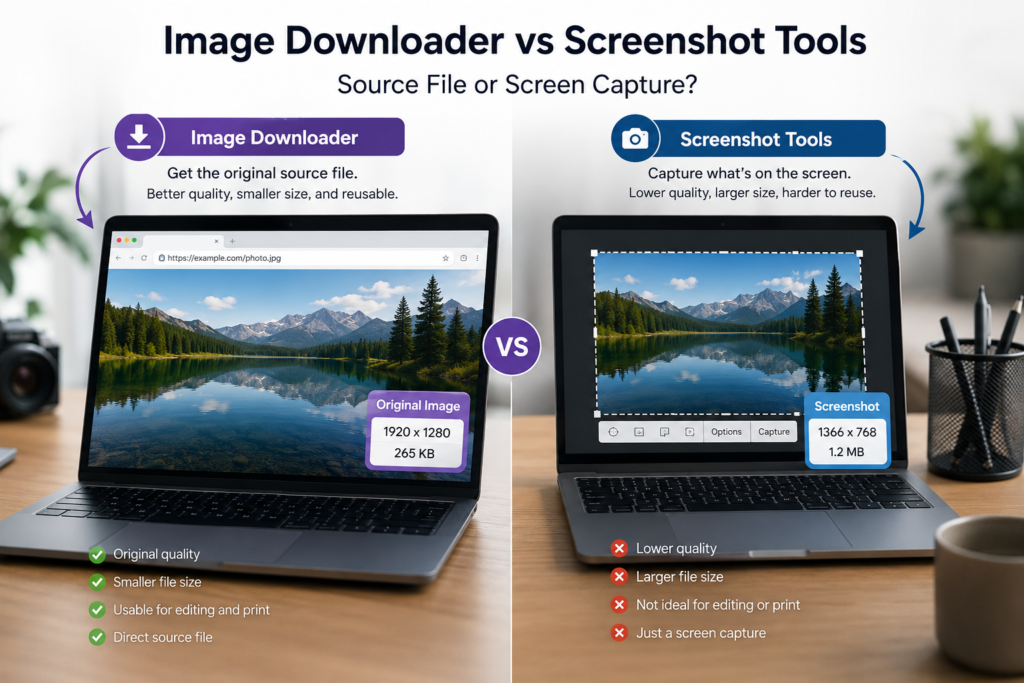
Screenshot tools and image downloaders solve different problems. A screenshot captures what your screen shows. An image downloader tries to save the actual image file the page is using.
That difference matters. If you need to document a layout, a screenshot is perfect. If you need the image itself for an archive, catalog, dataset, reference folder, or migration, a downloader is usually the better tool.
When screenshot tools are right
Use a screenshot tool when the visible composition matters more than the source file. Screenshots are ideal for bug reports, page layout examples, annotations, error messages, rendered charts, before/after comparisons, or anything drawn in a canvas where there may not be a normal image file to download.
A screenshot is also quick. If you only need to show someone what you saw, it is often the fastest answer.
Where screenshots fall short
A screenshot is limited by what appears on screen. If a 3000-pixel product photo is displayed at 600 pixels wide, a screenshot captures the displayed version, not the original detail. It may also flatten transparency, discard the original format, and create a new file that does not match the source image.
For one quick note, that is fine. For a folder of assets, it becomes a quality problem.
What an image downloader preserves
An image downloader works from the image sources found on the page. With Bulk Image Downloader Pro, the side panel can scan browser-visible pages, filter the result list, remove exact URL duplicates, and send selected images to a download task.
That gives you a chance to save the actual image URL, keep the original format when you want it, or intentionally process the file on the options page. Resize, Convert, and EXIF stripping are deliberate choices, not accidental side effects of a screen capture.
Bulk work is where the gap gets wider
Taking one screenshot is easy. Taking a hundred screenshots, cropping them, naming them, and sorting them into folders is not. A downloader can collect many source images, filter by dimensions or type, name files with a pattern, save into a folder or ZIP, and review duplicates before or after task creation.
That is why screenshot tools are good for communication, while image downloaders are better for asset collection.
How to choose
- Choose screenshots when you need the appearance of a page, not the underlying image file.
- Choose an image downloader when you need source images, bulk collection, naming, folders, or processing.
- Use both when documenting a project: screenshots for context, downloaded files for the actual assets.
The simplest rule is this: screenshots record what you saw; image downloaders save what the page used.
Continue reading: switch image downloader extension tools.
Get Bulk Image Downloader Pro on the Chrome Web Store, watch the tutorial video, or visit our YouTube channel for more image download workflows.