
Switch Image Downloader Extension — A Practical Migration Guide
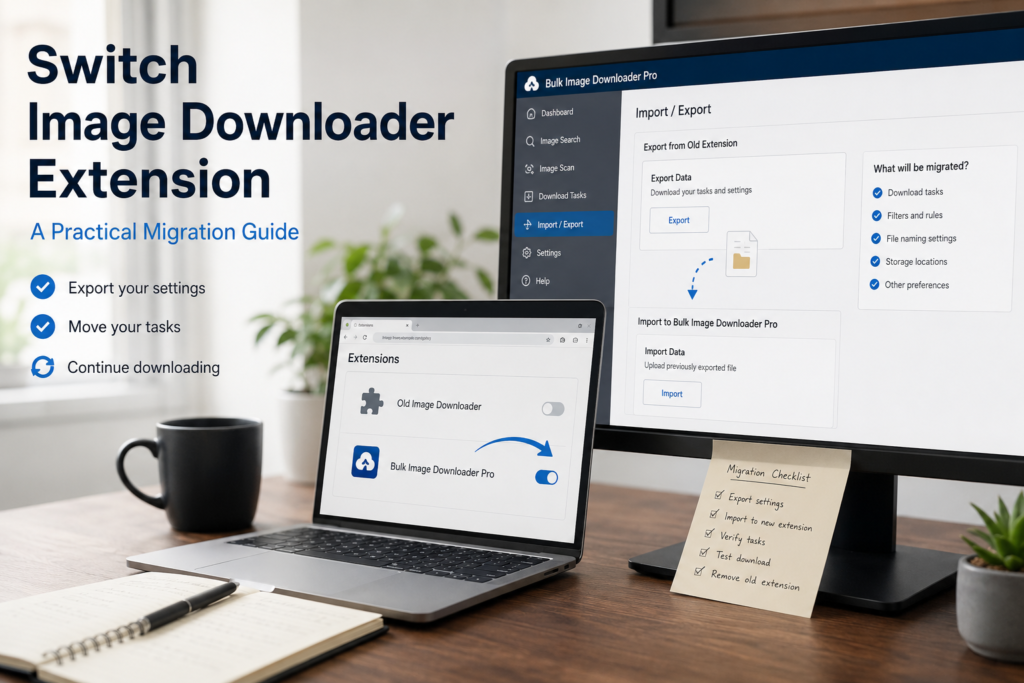
If you want to switch image downloader extension tools, the biggest challenge is usually not learning every new feature. It is mapping your old habits to the new workflow without losing speed.
Bulk Image Downloader From URL List still supports simple page scanning, but it adds more structure: URL lists, sessions, saved rules, task settings, naming rules, folders, ZIP output, and optional processing.
Map the old workflow first
Start by writing down what your old extension actually did for you. Was it a one-page grabber? A multi-tab collector? A visual image sniffer? A ZIP downloader? A quick filter tool?
Then map those habits to the closest workflow:
- Single page grab: use Scan Current Page in the side panel.
- Lazy-loaded gallery: use Deep Scan instead of manually scrolling first.
- Specific page section: use Area Scan to focus on one region.
- Many source pages: paste or load page URLs in Bulk URL Scraping.
- Size filters: use dimensions, file type, aspect ratio, domain, and text filters.
- ZIP output: configure ZIP output on the options-page task.
Move from grabbing to task output
The main mental shift is that the side panel finds images and the options page saves them. After scanning and filtering, use Download Images Here or Download Selected to create a task.
On that task, decide how the output should land: folder name, ZIP or loose files, filename constructor, custom filename files, Download IF rules, parallel or queued execution, and optional processing.
Add advanced features one at a time
Do not enable every feature on the first run. Repeat a familiar job first. Once the basic result matches your old extension, add one improvement at a time:
- Add a filename pattern so files sort cleanly.
- Save into a named folder instead of a generic download pile.
- Use exact URL deduplication before task creation.
- Use preview filtering or perceptual duplicate review for larger task lists.
- Use Resize or Convert when output size or format matters; they are separate modes, so choose the one the job needs.
- Use EXIF stripping or PNG watermarking only when the workflow calls for it.
Save the repeatable parts
The reason to switch is not only more features. It is less repetition. Save sessions when you want to return to a scrape. Save rules when you revisit the same kind of site. Export tasks to CSV when you want a backup or repeatable configuration.
If your old extension made you rebuild the same filters and filenames every time, this is where the new workflow pays off.
Keep the old tool briefly, then compare
For the first week, run a few familiar jobs in both tools. Compare what lands on disk: names, folders, image count, duplicates, and cleanup time. If the new workflow produces a cleaner folder with fewer manual steps, the switch is justified.
If your old tool is still faster for a tiny one-page grab, keep it for that narrow job. Switching does not have to mean pretending one extension is best for every task. The goal is to use the deeper workflow where it actually helps.
Continue reading: bulk download and convert WebP images.
Once the list is ready, running it through the extension keeps naming rules, folders, and filters consistent across the batch.