
Scan a Webpage for Images — Bulk Image Downloader Pro
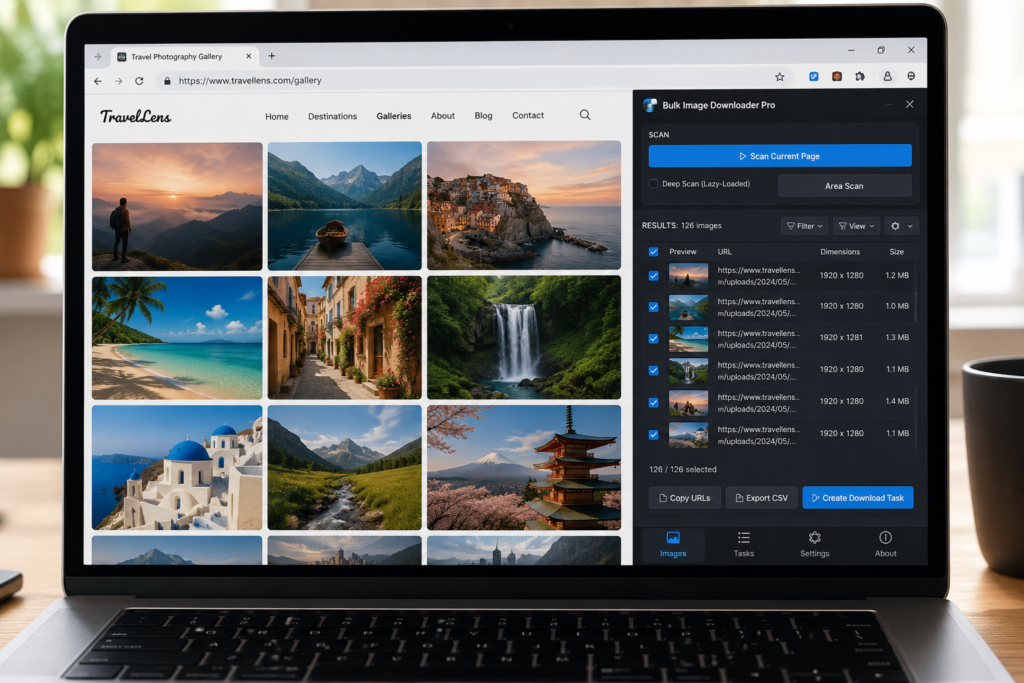
When the images you need are already visible or available on a page, the fastest option is not a complicated crawler. You just need to scan webpage for images, review what was found, and download the useful set.
Bulk Image Downloader Pro handles this from the side panel with Scan Current Page. It looks for images the browser can access on the active page, then places them into a results view where you can preview, filter, select, copy, export, or turn them into a download task.
Use Scan Current Page for simple pages
Scan Current Page is the right first move for static galleries, product pages, blog posts, documentation pages, portfolios, and image grids that have already loaded. It is faster than Deep Scan because it does not need to wait through a long scrolling cycle.
Start here before using heavier scan modes. If the result set looks complete, there is no need to run anything more complex.
What the scan can find
The side-panel scanner checks common places where page images appear, including image elements, responsive image sources, background-image URLs, picture/source markup, metadata images, lazy-load attributes, video posters, SVG image references, and other browser-accessible image candidates.
That gives you a broader pass than right-clicking visible photos one by one, while still staying tied to what the page actually exposes to the browser.
What it may miss
A current-page scan is not the same as a full crawl. If images load only after scrolling, clicking a gallery control, opening a tab, passing a login wall, or waiting for JavaScript, they may not be available to this first pass.
In that case, interact with the page and scan again, or switch to Deep Scan for lazy-loaded and dynamic pages.
Clean the results before downloading
After the scan, do not download everything blindly. Use the results grid or table to remove icons, logos, tracking pixels, thumbnails, wrong formats, or images from the wrong domain.
You can sort by dimensions or file size, keep images from the current domain, select only the images you want, copy URLs, export a CSV, or create a download task from the cleaned list.
A practical current-page workflow
- Open the webpage and let the visible section load.
- Open the side panel and run Scan Current Page.
- Review the image results with thumbnails or table view.
- Filter out small assets, wrong formats, and unrelated domains.
- Select the useful images or keep the full cleaned set.
- Create a download task, export the URLs, or copy the results for later.
For pages that load more images as you scroll, read deep scan lazy loaded images. For one section of a cluttered page, see Area Scan images.