
Review Scraped Image Results
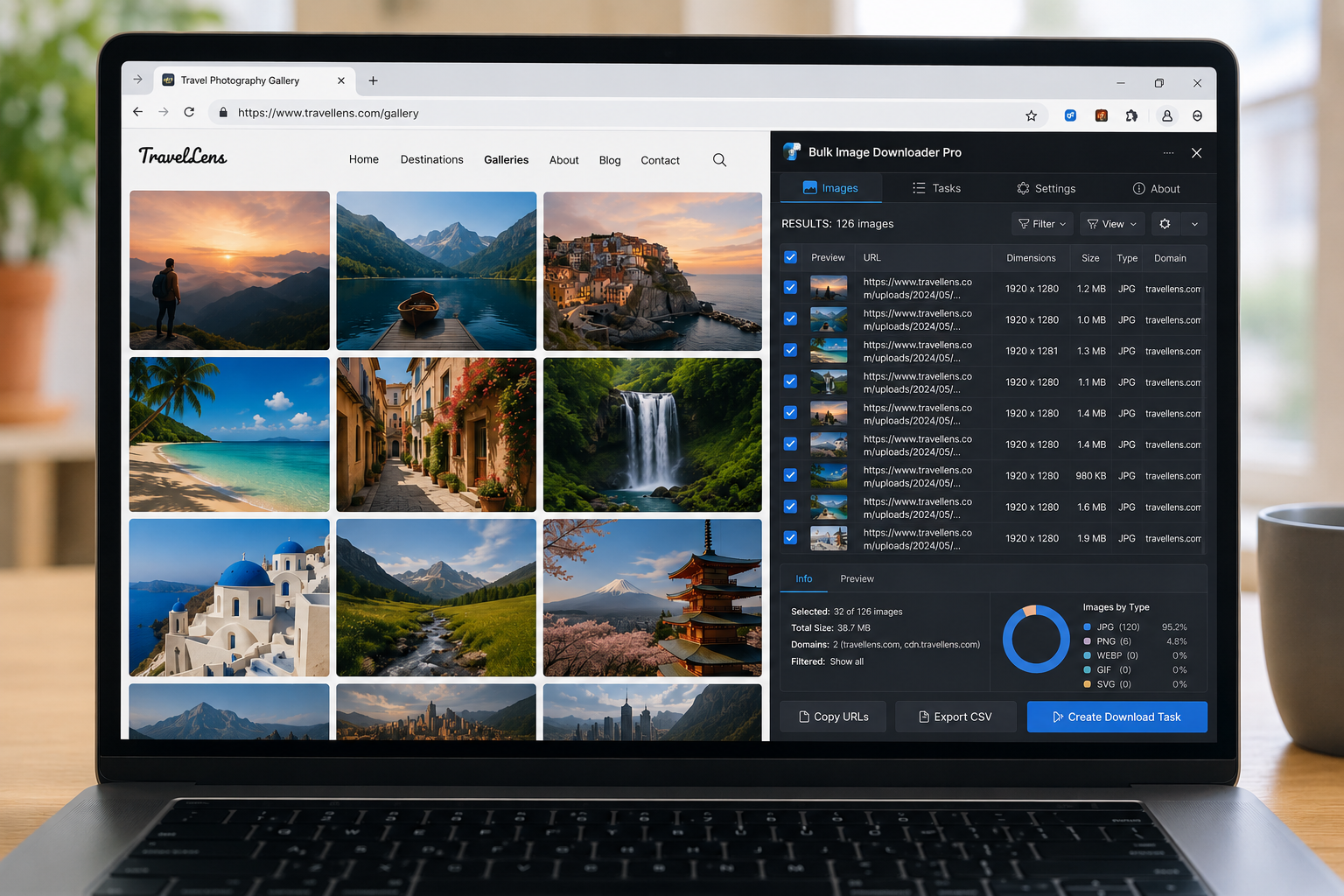
A scan is only the first half of the job. The results may include useful photos, thumbnails, logos, icons, tracking pixels, duplicate URLs, and images from unrelated parts of the page. Before exporting or downloading, you need to review scraped image results carefully.
Bulk Image Downloader From URL List gives you two result views in the side panel: a visual grid and a metadata table. They solve different review problems.
Use grid view for visual review
Grid view is best when you need to recognize images by sight. It helps when you are choosing product photos, gallery images, moodboard references, or visual assets where the thumbnail matters more than the URL.
If thumbnails slow down a very large result set, the thumbnail toggle can lighten the view while you continue working through the list.
Use table view for metadata decisions
Table view is better when the decision depends on data. It shows useful fields such as URL, title, alt text, dimensions, format, file size, and preview information where available.
Use it when you want to sort large images to the top, group similar URLs, compare dimensions, or copy one specific image URL.
Sort and narrow the list
The side panel can sort by URL, width, height, or file size, with ascending or descending order. Current domain only helps remove many third-party assets when the page includes ads, trackers, or embedded content from other domains.
These controls are not a substitute for judgment, but they remove obvious clutter before you export or create a download task.
Select only what should move forward
Use Select All, Select None, and Invert to work quickly through large result sets. The live selected count tells you how many images will move forward when you copy URLs, export CSV, or download selected images.
This is especially useful after filtering: select the good set, invert if you need to drop a few, then send only the reviewed images to the next step.
Choose the next action
Once the set is clean, you can copy URLs, export a CSV, download selected images, or create a task on the options page. If you are not sure the set is right yet, export the CSV first and review it in a spreadsheet.
The point is to make the decision before the files hit your downloads folder.
A practical review workflow
- Scan the page or scrape a URL list.
- Use grid view to spot obvious visual mismatches.
- Switch to table view to sort by URL, dimensions, or file size.
- Use Current domain only if third-party clutter is present.
- Select the images that should move forward.
- Copy, export, or create a download task from the reviewed set.
For CSV output, read export image URLs to CSV. For dimension cleanup, see filter images by dimensions.
For a repeatable setup, save the rules once in Bulk Image Downloader From URL List, then reuse them the next time you face a similar URL list.
Bulk Image Downloader From URL List keeps this workflow inside Chrome so you can filter, rename, and download from one place.