
Image Downloader Keyboard Shortcuts
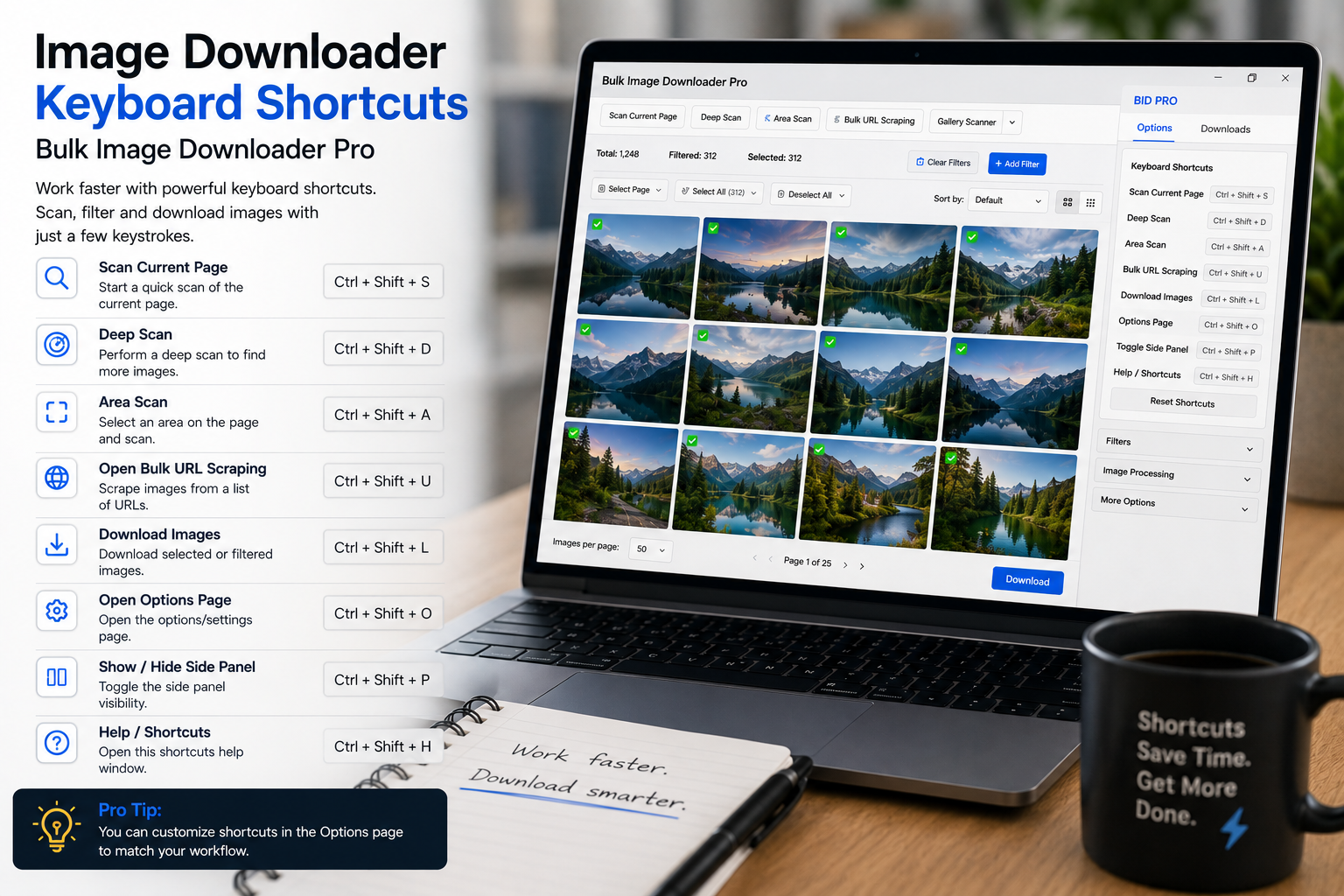
Mouse-driven work is fine for the first task of the day. By the tenth paste-and-save cycle, clicks add up. The image downloader keyboard shortcuts on the options page in Bulk Image Downloader From URL List cover the actions you repeat most: save, download, navigate tasks, and flip modes without leaving the keyboard.
Modifiers are shown as Ctrl on Windows/Linux and Cmd on macOS below.
Core workflow shortcuts
- Ctrl/Cmd + S — save all tasks as drafts (works even while typing in URL fields)
- Ctrl/Cmd + Enter — Save & Download immediately (also works while typing)
- Ctrl/Cmd + Alt/Option + N — create a new task
Draft save is the safety net for long lists you are still building. Save & Download closes the loop when the task is ready to run.
Navigation and task housekeeping
- Ctrl/Cmd + Shift + U — focus the URL input on the active task
- Ctrl/Cmd + Shift + Up / Down — move focus between tasks
- Ctrl/Cmd + Backspace — remove the active task (with confirmation)
- Ctrl/Cmd + Shift + L — lock or unlock task drag reordering
Focusing the URL field with a keystroke pays off when you process list after list. Lock drag prevents accidental reshuffles on long task queues.
Mode toggles and cheat sheet
- Ctrl/Cmd + Shift + Q — toggle queued downloads on or off
- Ctrl/Cmd + Shift + D — toggle dark mode
- Ctrl/Cmd + / (or ?) — open or close the shortcut cheat-sheet overlay
Queued mode and dark mode are mid-session flips; keyboard access beats hunting through panels. If you forget a binding, Ctrl/Cmd + / shows the full list in place.
What shortcuts respect while you type
Most shortcuts are ignored when your cursor is inside an input, textarea, or editable field, so normal typing is not interrupted. The intentional exceptions are Ctrl/Cmd + S and Ctrl/Cmd + Enter, which still save or download while you are editing URLs. The cheat-sheet shortcut also avoids firing during text entry.
Build the habit gradually
- start with Ctrl/Cmd + Enter and Ctrl/Cmd + Shift + U
- add Ctrl/Cmd + S once you work on large drafts
- learn task navigation keys when you manage multiple queues
- keep Ctrl/Cmd + / for everything else
Speed here is mostly friction removal. These bindings map to real moments where a mouse round-trip would break rhythm.
Install Bulk Image Downloader From URL List and wire the shortcuts you use every session first.
Continue reading: Save Image Download Task Drafts.
Get Bulk Image Downloader From URL List on the Chrome Web Store, watch the tutorial video, or visit our YouTube channel for more options-page tips.