
Images Not Downloading? Fix the Usual Chrome Download Problems
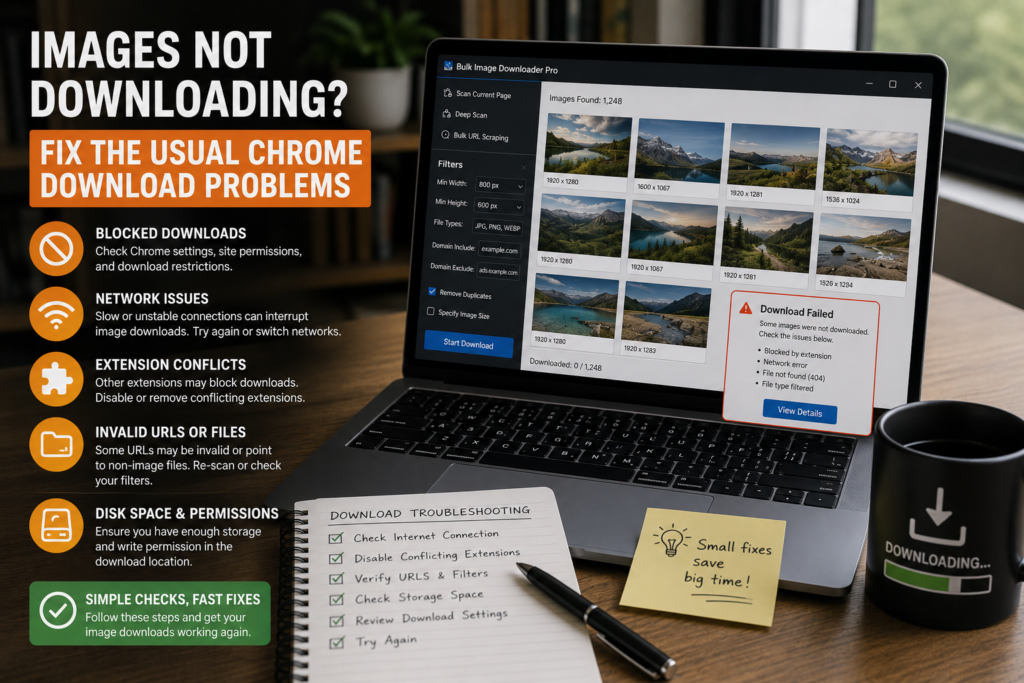
When an image batch comes back half empty, the problem is usually not mysterious. The page may not have loaded every image, the URLs may be dead, the filters may be too strict, or the source site may be slowing requests down.
This images not downloading fix checklist starts with the causes you can actually verify before you rerun the job.
The page did not load all images before scanning
Lazy-loaded and infinite-scroll pages often hide most images until you scroll. If you scan too early, the downloader can only see the images that the browser has already loaded.
Use Deep Scan for pages that load images gradually. For pages split across multiple sections or pagination, collect the relevant pages or scan states before expecting a complete result.
The URL list has broken or redirected links
If the scan or spreadsheet contains stale URLs, the download task can fail even when the settings are correct. Run the 404 Checker to identify unreachable or non-image URLs before downloading a large list.
Use the Redirect Checker when links resolve through old paths or CDN redirects. It helps you see the final destination instead of guessing whether the original URL is still reliable.
Your filters may be excluding the images
Strict filters can make a good scan look empty. Check minimum dimensions, file type filters, domain filters, text searches, and Download IF rules. A small typo in a contains/not-contains or regex rule can exclude the entire batch.
Loosen one filter at a time and watch whether the preview count recovers. That is faster than rebuilding the task from scratch.
The source site may be blocking or slowing requests
Some sites do not like rapid parallel downloads, hotlinking, expired URLs, or missing browser context. Lower the parallel count, use smaller batches, and add request delay when scraping from page lists.
If images are behind a login, interaction, or time-limited session, make sure the page is still accessible in Chrome before retrying. The extension cannot fix permissions, expired access, or content your browser is not allowed to load.
The batch needs a cleaner rerun
For big jobs, queued mode can make task execution more orderly than launching everything at once. Download reports and failed URL lists can help you see what needs another pass.
A practical routine is: rescan with Deep Scan, validate URLs with the 404 and redirect tools, loosen filters, reduce speed, rerun a small test batch, then scale back up once the result looks right.
Continue reading: download CSS background images.
Get Bulk Image Downloader From URL List on the Chrome Web Store, watch the tutorial video, or visit our YouTube channel for more image download workflows.
For a repeatable setup, save the rules once in Bulk Image Downloader From URL List, then reuse them the next time you face a similar URL list.
Bulk Image Downloader From URL List keeps this workflow inside Chrome so you can filter, rename, and download from one place.