
Batch Resize Images in Browser While You Download
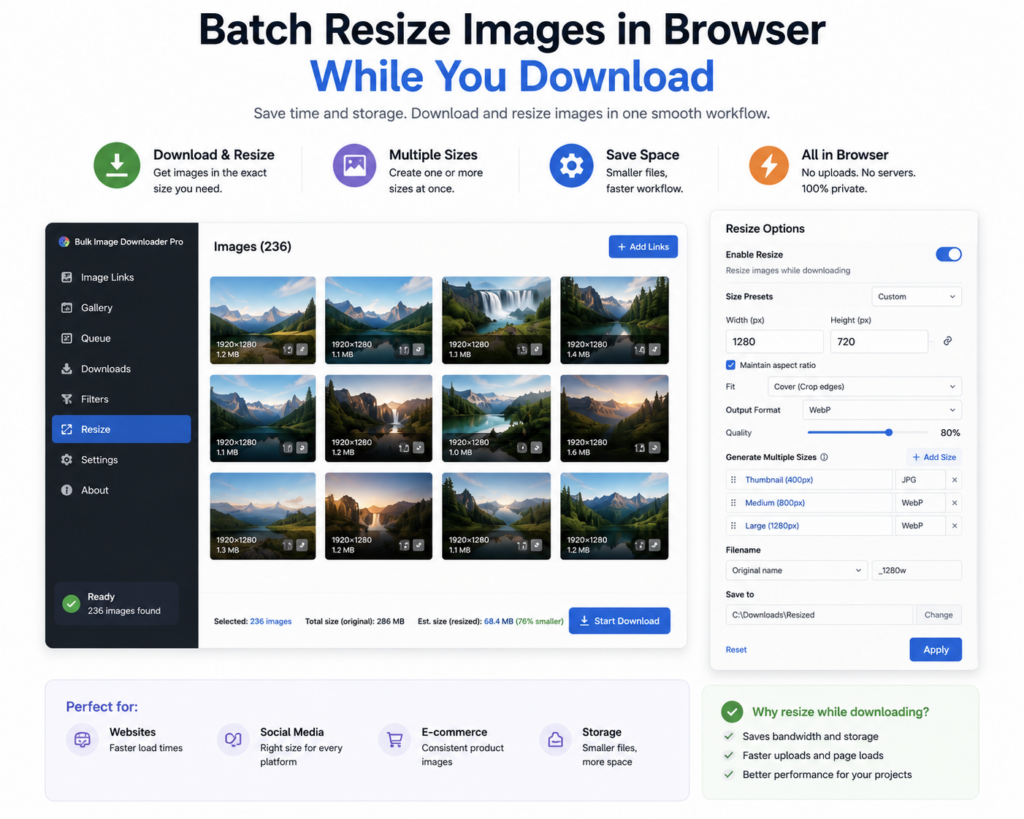
Resizing images after a download can turn a quick job into two jobs: first collect the files, then open another tool, pick a preset, export copies, and clean up the folders afterward.
With Bulk Image Downloader From URL List, you can batch resize images in browser as part of the download task. The side panel collects the images; the options page controls the resize settings.
Collect the right images first
Before resizing anything, scan the page or use Deep Scan for lazy-loaded images. Filter out icons, sprites, and tiny thumbnails with minimum dimension settings so the resize task only processes images worth keeping.
This step matters because resizing bad inputs only produces neatly sized bad outputs.
Choose max width and height
The resize task lets you set maximum width and maximum height in pixels. You can leave one side empty when the job only needs a width or height constraint, or set both when the output must fit a specific area.
Quality settings affect JPEG and WebP output. PNG output is handled differently because PNG is lossless-style; it does not behave like a JPEG quality slider.
Pick the resize mode that fits the job
Bulk Image Downloader From URL List supports three practical resize modes:
- Fit Inside: keeps the aspect ratio and fits the image within your width and height limits.
- Cover: fills the target dimensions and may crop, useful when uniform tiles matter more than preserving the full frame.
- Fill: stretches to the exact width and height, which can distort images and should only be used when that is acceptable.
Resize is separate from Convert
Resize and Convert are separate processing modes. Use Resize when dimensions need to change. Use Convert when the format needs to change without resizing. Do not assume both transformations are running together in one task.
EXIF stripping and PNG watermarking can be part of the processing workflow when appropriate, but they should be enabled only when the output requires them.
Use browser resizing when the source is already on the web
Desktop batch resizers are useful when a folder already exists on disk. Browser resizing is convenient when the images are coming from pages you are already scanning. You can collect, filter, resize, name, and save without moving through a separate editor first.
A sensible resize workflow
Scan the page, filter out small assets, create the task, enable resizing, choose output format, width, height, mode, and quality, then save into a named folder. For repeat jobs, save or export the task setup so the next batch uses the same settings.
When another extension is the real blocker
A failed batch is not always a settings problem. Another extension that handles images can get in the way, which looks like the resize task failing for no reason. The test costs a minute: turn that extension off, try the batch again, and watch what changes.
The result tells you how to proceed. If the download still fails, turn it back on — it was not the cause, and you can keep tuning settings. If it succeeds, leave it off while you use this extension, then re-enable it later when you want it. That is faster than adjusting concurrency and delays to fix a conflict they cannot solve.
Continue reading: bulk rename images on download.