
Reset Image Downloader Extension — Clear Stuck Tasks Without Losing Your License
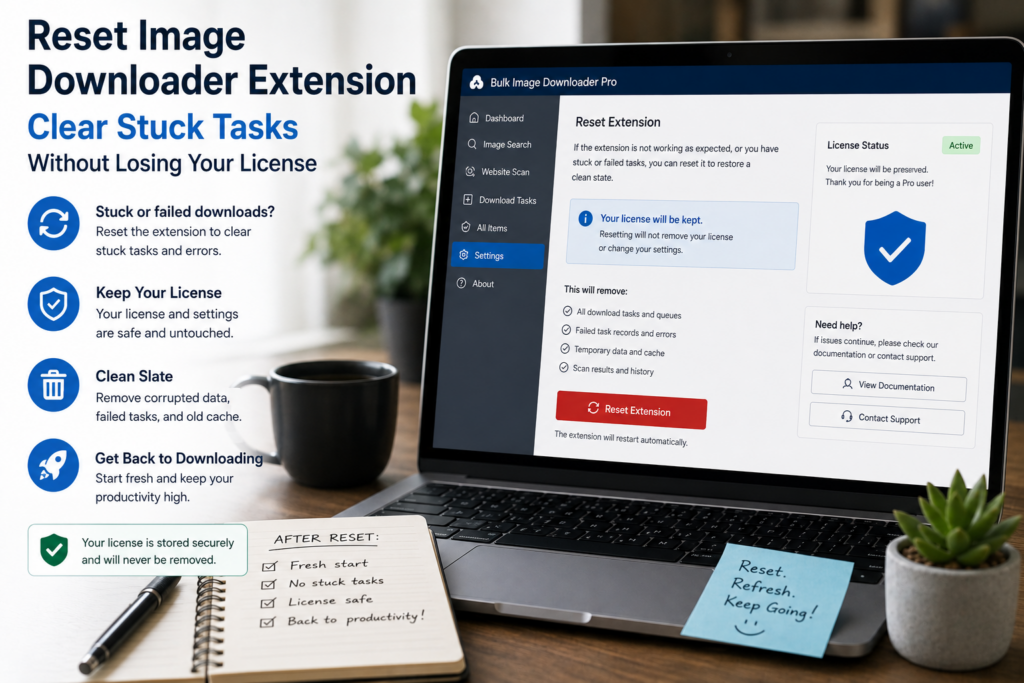
When one task misbehaves, settings feel tangled, or the options page stops responding the way it should, a full reset is sometimes faster than guessing which control caused the problem.
To reset image downloader extension state cleanly, treat it as a local data wipe with a backup plan, not a random reinstall.
What a reset actually clears
The documented reset path is remove the extension from chrome://extensions, then reinstall from the Chrome Web Store. That clears browser-local task data and extension settings stored on the device.
It does not delete your website account or purchase history. After reinstall, sign in again so Licensed PRO can reactivate on the extension.
Back up anything you want to keep
Local tasks, drafts, saved rules, and sessions live in browser storage. Before removing the extension, export what matters:
- Export Tasks to CSV as a task backup template
- Session exports to JSON if you rely on saved scraper sessions
- Notes on saved rules or custom selectors that are not already exported
Export Tasks works on all tiers. Bulk CSV re-import requires Licensed PRO.
Reset steps
- Export task CSV backups and any session JSON files you need.
- Remove Bulk Image Downloader From URL List from Chrome extensions.
- Reinstall from the Chrome Web Store.
- Sign in and confirm license status in the Get License panel.
- Re-import tasks or sessions from your backups if needed.
After reinstall, expect an empty task list. That is the point when you are trying to escape corrupted local state.
Try lighter fixes first
A full reset is the heavy option. These smaller steps often solve the issue:
- Delete only the task that is misbehaving
- Duplicate a working task and adjust settings there
- Restart Chrome to clear a temporary UI glitch
- Re-import a known-good session JSON file
When a reset is the right call
Use the clean reinstall when bad behavior survives restarts, one task cannot be repaired, or local settings no longer match what the UI shows. For routine cleanup, deleting or duplicating individual tasks is usually enough.
If license status looks wrong after reinstall, open Get License, confirm you are signed in, and complete activation again before running large PRO batches.
Continue reading: renew image downloader license.
Get Bulk Image Downloader From URL List on the Chrome Web Store, watch the tutorial video, or visit our YouTube channel for more image download workflows.
If you are doing this work repeatedly, Bulk Image Downloader From URL List keeps the URL list, filters, and download settings in one Chrome workflow.