
Bulk Download and Convert WebP Images
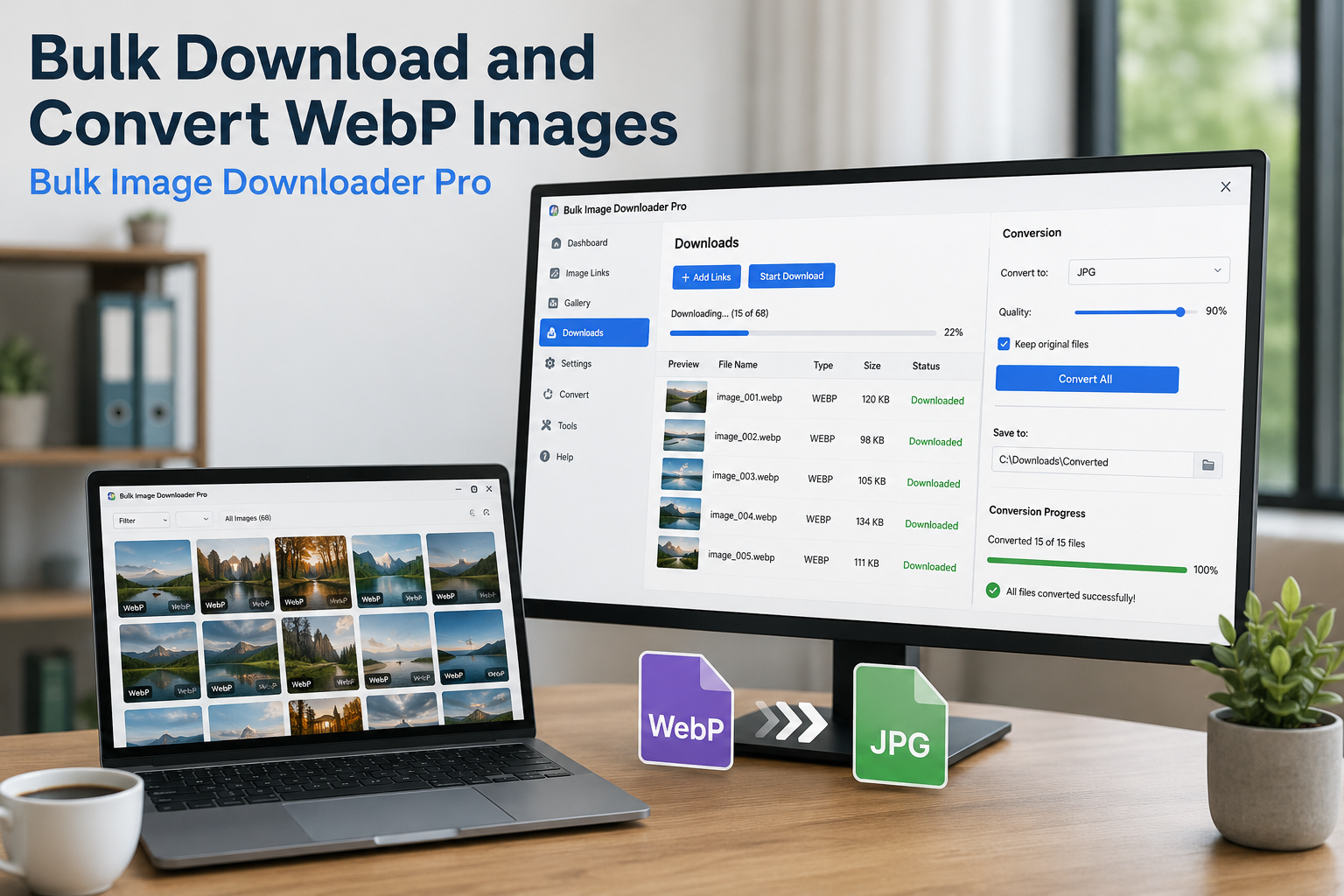
WebP is common because it keeps websites fast, but it can be awkward when your editor, CMS, print workflow, or client handoff expects JPG or PNG. Saving the files first and converting them one by one is slow when the page has dozens or hundreds of images.
Bulk Image Downloader From URL List can help you bulk download and convert WebP images from browser-accessible pages. You collect the images in the side panel, then use the options page task settings to convert supported files locally as they download.
Start by collecting the WebP images
Open the page in Chrome and use the side panel. Scan Current Page works for simple pages, while Deep Scan is better when images lazy-load as you scroll. If you have many source pages, use Bulk URL Scraping with a list of page URLs.
After scanning, use file type and dimension filters to narrow the results. Filtering to WebP and removing small thumbnails before download saves time and keeps the task clean.
Convert on the options page
Send the selected images into a task with Download Images Here or Download Selected. On the options page, enable the Convert settings, choose the target format, and set quality where available.
Supported conversion targets are JPEG/JPG, PNG, and WebP. Choose JPG for normal photos and smaller files, PNG when transparency or lossless-style output matters, and WebP when you want to standardize mixed sources into WebP.
Resize and Convert are separate choices
Resize and Convert are mutually exclusive in a task. If you enable both, the extension enforces one processing mode rather than running both together. That keeps the task predictable.
If you need both a size change and a format change, treat it as a deliberate workflow decision: run one processing pass, then create a second task for the next transformation, or choose the single operation that matters most for that batch.
Why local conversion matters
The conversion runs in the browser on your machine. You do not need to upload the images to a converter site just to get JPG or PNG output. That is useful for client work, internal assets, and any workflow where you would rather keep source URLs and image files local.
Conversion is still a re-encoding step, so use it only when the output format needs to change. If your downstream tool accepts WebP, keeping the original files may be better.
A practical WebP workflow
For a typical job, run Deep Scan, filter to WebP, remove small images, send the selected URLs to a task, choose Convert, select JPG or PNG, then save into a named folder or ZIP. If you repeat the same source type often, export the task settings to CSV or save the workflow so the next batch starts from the same setup.
When a source image is already the target format
Not every file needs converting, and one format behaves differently from the rest. AVIF can be downloaded when it is already the file type, so an AVIF source saves as AVIF. It is not a convert-to option, which means no setting produces AVIF output from another format.
The convert targets are JPEG, PNG, and WEBP. That matters for a WebP batch: if the goal is JPEG for compatibility, JPEG is a supported target and the conversion is a normal one. If the goal were AVIF, the answer is that the extension will not make it, and the plan should change rather than the setting.
Continue reading: download images in bulk while keeping quality.
This is the workflow it targets: an untidy source list in, a filtered and named download set out.