
Append or Replace Image URLs in a Task — Bulk Image Downloader Pro
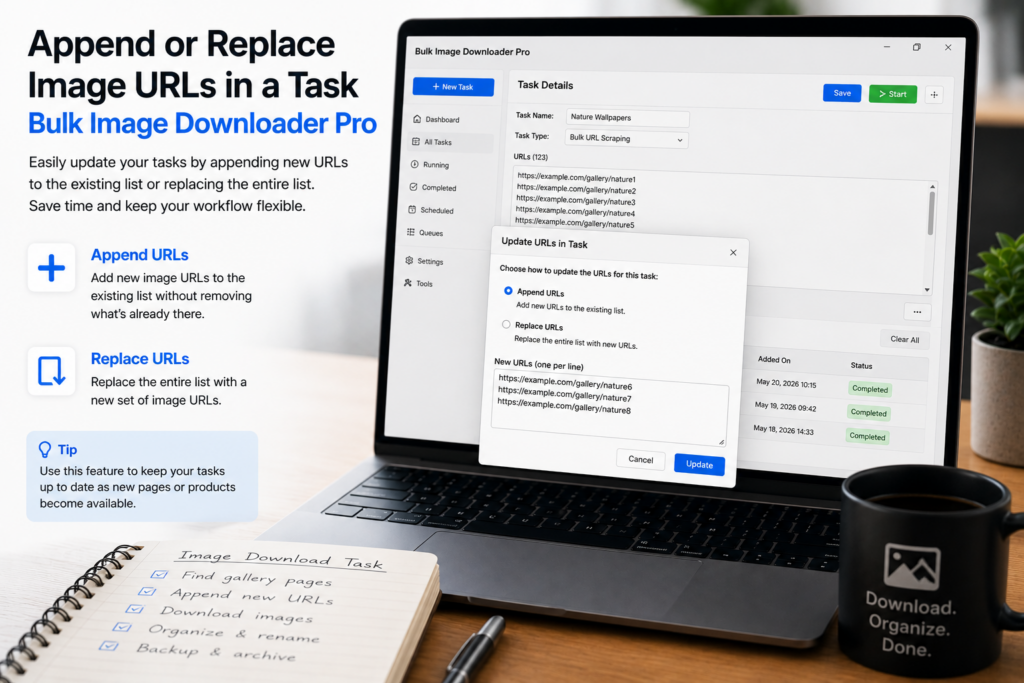
You scraped a category page at lunch and sent the URLs to a task. After a meeting you scrape page two and need those links in the same job. The question is whether to append or replace image URLs in a task. Pick wrong and you either lose work or collect the same URL twice.
Neither option is universally better. Append grows a list. Replace resets it. The right choice depends on whether the URLs already in the task are still valid.
What append means
Appending keeps every existing URL in the task and adds the new links after them. Use append when you are building one collection across:
- paginated shop or gallery pages
- several related listings that belong in one download batch
- multiple scraping sessions on the same project
Practical ways to append in Bulk Image Downloader Pro:
- turn on Stack Mode in the side panel, run scans on multiple pages, then hand off once with send scraped image URLs to a download task
- paste new URLs at the bottom of the task’s URL field on the options page when you already have a list started
What replace means
Replacing swaps the task’s URL list for a new set. The task keeps its folders, filename pattern, and other settings, but the links themselves start over. Use replace when:
- the site refreshed and old URLs are stale
- your first scan grabbed the wrong section of the page
- you want to rebuild the list from scratch without creating a brand-new task
A side-panel handoff into an empty task slot also behaves like a replace for that slot: the new URLs become the task contents.
Side-by-side comparison
- Goal: append builds a bigger list; replace gives you a clean list
- Risk: append can duplicate URLs that appeared in both scrapes; replace deletes URLs you may still need
- Best follow-up: after append, dedupe identical URLs; after replace, re-check filters and counts before downloading
- Task settings: both options leave folder and naming settings intact unless you change them yourself
Clean up after you append
Appending the same gallery twice often reintroduces identical links. Before you download:
- run the side-panel duplicate check before handoff when possible
- review the URL count on the options page after merging
- use task preview and duplicate review tools on Licensed PRO when near-identical files matter
After any handoff, the target task is marked draft and highlighted so you can verify the list before Save & Download.
A simple decision rule
Still adding valid pages to the same job? Append, then dedupe. Starting over on the links but keeping the task setup? Replace. Collecting across pages before the first handoff? Stack Mode in the scraper often beats manual merging later.
For running one task without touching the rest of your list, see download one image task at a time.
Install Bulk Image Downloader Pro and choose append or replace deliberately the next time scraper results need to land in an existing task.
Continue reading: Download One Image Task at a Time.
Get Bulk Image Downloader Pro on the Chrome Web Store, watch the tutorial video, or visit our YouTube channel for more task management tips.