
Download One Image Task at a Time
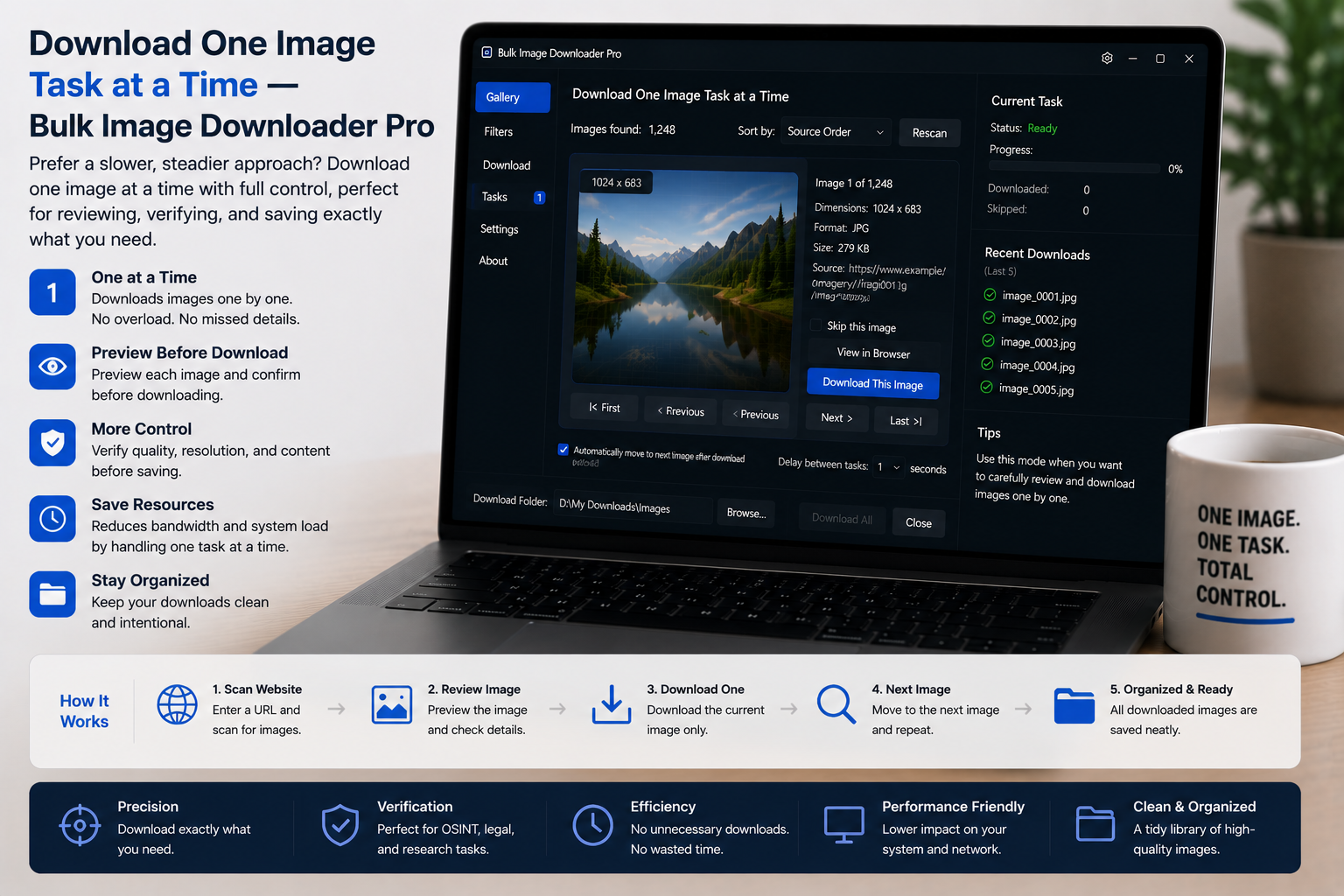
You might have eight download tasks on the options page, but only one is ready. Clicking the main Save & Download control can start more than you intend when queued mode is on or several tasks are due.
To download one image task at a time, use the per-task download button in the task header. It saves that task, runs only that download, and leaves the rest of your list alone.
Find the per-task download button
Each task row on the options page has its own download icon in the header, next to controls like duplicate and remove. That button is scoped to the task it sits on.
When you click it, Bulk Image Downloader From URL List:
- saves the current task fields first
- runs the download for that task ID only
- marks that task complete when the run finishes
Other tasks are not started, reordered, or deleted by that click.
When a single-task run helps
- Mixed readiness: one task is reviewed and ready; others are still drafts with half-built URL lists
- Settings testing: try new resize, rename, or folder rules on one batch, check the output, then adjust
- Priority delivery: a client needs one folder now while longer jobs stay queued for later
- Re-run after cleanup: you fixed broken URLs in one task and want to download it again without touching neighbors
How this differs from queued mode
Queued Download is a global toggle that runs ready tasks back to back when you start a full download pass. The per-task button is surgical: one row, one job.
You can keep queued mode configured for later and still pull a single task out of line when something is ready early. The single-task runner temporarily suppresses the queue handler so your one-off run does not collide with a sequential batch already in motion.
For the broader queued vs timed workflow, read queued vs scheduled image downloads.
Before you click
Confirm the task actually has content:
- URL mode: at least one non-empty image URL in the list
- file upload mode: at least one uploaded file attached to the task
Review folder name, file-type filters, and any PRO processing options you enabled. The per-task button respects the settings on that row, including ZIP output, auto folders, and Download IF URL rules.
Status and ordering still apply
Running one task does not change the draft or scheduled status of the others. You can still drag tasks into a new order, lock drag with Ctrl/Cmd + Shift + L, and use the status strip to see queued mode, parallel count, and license state before your next click.
If you need to merge URLs across pages before downloading, see append or replace image URLs in a task and send scraped image URLs to a download task.
Install it and use the per-task download button the next time one finished job should not wait on the whole list.
Where the start button lives in each layout
Running one task is a matter of finding the right button. In Pipeline, Download now is only on the last step, Check. In Browser it stays on the bottom bar. In Classic it is on the Download page. The steps before that configure the task; nothing runs until you reach it.
That is the usual reason a single-task run seems to do nothing after a layout switch. Since Classic, Browser, and Pipeline save identical output, you can move to the layout whose start button is visible without altering the result.
Continue reading: Queued vs Scheduled Image Downloads.