
Send Scraped Image URLs to a Download Task
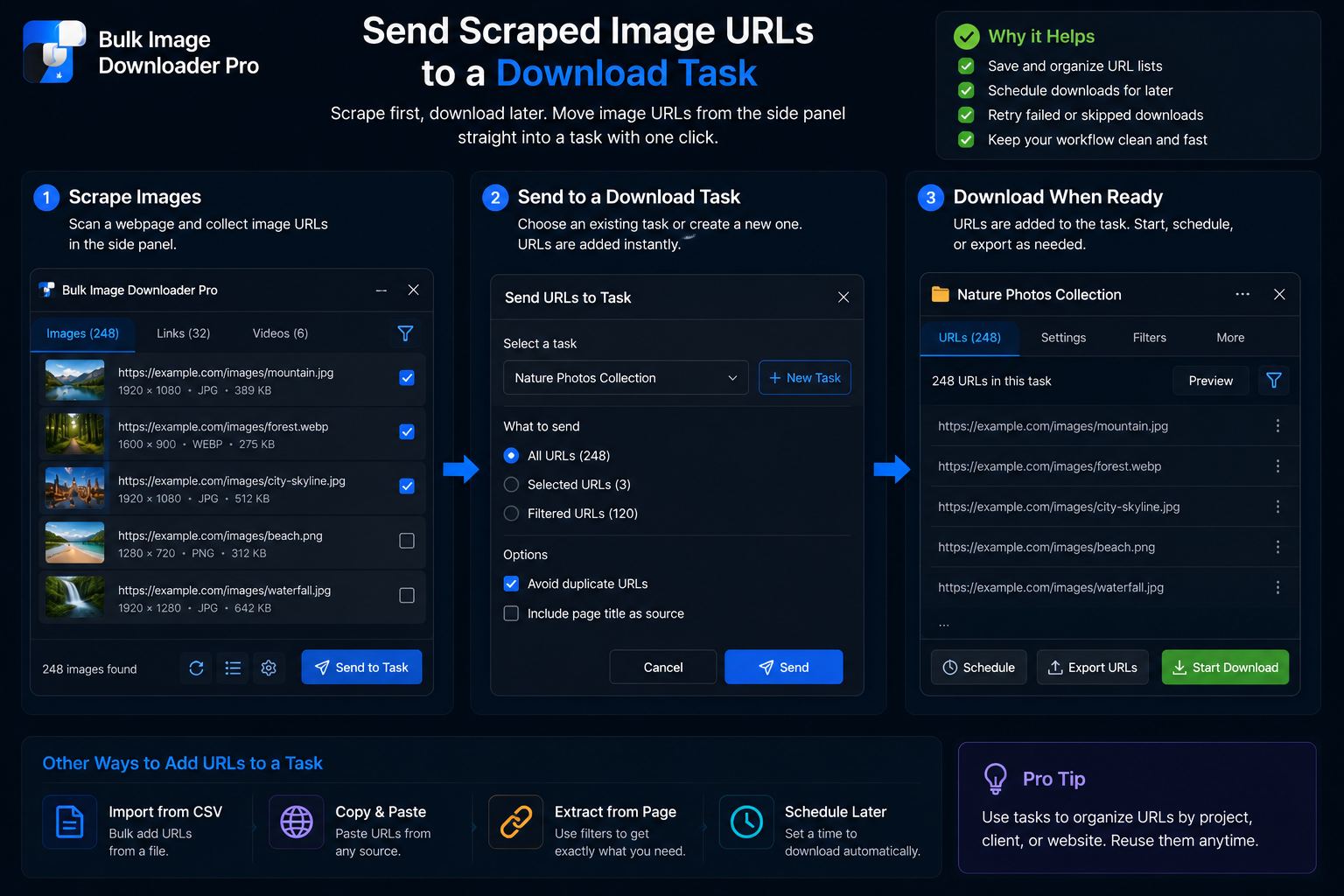
Scanning finds image URLs. A download task is where those URLs become filenames, folders, filters, and a real batch job. If you stop at the side-panel preview, you still have a list, not a finished pipeline.
To send scraped image URLs to a download task, use the handoff buttons in the side panel of the Chrome extension. The extension opens the options page, drops the URLs into a task, highlights that task, and marks it as a draft so you can review before anything downloads.
Where the handoff starts
After Scan Current Page, Deep Scan, or Area Scan, clean up the preview first:
- filter by dimensions, file type, domain, or URL text
- remove icons and placeholders you do not want
- deduplicate identical URLs in the side panel when repeats appear
Then choose how to send the list:
- Download Images Here sends every URL currently in the results
- Download Selected sends only the images you checked in the grid
Side-panel scraping is available on all tiers. Advanced task controls on the options page depend on your license.
What happens on the options page
When you click either handoff button, the extension:
- collects the image URLs from your current side-panel results
- opens or focuses the options page tab
- creates a new task or fills an empty task slot when one is available
- pastes the URLs into that task’s URL field
- scrolls to the task, highlights it briefly, and sets its status to draft
Nothing downloads automatically at this step. Draft status is deliberate: you can open Advanced Image Filter, adjust folders and filename rules, run checkers, and only then choose Draft Save or Save & Download.
Building a job across several pages
One handoff does not have to mean one page forever. Common patterns:
- Stack Mode ON: scan page one, move to page two, scan again, and let results accumulate in the side panel before a single handoff
- Separate tasks per source: hand off each page into its own task when settings should differ
- Grow an existing list: paste additional URLs at the end of a task on the options page, or read append or replace image URLs in a task when you need to merge without losing earlier links
If the extension detects a task with the exact same URL set already saved, it may ask whether to create a new task anyway or update the matching one.
After the handoff
Treat the highlighted draft as your checkpoint:
- confirm the URL count looks right
- apply task filters and naming if the batch needs structure
- remove any stragglers in preview or the URL list
- save the draft, then download when the task is ready
For the wider sequence around scanning, filtering, and export, see bulk image download workflow.
Install the Chrome extension and use the side-panel handoff the next time a scan should become a real download job instead of a throwaway URL list.
Where the count appears, and what the panel leaves alone
In Browser and Pipeline the side panel also shows a Home banner carrying the number of links found and a Create download button, so you can route a scan into a task without hunting for the options page. The count is the quickest sanity check before a handoff: if a page you know holds forty pictures reports four, the scan needs another pass, not a download.
What the panel will not do is prepare the files. It gathers, filters, and drops copies; resizing, converting, and watermarking all happen later, on the download. That split is deliberate — the panel is for deciding what belongs in the set, and the download is where those pictures are shaped for use. Hand off once the set looks right, apply the processing on the task, and keep the draft checkpoint as your last look before Save & Download.
Continue reading: Append or Replace Image URLs in a Task.