
Rename Downloaded Images Automatically — Bulk Image Downloader Pro
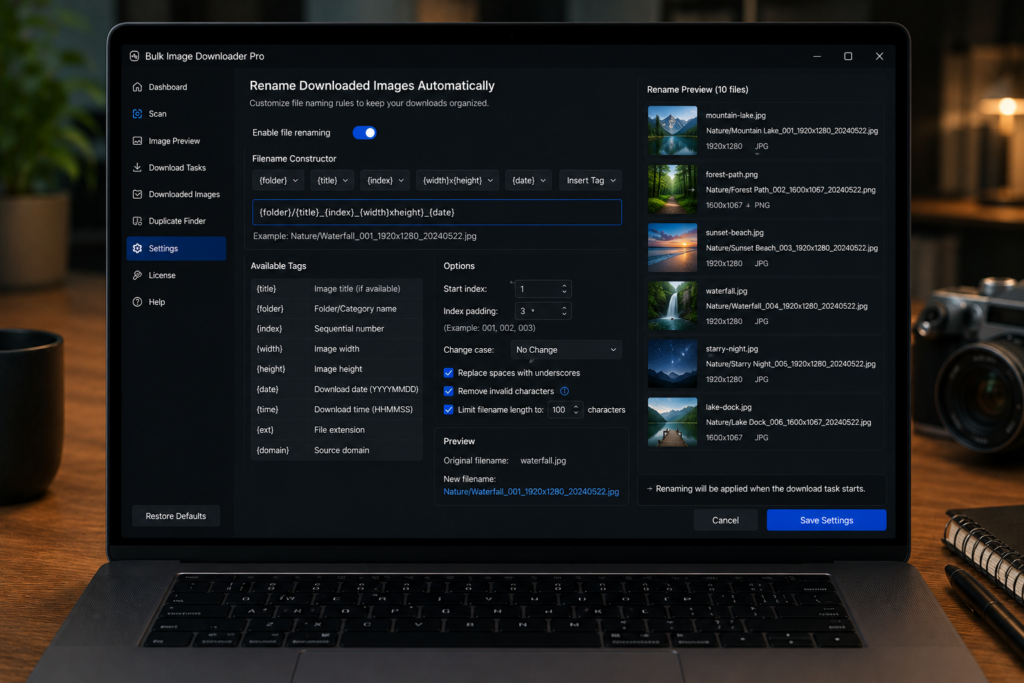
Bulk image downloads often arrive with messy filenames: hashes, repeated names, vague server labels, or names that sort badly. If you need a usable folder at the end of the job, it helps to rename downloaded images automatically while the task runs.
Bulk Image Downloader Pro includes a per-task Filename Constructor on the options page. It changes the saved filenames without changing the original URL list.
Build filenames from reusable parts
The Filename Constructor lets you assemble a naming pattern from selectable parts. Supported parts include filename, hyphen, underscore, sequence, timestamp, URL fragments, website, random string, custom filenames from file, and custom text added with Add New.
The file extension stays as the extension part, so the saved file keeps an appropriate output extension.
Use sequence numbers for sortable batches
Sequence is useful when order matters. You can set the starting number, including padded values such as 001, so files sort correctly in the folder.
This is useful for product sets, frames, tutorials, image series, or any batch where the download order should remain visible in the filenames.
Use source-based parts for mixed sources
Website and URL fragments help when one task contains images from different domains or paths. They can make filenames show where each image came from, which helps later cleanup and review.
These source-based parts are tied to URL-mode tasks. Uploaded local files do not have website or URL fragment data in the same way.
Use custom filenames when the names are already planned
Custom Filenames from File lets you upload a CSV or TXT list with one filename per line. The filenames should match the number of URLs in the task and should not include extensions, because the extension is added automatically.
This is the best option when filenames come from a spreadsheet, SKU list, client naming plan, or migration map.
Clean filenames after constructing them
Filename cleanup rules can replace or remove text from the final filename. Use them for repeated junk words, unwanted separators, or source labels that should not appear in the saved files.
Keep rules simple and test with a small task first.
A practical automatic-renaming workflow
- Enable Filename Constructor on the task.
- Add the parts that match the job: sequence, website, URL fragments, custom text, or custom filename file.
- Set a sequence start if order matters.
- Use filename cleanup rules if the output needs final polishing.
- Draft Save the task.
- Run a small sample before processing a large batch.
For spreadsheet-driven names, read rename downloaded images from CSV. For task settings around naming, see bulk download settings.