
Bulk Download Settings
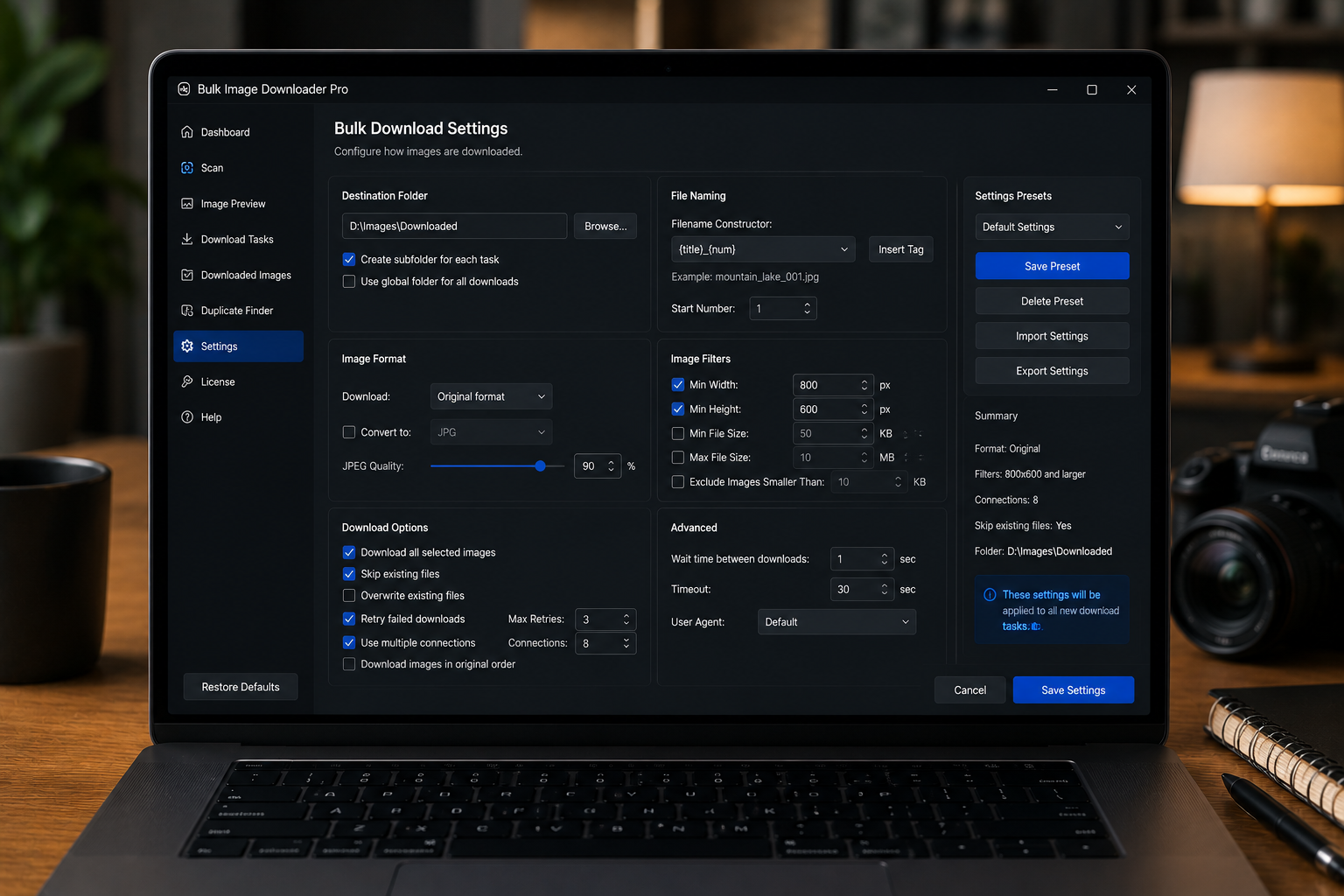
A bulk image download is only useful if the files land in the right shape, folder, and format. The URL list starts the job, but the bulk download settings decide what gets saved, how it is organized, and which rules apply to each task.
In Bulk Image Downloader From URL List, these settings live on the options page and are saved per task.
Choose which file types belong in the task
Each task can download all formats or only selected file types. The available checkboxes include common web formats such as JPG, JPEG, PNG, GIF, WebP, SVG, BMP, and many more specialized formats.
Use file type selection when the URL list contains mixed files and you only want certain formats in the final batch.
Decide between ZIP and loose files
ZIP output bundles the task?s downloaded images into an archive. Loose-file output saves files individually. ZIP is useful for handoff, archiving, and keeping a task together. Loose files are easier when you want to inspect, edit, or process files immediately after download.
Pick the output style based on what happens after the download.
Use folders to keep jobs organized
The Main Folder field gives the task a clear destination name. Domain Based Folders can sort downloaded files by source domain, while Auto folders from URL can build folder structure from URL path fragments.
These folder settings are especially helpful when one task includes images from multiple sources or a deep URL structure.
Use order and scheduling carefully
Respect Order keeps the download sequence aligned with the URL list, which can matter for numbered sequences, frames, or paged content. It may be slower than more parallel approaches.
Scheduled downloads use a date and time while queued mode runs tasks in sequence after you start the run. The UI notes that scheduling and queued mode are separate workflows, so avoid mixing them.
Add processing only when the output needs it
Tasks can also include processing options such as resize, conversion to JPG/PNG/WebP, quality controls, EXIF stripping, filename construction, custom filenames, Download IF URL rules, and watermarking.
Do not turn on processing just because it exists. Use it when the final files need a specific size, format, name, privacy cleanup, or watermark.
A practical settings workflow
- Paste or import the image URLs.
- Choose file types or leave all formats enabled.
- Decide whether the output should be ZIP or loose files.
- Set a main folder and optional auto-folder rules.
- Choose order, queue, or schedule behavior.
- Add processing and URL rules only when the job requires them.
For URL rule filtering, read download images only when URL contains text. For task setup, see duplicate image download tasks.
Store the rules once and every following URL list with the same shape is quicker to handle.
Filtering, renaming, and the final download all sit in one Chrome-based flow.
If you are still deciding whether the workflow is worth adopting, the practical benefits of bulk downloading lays out what actually changes.
The settings that are not on the task card
Two controls sit outside the download. How many at once is in Settings and governs how many pictures save at the same time inside a running download, with a default of 5. Start now is also a Settings-level choice. Browser and Pipeline put the account menu and the Start now and count chips on the top bar instead.
That split explains why these values apply to whatever runs next rather than to the task in front of you. Task-level steps describe what will be saved; these describe how the work is paced, and a high count is also what makes a site slow you down.