
Bulk Import Image Download Tasks From CSV — Bulk Image Downloader Pro
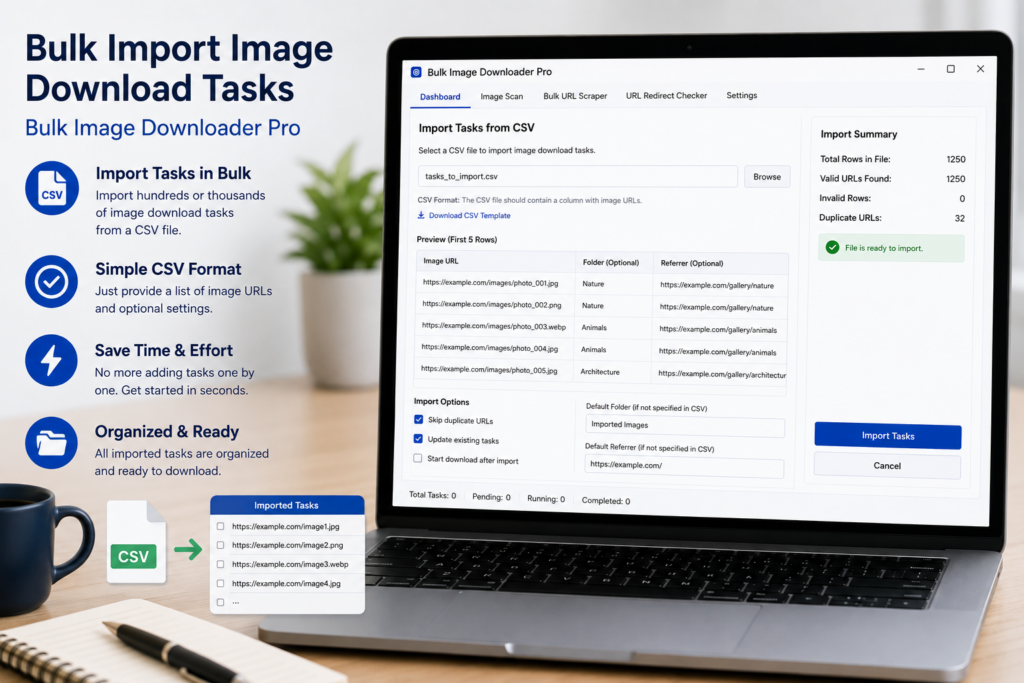
Creating one image download task by hand is easy. Creating dozens of tasks with different URL lists, folders, file types, naming rules, and processing settings is where a spreadsheet is faster. With Bulk Image Downloader Pro, you can bulk import image download tasks from CSV instead of clicking through the same setup repeatedly.
Bulk Image Downloader Pro provides a CSV import area on the options page, plus a downloadable template to start from.
Start from the CSV template
The safest starting point is the Download CSV Template link beside the import controls. The template gives you the expected columns so you do not have to guess field names or column order.
Each row becomes a separate task. The columns define the task settings: URLs, file types, folder name, ZIP output, Respect Order, filename construction, Download IF rules, resize and convert options, Strip EXIF, watermark settings, cleanup rules, and more.
Put task URLs in the right shape
For schema v4 task CSV files, multiple URLs for one task should be placed as separate lines inside the URLs cell. That keeps one task together while still allowing a long image URL list.
Older semicolon-separated URL lists can still import in some cases, but the cleaner current pattern is one URL per line inside the cell.
Use CSV for structured task building
CSV import is useful when the task plan already exists outside the extension: a spreadsheet, a supplier feed, a client list, a catalog export, or a script that generates rows.
You can duplicate a row, change folder names in bulk, paste in URL lists, or create a repeatable template for weekly work.
Know the import limits
Bulk CSV import requires Licensed PRO. Try PRO can expose the feature set but keeps strict URL limits, while Basic mode is focused on simple URL download workflows.
Local uploaded files are not portable in the same way as URL tasks. File-mode rows depend on browser-local IndexedDB keys, so when moving between browsers or machines, expect to re-upload local files.
A practical import workflow
- Download the CSV template or export an existing task board.
- Create one row per task.
- Add URLs, folders, file types, and optional processing settings.
- Keep URL-mode tasks portable by using real image URLs.
- Import the CSV on the options page.
- Review the created task cards, then Draft Save before running.
For backups and round trips, read back up image download tasks to CSV. For task-board controls, see manage bulk image download tasks.