
Back Up Image Download Tasks to CSV
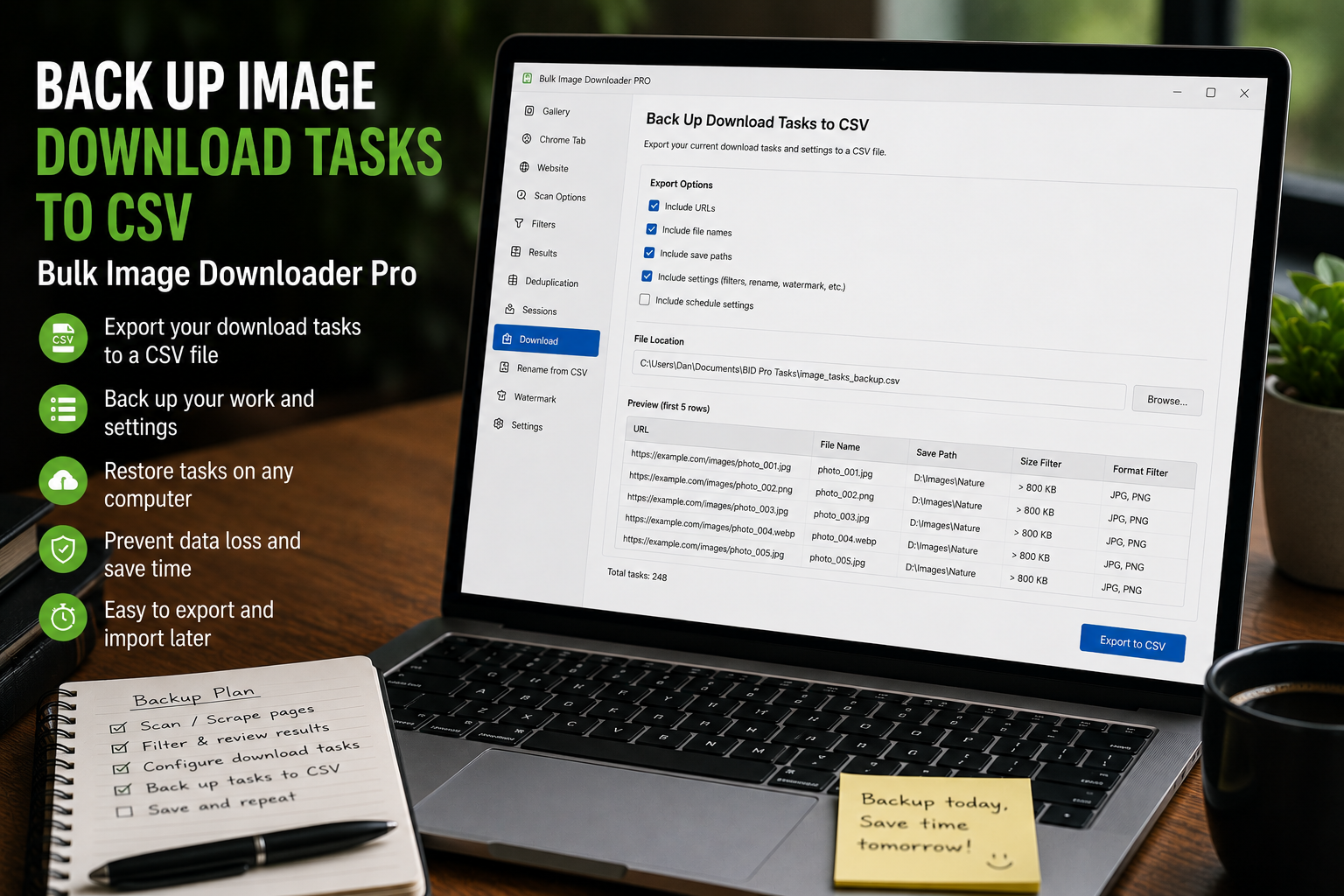
A finished task board can represent a lot of work: URL lists, folders, file type filters, ZIP choices, filename patterns, processing settings, Download IF rules, and watermark options. If you want to reuse or protect that setup, it makes sense to back up image download tasks to CSV.
Bulk Image Downloader From URL List includes Export Tasks and CSV Import on the options page for task-level backup and restore.
Export Tasks creates a task backup
Export Tasks writes the current task list to a CSV file. The export uses schema version 4 and includes columns for URLs, file types, folder name, download time, ZIP setting, Respect Order, auto-folder settings, Filename Constructor data, sequence settings, Download IF rules, convert and resize settings, Strip EXIF, custom filenames, watermark settings, filename cleanup, task status, task ID, input mode, and more.
URLs are stored as newline-separated values inside the CSV cell, which keeps one task together even when it contains many image URLs.
Use exports before risky edits
A CSV backup is useful before major changes: importing new tasks, editing many folders, changing filename rules, switching processing settings, or rebuilding a task board after testing.
If a change goes badly, you have a structured copy of the task setup to refer back to.
Edit task setups in a spreadsheet
CSV is also useful because spreadsheet tools are good at bulk edits. You can duplicate rows, change folder names across many tasks, adjust file type columns, or prepare similar jobs faster than clicking through each task manually.
Use the exported header as the safest template because the importer expects the schema’s column names.
Know what CSV can and cannot move
CSV is excellent for URL-mode tasks and task settings. File-mode tasks that depend on local uploaded files use browser IndexedDB references, so those uploads are not fully portable between browsers or machines. Re-upload local files when needed.
The importer can warn when newer schema fields or missing file keys cannot be restored exactly.
A practical backup workflow
- Build or import your tasks.
- Draft Save the current task board.
- Click Export Tasks and keep the CSV backup.
- Edit a copy of the CSV if you need spreadsheet changes.
- Use Import to bring the task rows back when needed.
- Review imported task cards before running downloads.
For building task CSV files, read bulk import image download tasks from CSV. For managing task boards, see manage bulk image download tasks.
Same process throughout: gather URLs, filter the unneeded, download only useful files.
Regular use is where Bulk Image Downloader From URL List pays off: it puts the URL list, filters, and settings in one Chrome workflow.
Your tasks already stay on this machine
The extension keeps downloads, drafts, and AI files on the computer, and the service does not record what you download; signing in is only used to check your license. A CSV backup is therefore an extra safety copy of setup data, not the only place that setup exists.
What the backup protects against is a local change, such as editing a task and wanting the earlier version back. Because drafts stay local, clearing data in the current Chrome profile removes them, while Incognito and other profiles keep their own copies. Export before a destructive edit and the task shape is recoverable without recreating it by hand.