
Image Download Task Management — Essential Bar and Toolbar
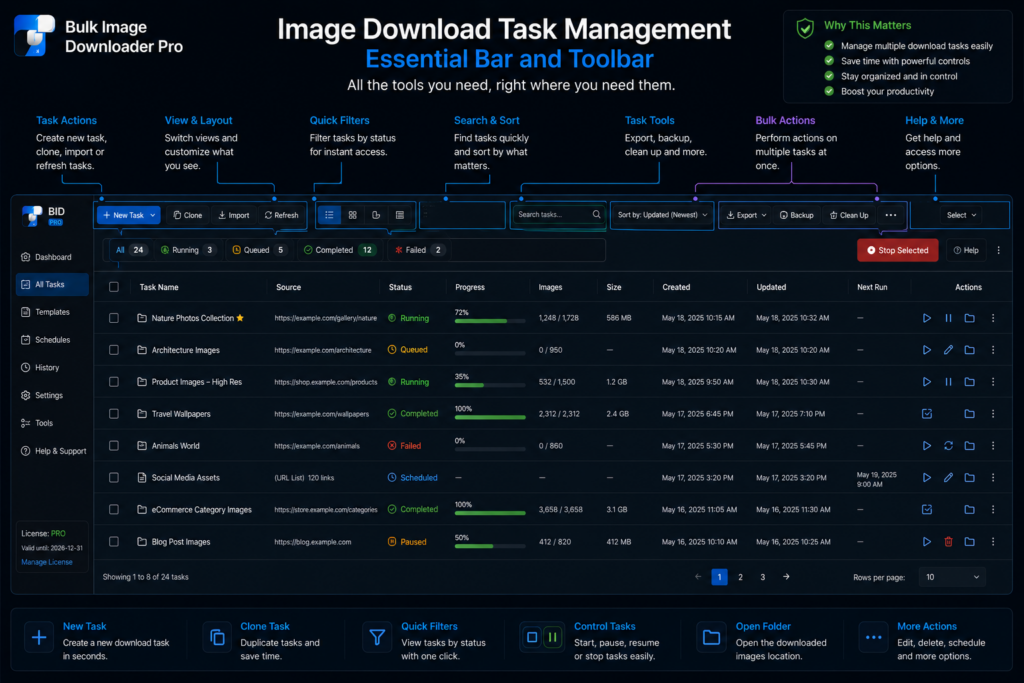
Large jobs rarely stay on one list. You split sources into tasks, reorder them, save progress, and check whether queued mode is on before you hit download. To manage image download tasks without digging through panels, Bulk Image Downloader Pro keeps the important controls on the options page surface.
The essential info bar
Collapse the main controls with Hide Controls and the essential info row stays visible. It mirrors the settings that change how the next batch behaves:
- Parallel Downloads — current concurrency (1—100 for Licensed PRO)
- Queued — ON or OFF for queued download mode
- License and Ends — your tier and expiration when logged in
Quick actions on the same row include Lock Drag, Draft Save, Export Tasks, dark mode, and login/logout. Lock and dark mode sync with their main toggles, so the readout matches the real state.
Docked toolbar actions
On the main options tab, a docked toolbar stays at the bottom with high-frequency controls:
- Save — draft save (same as Draft Save All)
- Remove all tasks — clear the task list after confirmation
- Stop — appears during active downloads to halt the session
Use this bar when you are editing tasks and want save or cleanup one click away.
Creating and organizing tasks
Create Task(s) adds new download tasks to the page. Drag handles reorder tasks when drag is unlocked; Lock Drag prevents accidental reshuffles on long lists.
Keyboard shortcuts speed up housekeeping: Ctrl/Cmd + Alt/Option + N for a new task, Ctrl/Cmd + Shift + Up/Down to move between tasks, and Ctrl/Cmd + Backspace to remove the active task. See image downloader keyboard shortcuts for the full map.
Queued mode and parallel count together
These two settings interact, so seeing them side by side matters:
- Queued Download runs pending tasks in sequence when enabled. It conflicts with scheduling; turning one on turns the other off.
- Parallel Downloads controls how many files fetch at once inside a running download (up to 100 on Licensed PRO).
Glance at the essential bar before a large run: queued ON for orderly task sequence, parallel set to a sensible starting range (often 5—10). Toggle queued with Ctrl/Cmd + Shift + Q.
License state explains behavior
The license readout clarifies limits before you troubleshoot:
- Basic download-only mode focuses on downloading with tighter caps
- Try PRO unlocks full task options but caps parallel downloads and per-task URLs
- Licensed PRO removes those caps for production batches
If advanced tabs are tier-locked or parallel count clamps down, the strip usually tells you why.
Where this fits the wider workflow
Draft save protects in-progress work. Export Tasks backs up configuration. Create and reorder tasks when sources should stay separate. For a deeper walkthrough of task fields and CSV import, see task management in Bulk Image Downloader.
Install Bulk Image Downloader Pro and treat the essential bar as your pre-flight check before every batch.
Continue reading: Best Parallel Download Setting.
Get Bulk Image Downloader Pro on the Chrome Web Store, watch the tutorial video, or visit our YouTube channel for more task-management tips.