
Watermark Placement and Opacity — Bulk Image Downloader Pro
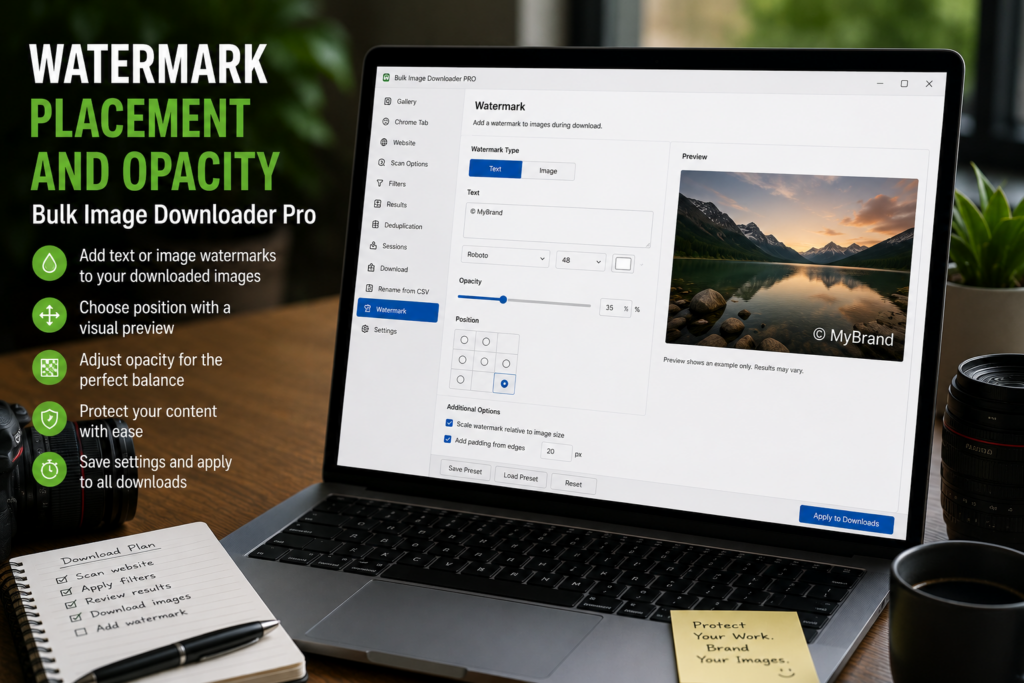
A watermark can look intentional, or it can look like an afterthought. The difference usually comes down to watermark placement and opacity: where the mark sits, how visible it is, and whether its size works across different images in the same batch.
Bulk Image Downloader Pro gives you these controls on the Watermark tab before you apply the saved settings to a download task.
Start with a representative sample image
Use a background image that looks like the batch you plan to process. If most of your files are product photos on light backgrounds, test with that. If they are mixed screenshots, catalog images, or photography, use a sample that exposes the same contrast problems.
A watermark that looks good on one dark image may disappear on a light batch.
Choose one of nine positions
The position control uses nine anchors: top left, top center, top right, middle left, center, middle right, bottom left, bottom center, and bottom right.
Corner placements are usually best for subtle branding. Center placement is more assertive and harder to crop out, but it can distract from the image. Edge-center positions can work for wide logos or consistent catalog layouts.
Set opacity for the job, not just the logo
Opacity runs from 0 to 100. Lower opacity keeps the image readable, while higher opacity makes the mark more obvious. The right value depends on the logo, background contrast, and whether the goal is subtle branding or stronger proofing.
Do not assume one opacity is right forever. Preview the mark against the kind of images in the batch.
Use margin and max size for consistency
Margin sets the distance from the edge for anchored positions, so a logo does not sit directly on the border. Max watermark size limits how large the PNG can become relative to the main image.
These settings are especially important when a batch mixes small thumbnails and large images. They help the watermark stay proportional instead of overwhelming smaller files.
Preview before saving the workflow
Preview Watermark shows the result on the sample image. Download Result lets you save one test image for full-size inspection. Once the settings look right, they are stored for use by task-level watermarking.
After that, the download task decides whether the saved watermark settings are applied to a real batch.
For the full setup process, read watermark images on download. For batch delivery cleanup, see strip EXIF metadata on download.