
Strip EXIF Metadata On Download
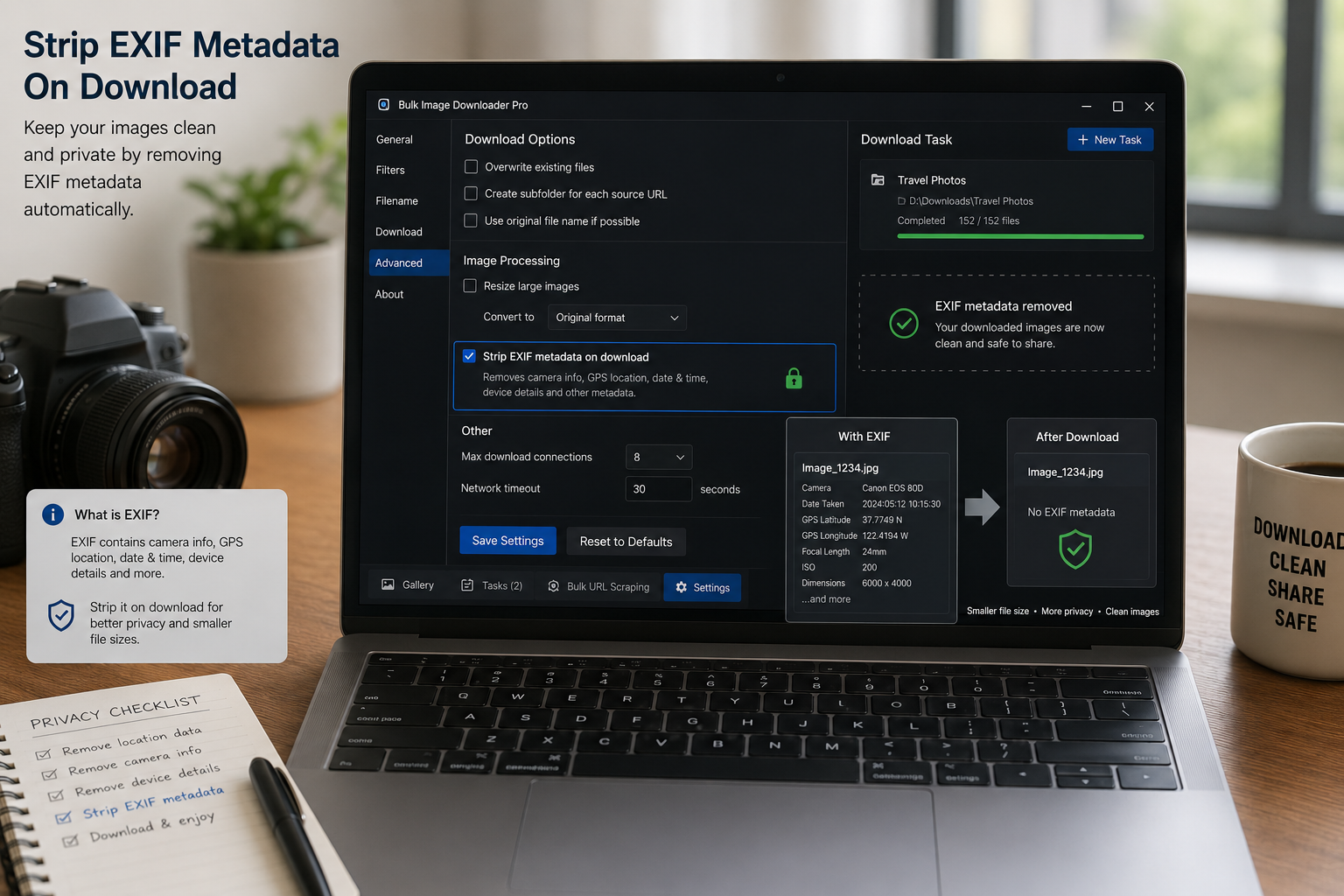
Photos can carry information that is not visible in the image itself. Camera model, capture time, orientation data, and sometimes location metadata may travel with a file. If you are saving images for publishing, sharing, or client delivery, it can be useful to strip EXIF metadata on download instead of cleaning files later.
Bulk Image Downloader From URL List includes a Strip EXIF Data toggle on each download task in the options page.
What EXIF stripping does in this workflow
The extension removes metadata by re-encoding supported image files through the browser canvas pipeline. That means the saved output is a new image file rather than the exact original binary with metadata attached.
This is most useful for common web image formats such as JPEG, PNG, and WebP. It is not a forensic metadata editor for every possible file type.
Use it for privacy and cleaner sharing
EXIF data can contain details you may not want to publish with a batch: camera information, timestamps, editing history, orientation fields, and sometimes GPS coordinates. Stripping metadata helps reduce that exposure before the image reaches your final folder.
It is especially sensible for images going to websites, marketplaces, client previews, public folders, or social media workflows.
Turn it on per task
Strip EXIF Data is a task setting. Enable it on the task that needs metadata cleanup, then run the download normally. Other tasks can keep original metadata if you are archiving source files and want to preserve camera details.
This per-task control matters because privacy-cleaned delivery files and untouched archive files are often different jobs.
Know how it relates to resize and convert
Resize and convert operations also re-encode images through canvas, which naturally drops embedded metadata in the processed output. When you only need metadata cleanup without resizing or changing format, the Strip EXIF toggle gives you a direct cleanup path.
Use resize when the dimensions must change, convert when the format must change, and Strip EXIF when the main job is metadata cleanup.
A practical EXIF cleanup workflow
- Paste or import the image URLs into a task.
- Choose file type filters and folder settings.
- Enable Strip EXIF Data for the task.
- Add resize, convert, or watermark settings only if the final files need them.
- Run a small sample and inspect the output before processing a large batch.
For format changes, read convert image format on download. For branded delivery files, see watermark images on download.
If you are doing this work repeatedly, Bulk Image Downloader From URL List keeps the URL list, filters, and download settings in one Chrome workflow.
Because it works inside Chrome, filtering, renaming, and downloading all happen without switching apps.
Checking the result without leaving the task
Once the batch saves, View Files is the place to inspect what the task produced before you treat the run as finished. Because downloads stay on the computer, checking there is a local action, and the files go to Chrome’s Downloads folder as loose files or one ZIP with a name shown on the download.
It is worth a spot check after a stripping pass, since the option applies across a whole batch rather than per file. Opening one or two outputs confirms the processing ran as intended, and if something is wrong, the source list and task are still intact to run again.