
Apply PNG Watermarks On Download
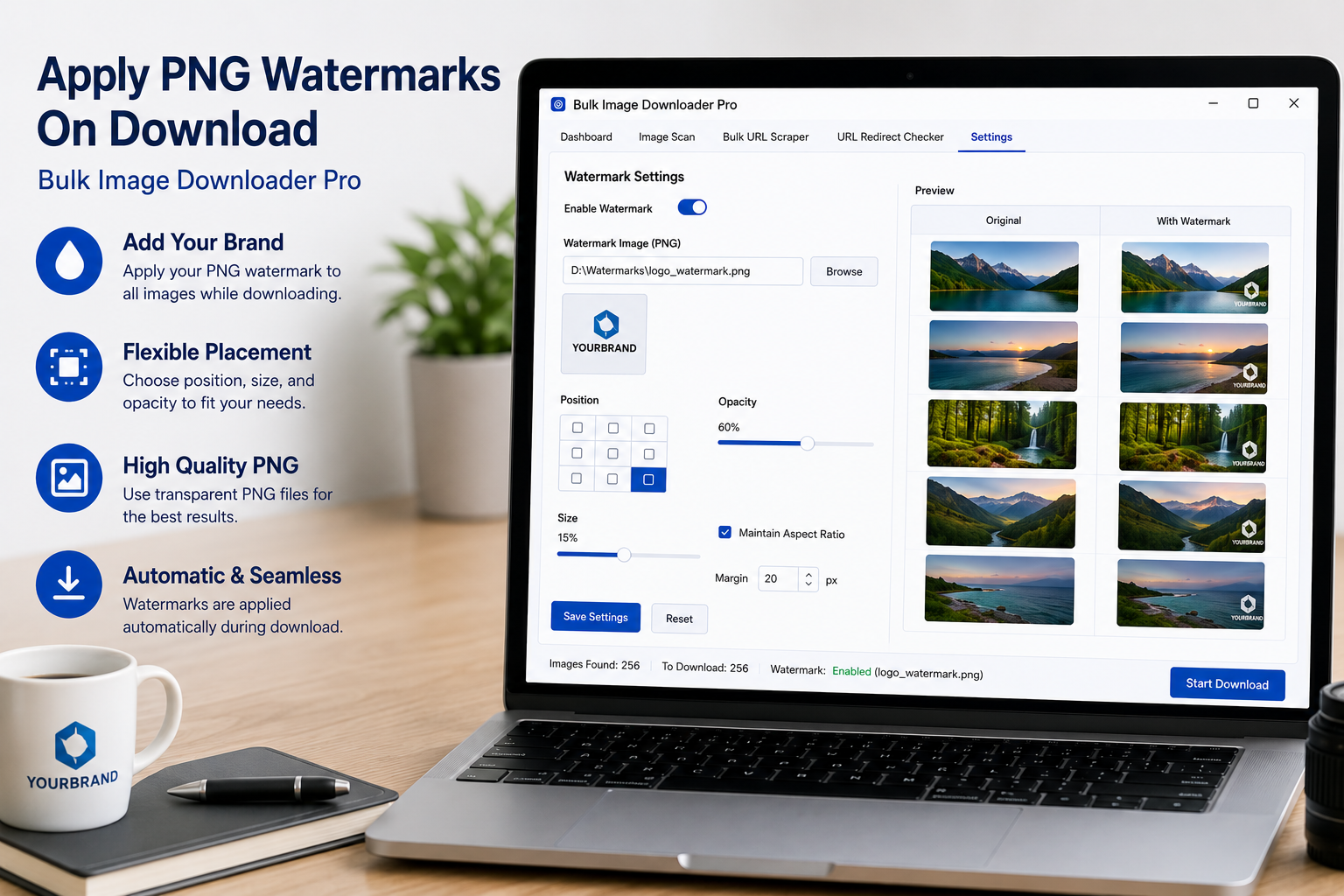
Adding a logo to a few images by hand is manageable. Adding it to a full download batch is not. If every file needs the same mark, it is faster to watermark images on download so the saved files are already branded when the task finishes.
Bulk Image Downloader From URL List uses a two-part workflow: prepare the PNG watermark on the Watermark tab, then enable Watermark on the download task that should use those settings.
Prepare the watermark first
The Watermark tab is for setup and preview. Upload a sample background image, then upload the watermark image as a PNG. PNG is important because transparent logos can sit over the image without a solid box behind them.
From there, you can set position, opacity, margin, and maximum watermark size before applying the settings to a real batch.
Preview before running a task
Use Preview Watermark to see the composite on the sample image. Download Result saves a single preview file if you want to inspect the result at full size.
This step helps catch problems before they affect a long task: a logo that is too large, too faint, too close to the edge, or hard to see against common backgrounds.
Enable Watermark on the task
The Watermark tab saves the settings, but it does not apply them by itself. To stamp a batch, turn on the Watermark toggle inside the download task.
That distinction prevents accidental watermarking. You can prepare the logo once and decide task by task whether a particular batch should use it.
Use watermarking responsibly
Watermarking is useful for files you own, client proofs, internal previews, marketplace drafts, and branded asset delivery. It is not permission to reuse someone else’s copyrighted images.
Use it when the mark supports a legitimate workflow, not as a way to claim ownership over images you do not have rights to use.
A practical watermark workflow
- Open the Watermark tab.
- Upload a representative sample background image.
- Upload a transparent PNG logo or watermark.
- Adjust position, opacity, margin, and max size.
- Preview and download a test result.
- Enable Watermark on the task that should apply the saved settings.
For finer tuning, read watermark placement and opacity. For privacy cleanup before delivery, see strip EXIF metadata on download.
Once your rules are set, they are reused the next time a similar URL list comes up.
Using the extension, you can preview, filter, and export without bouncing between browser tabs and desktop tools.
Why a watermark task can refuse to start
A download will not save with watermark turned on until a watermark image is set. That is the most common reason a task looks ready but produces nothing: the toggle is on and the image field is empty. Set the PNG first, then decide where it sits, how see-through it is, and how big it is.
There are two places to build it. You can design the watermark on the Watermark tab in Classic, or in the watermark side panel, and both produce the same setup. Whichever you use, the preview runs on a sample picture before it touches a task, so you can settle position and opacity against a real image rather than guessing.