
Convert Image Format On Download
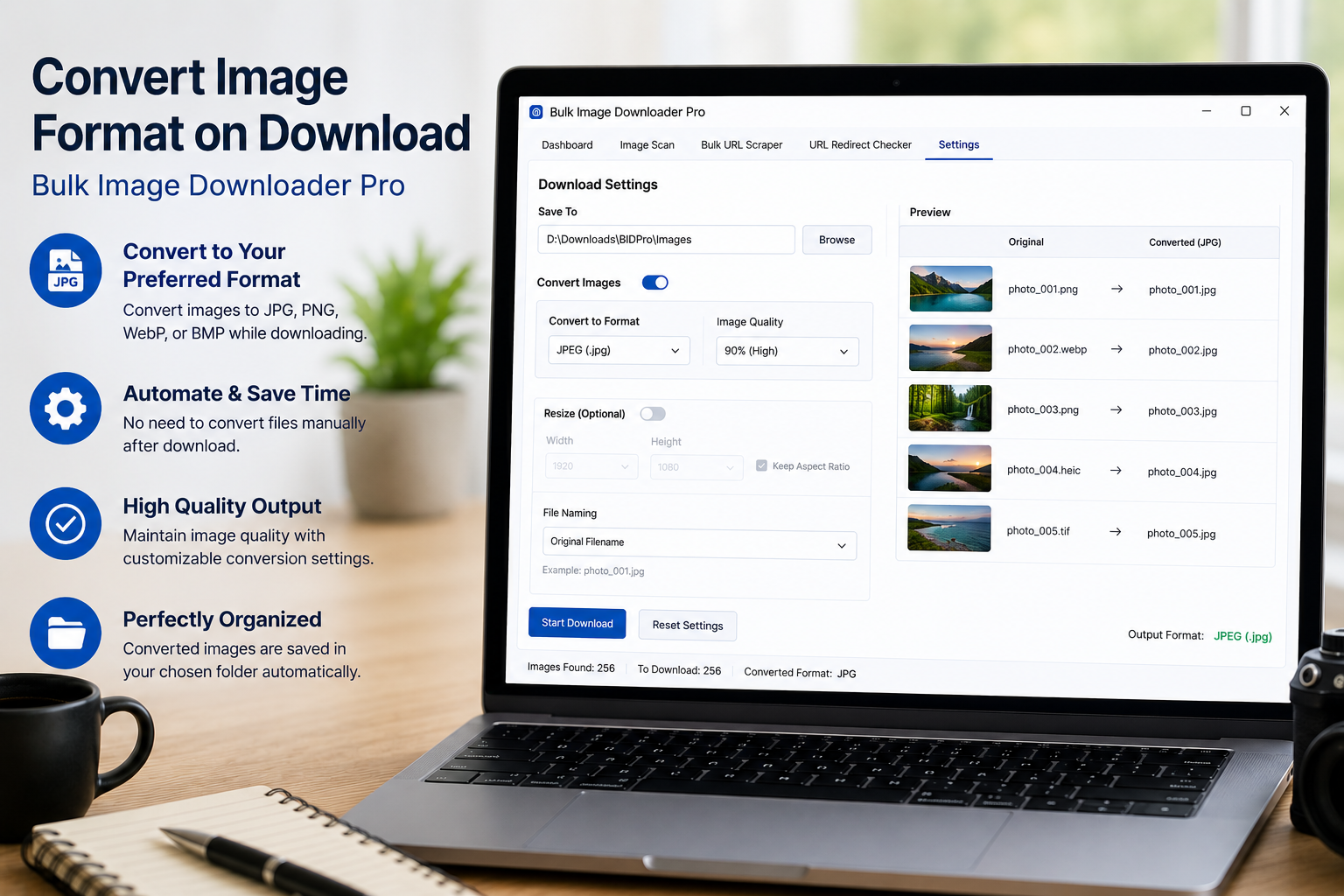
A scraped image list often contains a mix of JPG, PNG, WebP, and other source URLs. If your project needs one final format, a separate conversion pass slows everything down. With Bulk Image Downloader From URL List, you can convert image format on download so the saved files land closer to the format you actually need.
The Convert option is configured per task on the options page, alongside download settings, filename controls, and other processing options.
Choose the target format
The supported conversion targets are JPEG, PNG, and WebP. JPEG is widely compatible for photos. PNG is useful when you need lossless output or transparency support. WebP is a strong choice for modern websites that need smaller image files.
Do not treat this as an all-format converter. The output choices are the practical browser-supported formats exposed by the extension.
Use quality settings deliberately
The quality control lets you balance file size and visual quality. Higher quality can preserve more detail but usually creates larger files. Lower settings can reduce file size but may introduce visible compression artifacts.
For important images, test a few settings on a small sample before converting a long list.
Convert when size does not need to change
Convert is best when the dimensions are already acceptable and the problem is the file type. For example, you may want a batch of mixed PNG and JPG files saved as WebP for a site migration, or a set of WebP images saved as JPEG for a tool that does not accept WebP.
If the images also need resizing, use the resize workflow with an output format or split the job into separate steps.
Know the resize and convert relationship
Resize and Convert are separate task modes. The extension keeps them mutually exclusive on a single task so the processing path stays predictable.
That matters when you are building repeatable tasks. Decide whether the job is primarily a dimension problem or a format problem before turning on processing.
A practical conversion workflow
- Paste or import the image URLs into a task.
- Choose the file type filters you want for the source list.
- Enable Convert for the task.
- Select JPEG, PNG, or WebP as the target format.
- Set quality based on the final use case.
- Run a small sample before processing the full batch.
For dimension changes, read resize images on download. For privacy cleanup after re-encoding, see strip EXIF metadata on download.
For a repeatable setup, save the rules once in Bulk Image Downloader From URL List, then reuse them the next time you face a similar URL list.
Bulk Image Downloader From URL List keeps this workflow inside Chrome so you can filter, rename, and download from one place.