
Duplicate Image Download Tasks
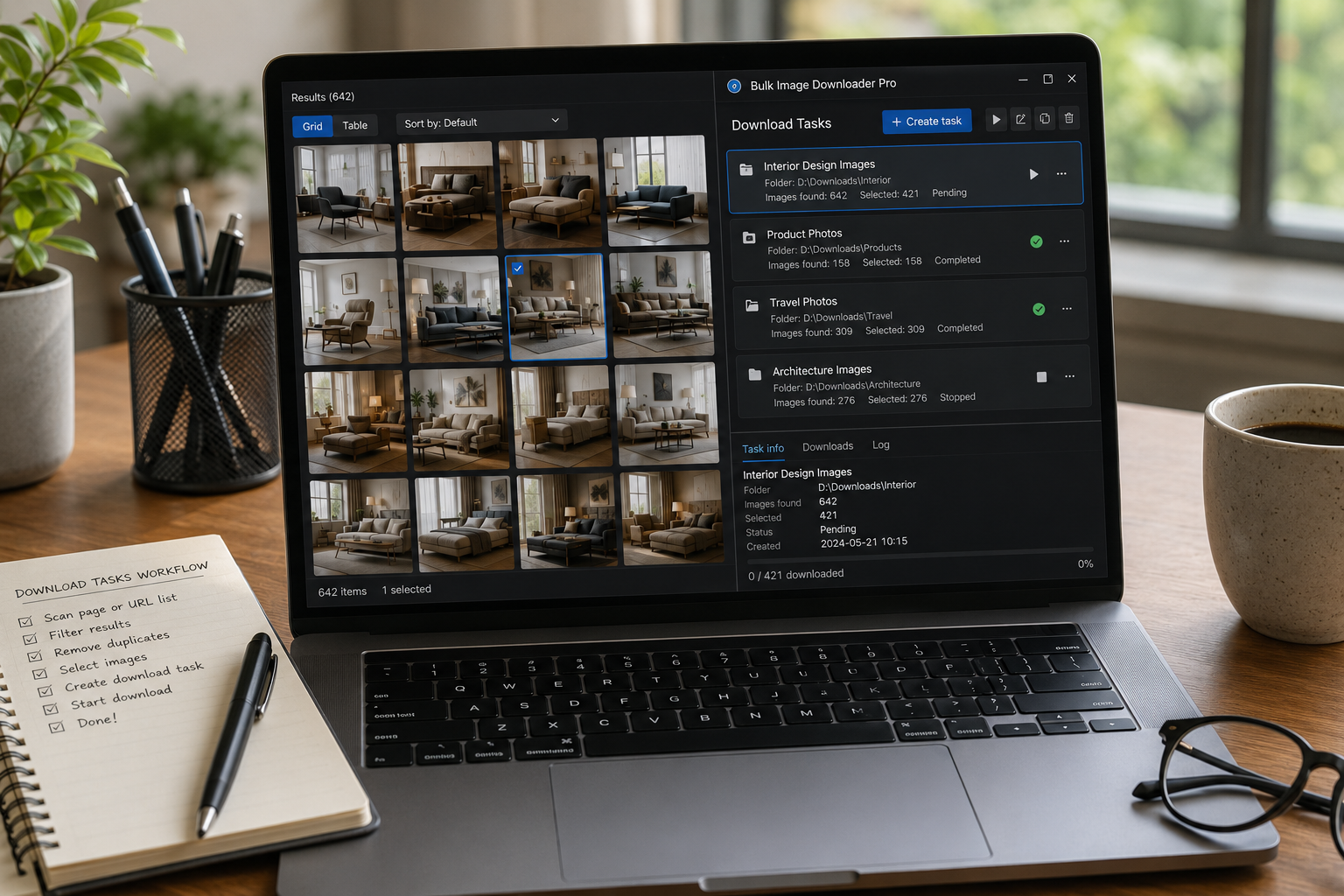
When two image download jobs need almost the same setup, rebuilding everything from scratch is wasted time. If the folder rules, file types, naming, conversion, watermarking, and schedule are already right, it is faster to duplicate image download tasks and change only what is different.
Bulk Image Downloader From URL List handles this on the options page, where each task is a separate download job with its own URL list and settings.
Use tasks to keep jobs separate
A task is more than a box of URLs. It carries its own download settings, folder name, file type selection, ZIP choice, order setting, processing options, and other per-task controls.
Use separate tasks when different image lists need different folders, settings, schedules, or cleanup rules.
Duplicate a task when the setup is already right
The duplicate task control clones an existing task and gives the copy a new task ID. That is useful when you want the same setup for a related image list, a second supplier, another category, or a new batch from the same source.
After duplicating, review the copied URL list and settings before running it. A duplicate task is a starting point, not a finished check.
Do not confuse task duplication with duplicate image cleanup
Duplicating a task copies the task setup. It does not mean you are finding duplicate images. Duplicate URL cleanup is a separate step inside the task, where the URL count can warn you about repeated links.
Use Strip Duplicates to remove repeated URLs from a task list, or Download Duplicates when you want a record of repeated URLs before deleting anything.
Reorder and run tasks intentionally
Tasks can be reordered when dragging is unlocked. Lock Drag helps prevent accidental moves once the order is correct. You can run the full queue with Save & Download, or use Download This Task Only when one task needs to run by itself.
This matters when one large project contains several batches with different priorities.
A practical task duplication workflow
- Create and configure one task carefully.
- Draft Save the setup before copying it.
- Duplicate the task for a similar image list.
- Replace or edit the URLs in the copy.
- Check duplicate URL warnings and strip repeats if needed.
- Reorder tasks, then run one task or the full queue.
For broader task controls, read manage bulk image download tasks. For output settings, see bulk download settings.
This follows the same shape: collect URLs, discard the noise, download the useful files only.
Because it works inside Chrome, filtering, renaming, and downloading all happen without switching apps.
Where the files actually land
Duplicating a task is only half the picture; you also need to know where its output goes. Files save to Chrome’s Downloads folder, either as loose files or as one ZIP. The download itself shows the folder or ZIP name, so you always have a way to trace which task produced which set.
That label is the useful part when you run near-identical tasks. Two duplicates with the same naming rules can otherwise produce near-identical folders, and the ZIP or folder name shown against the download is what tells them apart. Rename or repackage deliberately if you plan to compare them side by side.